
AI Settings
AI Settings allow you to integrate artificial intelligence capabilities into your Webifly AI application. You can choose from various AI providers to power intelligent features across your websites.
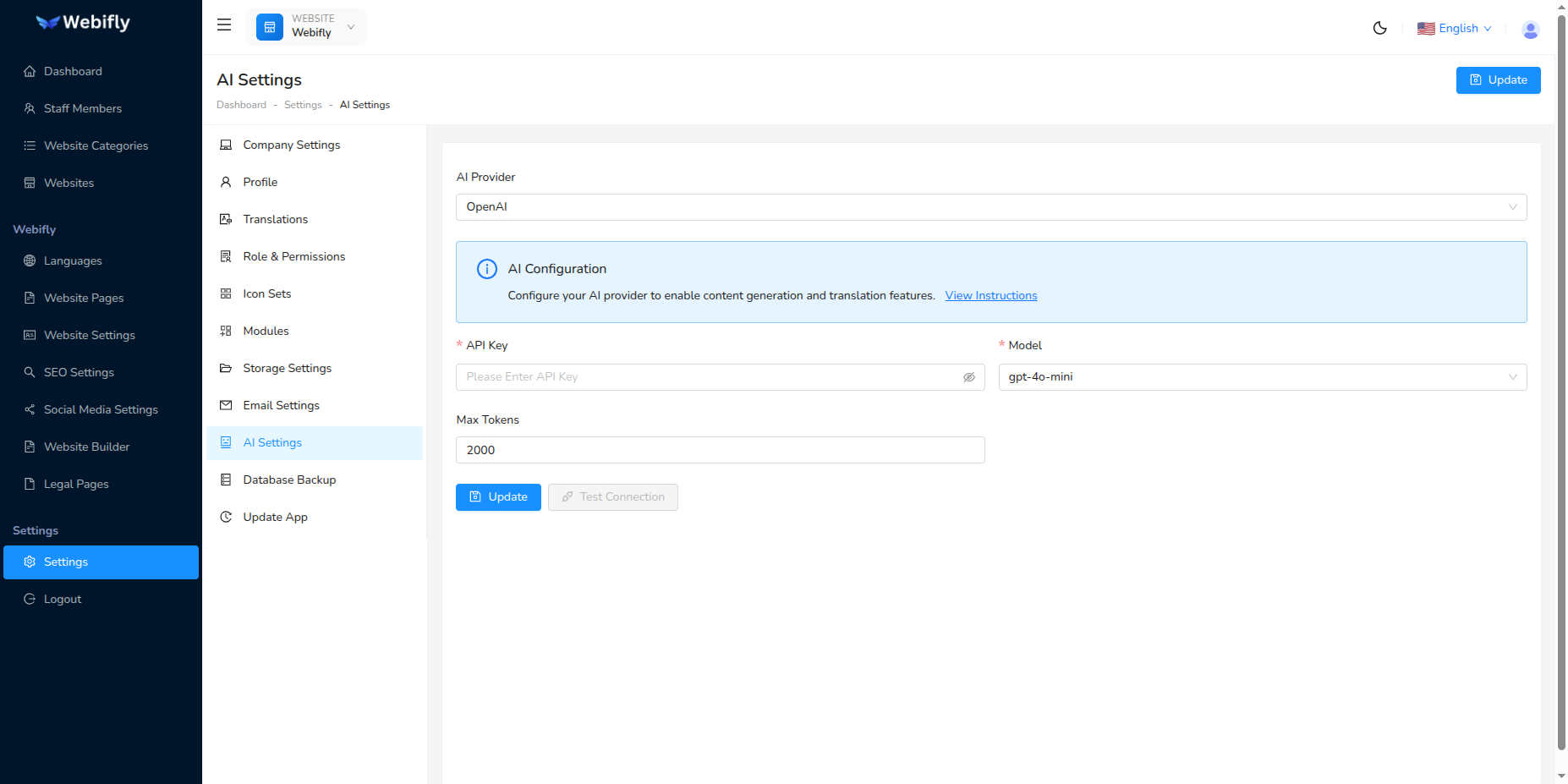
Accessing AI Settings
Navigate to Settings → AI Settings from the admin panel sidebar to configure your AI provider.
Selecting an AI Provider
Webifly AI supports multiple AI providers, allowing you to choose the best option for your needs:
OpenAI
- Industry-leading AI models including GPT-5.2 and GPT-4.1
- Best for: High-quality text generation, conversation, and content creation
- Requires: API key from OpenAI Platform
- Popular models: GPT-5.2, GPT-5 Mini, GPT-5.2 Pro, GPT-4.1, GPT-5 Nano
Claude (Anthropic)
- Advanced AI assistant with strong reasoning capabilities
- Best for: Long-form content, detailed analysis, and safe AI interactions
- Requires: API key from Anthropic Console
- Popular models: Claude Opus 4.5, Claude Sonnet 4.5, Claude Haiku 4.5, Claude 3.5 Sonnet, Claude 3.5 Haiku
Perplexity
- AI search and answer engine with real-time information
- Best for: Research, fact-checking, and up-to-date information
- Requires: API key from Perplexity AI
- Popular models: Sonar Pro, Sonar, Sonar Reasoning Pro, Sonar Reasoning
Configuring Your AI Provider
Step 1: Select Provider
- Go to Settings → AI Settings
- From the Provider dropdown, select your preferred AI provider
- Choose "None" to disable AI features
Step 2: Enter Configuration Details
For all AI providers, you'll need to configure the following:
API Key (Required)
- Your authentication key from the provider
- Keep this secure and never share it
- Get your API key from the provider's platform
Model (Required)
- Select from the dropdown list of available models
- Each model has different capabilities and pricing
- Default models:
- OpenAI: gpt-5.2 (Latest, Best for Coding & Agents)
- Claude: claude-sonnet-4-5-20250929 (Recommended)
- Perplexity: sonar-pro (Best Quality)
Max Tokens (Optional)
- Maximum number of tokens for AI responses
- Range: 100 - 8000 tokens
- Default: 2000 tokens
- Higher values allow longer responses but cost more
Setup Instructions by Provider
Click View Instructions link in the configuration panel to see detailed setup guides for each provider.
OpenAI Setup
Step 1: Create OpenAI Account
- Visit platform.openai.com
- Sign up or log in to your account
Step 2: Generate API Key
- Navigate to API Keys section
- Click "Create new secret key"
- Copy and save the key (you won't see it again)
- Paste the key into Webifly AI, AI Settings
Claude Setup
Step 1: Create Anthropic Account
- Visit console.anthropic.com
- Sign up or log in to your account
Step 2: Generate API Key
- Go to API Keys section
- Click "Create Key"
- Copy the generated key
- Paste into Webifly AI, AI Settings
Perplexity Setup
Step 1: Access Perplexity API
- Visit perplexity.ai/settings/api
- Log in to your account
Step 2: Get API Key
- Navigate to API settings
- Generate a new API key
- Copy the key
- Enter in Webifly AI, AI Settings
Testing Your Connection
After configuring your AI provider, it's important to verify the connection works correctly.
Test Connection Button:
- Fill in all required configuration fields
- Click the Test Connection button
- Wait for the test to complete
- You'll see a success or error message
Success: Your AI provider is configured correctly and ready to use
Failure: Check the error message and verify:
- API key is correct and active
- Model name is valid
- You have sufficient credits/quota with the provider
- Network connectivity is working
Saving Your Configuration
- After entering all required information
- Click the Update button at the top or bottom of the form
- You'll see a success message when settings are saved
- Your AI configuration is now active
Important
Settings are saved per provider. You can switch between providers without losing your configuration for each one. When you select a provider, its previously saved settings will load automatically.
Available Models by Provider
OpenAI Models
| Model | Description | Best For |
|---|---|---|
| gpt-5.2 | Latest, Best for Coding & Agents | Most capable, coding tasks |
| gpt-5-mini | Fast, Cost-Effective | Quick responses at lower cost |
| gpt-5.2-pro | Precise Responses | Accuracy-critical tasks |
| gpt-4.1 | Smart Non-Reasoning | General purpose tasks |
| gpt-5-nano | Fastest, Budget | Simple tasks, lowest cost |
Claude Models
| Model | Description | Best For |
|---|---|---|
| claude-opus-4-5-20251101 | Most Capable | Complex reasoning and analysis |
| claude-sonnet-4-5-20250929 | Recommended | Balanced performance |
| claude-haiku-4-5-20251001 | Fastest | Quick, simple tasks |
| claude-3-5-sonnet-20241022 | Claude 3.5 Sonnet | Previous generation |
| claude-3-5-haiku-20241022 | Claude 3.5 Haiku | Previous generation, fast |
Perplexity Models
| Model | Description | Best For |
|---|---|---|
| sonar-pro | Best Quality | High-quality research |
| sonar | Balanced | General search and answers |
| sonar-reasoning-pro | Complex Tasks | Advanced reasoning |
| sonar-reasoning | Analysis | Analytical tasks |
Security Best Practices
Security Note
- Never share your API keys with anyone
- Keep API keys secure - they provide access to your AI provider account
- Monitor usage regularly to detect unauthorized access
- Rotate keys periodically for better security
- Use environment variables in production rather than storing keys in database
- Set spending limits on provider dashboards to avoid unexpected charges
Managing Multiple Providers
Webifly AI allows you to configure multiple AI providers:
- Configure each provider's settings separately
- Switch between providers using the dropdown
- Each provider retains its own configuration
- Only one provider can be active at a time
- Select "None" to disable all AI features
Switching Providers:
- Go to AI Settings
- Select a different provider from dropdown
- Click Update to activate
- Previous provider's settings are preserved
Troubleshooting
API Key Issues
Problem: "Invalid API key" error
Solutions:
- Verify the API key is copied correctly (no extra spaces)
- Check if the key is active on provider's dashboard
- Ensure you have credits/quota remaining
- Generate a new key if necessary
Connection Failed
Problem: Cannot connect to AI provider
Solutions:
- Check internet connectivity
- Ensure firewall isn't blocking API requests
- Verify your server has outbound internet access
Model Not Found
Problem: Selected model is not available
Solutions:
- Check provider's documentation for correct model names
- Ensure model is available in your provider plan
- Verify you have access to the selected model
- Try a different model from the list
Max Tokens Error
Problem: Response is cut off or incomplete
Solutions:
- Increase the Max Tokens setting
- Keep in mind higher tokens = higher costs
- Recommended range: 1000-4000 for most use cases
Cost Management
Understanding Costs
All AI Providers (OpenAI, Claude, Perplexity):
- Charged per token (input + output)
- Pricing varies by model
- More capable models cost more
- Monitor usage on provider dashboards
Tips to Reduce Costs:
- Use smaller models when possible
- Set appropriate max tokens limits
- Cache responses where applicable
- Monitor usage regularly
- Set spending limits on provider platforms
Use Cases
Once configured, AI features can be used for:
- Content Generation: Create website copy, blog posts, descriptions
- Content Improvement: Enhance existing text, fix grammar, optimize SEO
- Translation: Translate content across languages
TIP
The specific AI features available depend on your Webifly AI plan and configuration. Configure your preferred AI provider to unlock intelligent capabilities across your websites.