
Website Settings
Website Settings allow you to configure general information about your website including business details, contact information, logos, and branding elements. These settings are language-specific, allowing you to customize content for each language your website supports.
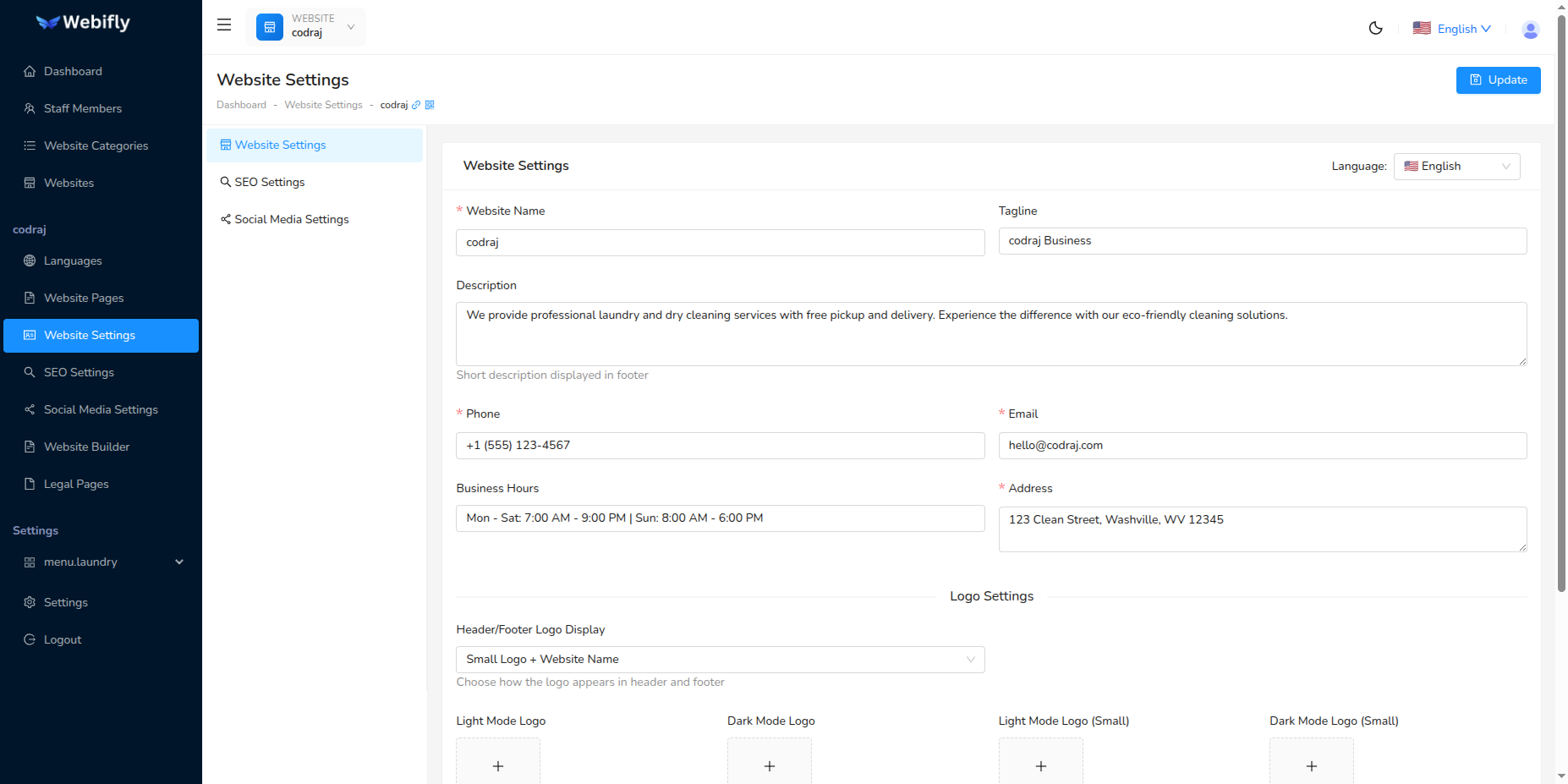
Accessing Website Settings
Navigate to Website Settings from the sidebar. You must have a website selected to access these settings.
The settings page includes a navigation sidebar on the left with three tabs:
- Website Settings - General information and branding
- SEO Settings - Search engine optimization settings
- Social Settings - Social media links and icons
Language Selection
At the top of the settings page, you'll find a Language selector:
- Select the language you want to configure settings for
- Each language can have different content for website name, description, contact details, etc.
- The language selector shows all enabled languages for the selected website with country flag emojis
- Settings are saved per language, so you can have multilingual content
TIP
When you switch languages, the form will automatically load the settings for that language. Make sure to update settings for each language your website supports.
Basic Information
Website Name (Required)
- The primary name of your website
- Displayed in the website header and throughout the site
- Can be different for each language
- Example: "Elite Events Company", "Servicios de Eventos Elite" (Spanish)
Website Tagline
- A short, catchy phrase that describes your website
- Typically displayed near the logo or in the header
- Example: "Creating Memorable Experiences", "Your Success, Our Mission"
Website Description
- A detailed description of your website and services
- Used for SEO meta descriptions and site information
- Recommended: 2-3 sentences, 160-300 characters
- Can be language-specific to reach different audiences
Contact Information
Website Phone (Required)
- Primary contact phone number
- Displayed in the contact section of your website
- Format: Include country code for international accessibility
- Example: "+1 (555) 123-4567"
Website Email (Required)
- Primary contact email address
- Used for contact forms and displayed on the website
- Should be a professional business email
- Example: "contact@yourbusiness.com"
Website Address (Required)
- Physical business address
- Displayed in the footer or contact section
- Can be a full multi-line address
- Example:
123 Business Street
Suite 100
City, State 12345
Website Hours
- Business operating hours
- Inform visitors when your business is available
- Can be free-form text
- Example: "Monday - Friday: 9:00 AM - 6:00 PM"
Logo Settings
Webifly AI supports flexible logo configurations to match your branding needs across different themes and screen sizes.
Header Logo Type
Choose how your logo appears in the website header:
Logo with Name (logo_with_name)
- Displays the logo image alongside your website name
- Best for: Building brand recognition with both visual and text elements
- Uses: Light Logo (or Dark Logo for dark themes) + Website Name
Logo Only (logo_only)
- Displays only the logo image without text
- Best for: Well-established brands with recognizable logos
- Uses: Light Logo (or Dark Logo for dark themes)
Light & Dark Logos with Name (light_dark_with_name)
- Automatically switches between light and dark logos based on theme mode
- Displays logo alongside website name
- Best for: Websites with theme switcher functionality
- Uses: Light Logo (light mode) + Dark Logo (dark mode) + Website Name
Light & Dark Logos Only (light_dark_only)
- Automatically switches between light and dark logos based on theme mode
- Displays only the logo without website name
- Best for: Brands with distinct light/dark logo variations
- Uses: Light Logo (light mode) + Dark Logo (dark mode)
Logo Upload Fields
Light Logo
- Used on light/white backgrounds or in light theme mode
- Typically features dark colors for visibility
- Recommended: PNG with transparent background
- Ideal size: 200-300px width, proportional height
Dark Logo
- Used on dark backgrounds or in dark theme mode
- Typically features light/white colors for visibility
- Recommended: PNG with transparent background
- Ideal size: 200-300px width, proportional height
Light Logo Small
- Smaller version of the light logo for mobile devices or compact headers
- Used when header is collapsed or on smaller screens
- Recommended: Square or icon format (e.g., 50x50px to 80x80px)
- Should be a simplified version of your main logo
Dark Logo Small
- Smaller version of the dark logo for mobile devices or compact headers
- Used in dark mode when header is collapsed or on smaller screens
- Recommended: Square or icon format (e.g., 50x50px to 80x80px)
- Should be a simplified version of your main logo
Website Favicon
- The small icon that appears in browser tabs and bookmarks
- Helps users identify your website among multiple tabs
- Recommended format: ICO, PNG, or SVG
- Recommended size: 32x32px or 64x64px
- Should be simple and recognizable at small sizes
Favicon Best Practices:
- Use a simplified version of your logo or brand mark
- Ensure it's visible at very small sizes (16x16px)
- Use high contrast colors
- Test in both light and dark browser themes
Logo Upload Process
- Click on the upload area for the logo field you want to update
- Select an image file from your computer
- The image will be displayed in a preview
- Supported formats: PNG, JPG, SVG (PNG with transparency recommended)
- You can replace logos at any time by uploading a new file
Image Recommendations
- Format: PNG with transparent background for logos
- Quality: Use high-resolution images that scale well
- File Size: Keep under 500KB for optimal loading speed
- Aspect Ratio: Maintain consistent aspect ratios across logo variations
Saving Changes
After updating any settings:
- Review all changes to ensure accuracy
- Click the Update button at the top right of the page
- You'll see a success message when settings are saved
- Changes will take effect immediately on your website
Multi-Language Workflow
For multi-language websites:
- Start with your default language
- Configure all basic settings and upload logos
- Switch to each additional language using the language selector
- Update language-specific content (name, description, contact info)
- Logo settings are shared across all languages - no need to re-upload
Common Use Cases
Single Language Website
- Configure website name, tagline, and description
- Add contact information (phone, email, address)
- Upload light logo and favicon
- Select "Logo with Name" as header logo type
- Save settings
Multi-Language Website
- Set up default language with all information
- Upload all logo variations and favicon
- Switch to each language and translate:
- Website name (if needed)
- Tagline
- Description
- Business hours
- Contact information and logos remain the same across languages
Website with Theme Switcher
- Upload both light and dark logo versions
- Upload small versions for mobile displays
- Select "Light & Dark Logos with Name" as header logo type
- Set up favicon that works in both themes
- Configure all other settings as normal
Related Settings
- SEO Settings: Configure search engine optimization settings →
- Social Settings: Add social media links and configure social sharing →
- Website Languages: Manage available languages for your website →
- Website Builder: Customize website sections and content →