
Website Pages With AI
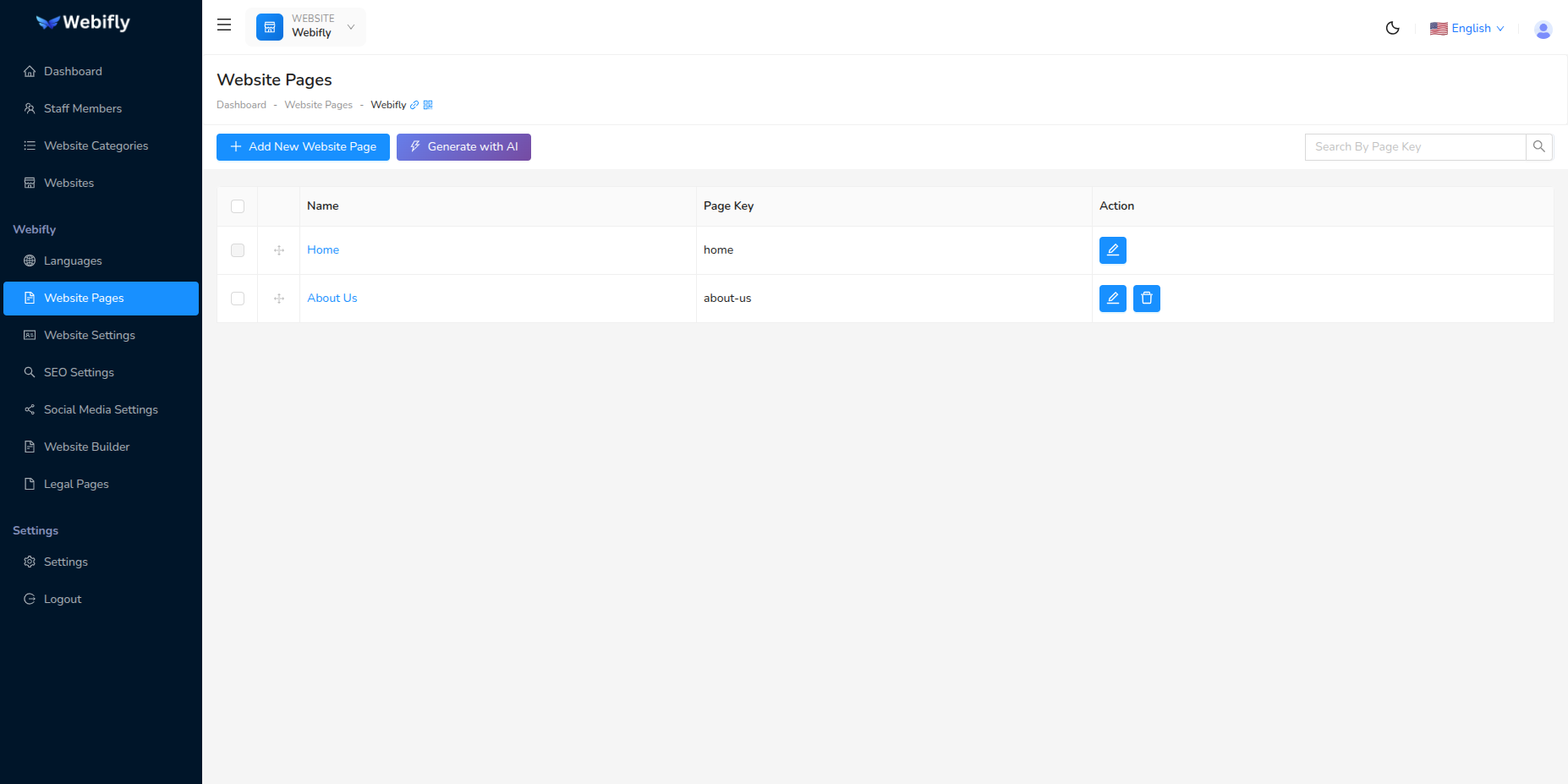
The Website Pages With AI feature allows you to quickly generate multiple custom pages for your existing websites using artificial intelligence. Unlike the full AI Website Wizard, this focused tool is perfect for adding new pages to websites you've already created.
Overview
This feature is integrated directly into the Website Pages management section, providing a quick way to:
- Generate multiple pages at once based on your website's category and description
- Add pages in all your website's configured languages
- Avoid duplicating existing pages with intelligent conflict detection
- Save time compared to creating pages manually one by one
Prerequisites
Before using AI Page Generation, ensure you have:
- AI Provider Configured: An AI provider (OpenAI, Claude, or Perplexity) must be set up in Settings → AI Settings
- Website Selected: You must have a website selected from the top navigation
- Languages Configured: Your website should have at least one language configured
- API Credits: Sufficient credits with your AI provider
- Permissions: You need
website_pages_createandai_features_accesspermissions
Important
The AI Pages button only appears when:
- AI is properly configured
- You have a website selected
- You have the required permissions
Accessing AI Page Generation
From Website Pages Section:
- Go to Website Pages from the sidebar menu
- Ensure you have a website selected in the top navigation
- Look for the ⚡ Generate with AI button next to "Add Page" button
- Click the button to open the AI page generator
The Generation Process
The AI Page Generation follows a simple 2-step process:
Process Overview
| Step | Name | Description |
|---|---|---|
| Step 1 | Generate Suggestions | AI analyzes your website and suggests relevant pages |
| Step 2 | Review & Save | Select and customize suggested pages, then save them |
Step 1: Generate Page Suggestions
When you click the ⚡ Generate with AI button, a modal opens prompting the AI to generate page suggestions.
What Happens:
The AI analyzes several factors to suggest appropriate pages:
Website Information:
- Website Category: The type of business (e.g., Healthcare, Events, E-commerce)
- Website Description: Your business description if provided
- Existing Pages: Pages already created (to avoid duplicates)
- Configured Languages: All languages enabled on your website
Suggested Page Types:
Based on your website category, the AI might suggest:
For Healthcare/Medical:
- About Us
- Our Services
- Our Doctors/Team
- Appointments
- Contact Us
- Patient Resources
- Insurance Information
- FAQ
For E-commerce:
- Shop/Products
- About Us
- Shipping & Delivery
- Returns & Refunds
- FAQ
- Contact Us
- Terms & Conditions
For Events/Photography:
- Portfolio/Gallery
- About Us
- Services/Packages
- Testimonials
- Blog/News
- Contact Us
- FAQ
For General Business:
- Home
- About Us
- Services
- Portfolio
- Team
- Blog
- Contact Us
- FAQ
Actions:
- The AI automatically begins analyzing your website
- Wait for the generation process to complete
- This typically takes 5-15 seconds depending on your AI provider
Step 2: Select and Customize Pages
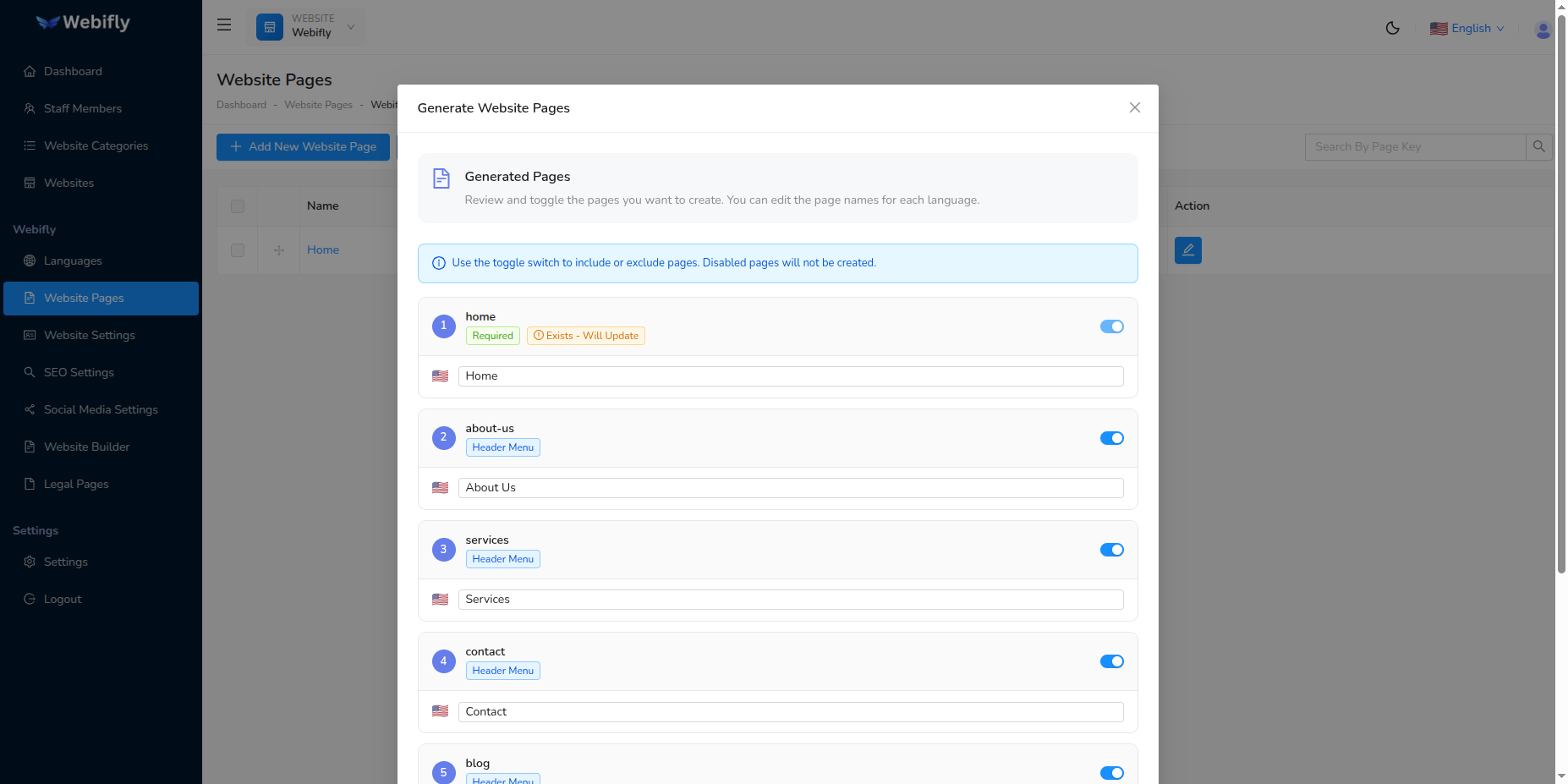
After generation, you'll see a list of suggested pages that you can review and select.
What You'll See:
For each suggested page:
Page Information:
- Checkbox: Select which pages to create
- Page Key: URL-friendly identifier (e.g., "about-us", "services")
- Show in Header: Toggle whether this page appears in navigation menu
- Page Names: Name in each configured language
Multi-Language Support:
Each page shows names for all your website's languages:
- English: "About Us"
- Spanish: "Acerca de Nosotros"
- French: "À Propos"
- And so on for all configured languages
Duplicate Prevention:
The system automatically:
- Checks existing page keys in your website
- Prevents suggesting pages that already exist
- Shows only new, unique pages
- Protects core pages like "home" from duplication
Customization Options:
Edit Page Names:
- Click on any page name field to edit it
- Change the name for any language
- Keep page keys unique and URL-friendly
Toggle Header Visibility:
- Enable Show in Header for pages that should appear in main navigation
- Disable for pages that are linked elsewhere (like legal pages)
Select Pages:
- Check the pages you want to create
- Uncheck any pages you don't need
- You can select all or just a few
Actions:
- Review all suggested pages
- Check/uncheck pages you want to create
- Edit page names if needed (for any language)
- Toggle "Show in Header" for navigation pages
- Click Save Pages button at the bottom
The system saves all selected pages to your website.
Step 3: Success Confirmation
Once pages are saved successfully, you'll see a success message.
What Happens:
- All selected pages are created in the database
- Pages are available immediately in all configured languages
- The Website Pages table refreshes to show new pages
- Pages with "Show in Header" enabled appear in your website navigation
Next Steps:
- View your new pages in the Website Pages table
- The pages are created but initially empty
- Use the Website Builder to add content sections
- Or consider using the full AI Website Wizard for section generation
Key Features
Intelligent Page Suggestions
The AI considers:
- Industry Standards: Common pages for your business type
- Best Practices: Essential pages every website should have
- Website Category: Specialized pages based on your industry
- User Expectations: Pages visitors expect to find
Duplicate Prevention
The system ensures:
- No duplicate page keys are created
- Existing pages are detected and excluded
- Core pages (like "home") are protected
- You can safely run the generator multiple times
Multi-Language Support
Automatically generates:
- Page names in all configured languages
- Proper translations for common page names
- Consistent naming across languages
- RTL support for languages like Arabic
Quick Integration
- Fast Access: Available directly in Website Pages section
- No Setup: Uses your existing website configuration
- Batch Creation: Create multiple pages at once
- Instant Results: Pages available immediately after saving
Usage Scenarios
Scenario 1: Adding Pages to New Website
Situation: You manually created a website but need to add standard pages quickly.
Steps:
- Go to Website Pages section
- Click ⚡ Generate with AI
- AI suggests standard pages (About, Services, Contact, etc.)
- Select all suggested pages
- Save and start adding content
Scenario 2: Expanding Existing Website
Situation: Your website has basic pages but you want to add more.
Steps:
- Navigate to Website Pages
- Click AI generation button
- AI suggests pages you don't have yet (excludes existing ones)
- Select the pages you want to add
- Save and build content
Scenario 3: Multi-Language Website
Situation: You're adding a new language and need pages translated.
Steps:
- First, add the new language in Website Languages
- Go to Website Pages section
- Generate pages with AI
- AI creates page names in all languages including the new one
- Save pages with proper translations
Scenario 4: Category-Specific Pages
Situation: You need specialized pages for your industry.
Steps:
- Ensure your website has the correct category set
- Access AI page generation
- AI suggests industry-specific pages
- Select relevant pages for your business
- Customize names if needed and save
Managing Generated Pages
After creating pages with AI, you can:
Edit Pages
- Click on any page name in the Website Pages table
- Modify page names for any language
- Change page key (URL identifier)
- Toggle "Show in Header" setting
- Update and save changes
Add Content
Option 1: Website Builder
- Go to Website Builder
- Select a page from the page selector
- Add sections (Hero, Features, Contact, etc.)
- Customize content for each section
Option 2: AI Website Wizard for Sections
- After creating pages, you can use section generation
- Generate AI-powered content for your pages
- Get pre-filled sections with relevant content
Reorder Pages
- In the Website Pages table, use the drag handle (⋮⋮)
- Click and drag pages to reorder them
- Order affects navigation menu display
- Changes save automatically
Delete Pages
- Click the delete button on unwanted pages
- Confirm deletion
- Note: The "Home" page cannot be deleted (protected)
Best Practices
AI Page Generation Best Practices
1. Set Correct Website Category
- Assign the appropriate category to your website first
- This helps AI suggest relevant pages for your industry
- Update in Website Settings if needed
2. Configure Languages First
- Add all languages you'll need before generating pages
- This ensures pages are created with all translations
- Saves time compared to adding languages later
3. Review Before Saving
- Check all suggested page names
- Verify translations are appropriate
- Ensure page keys are SEO-friendly
- Confirm "Show in Header" settings
4. Generate Early
- Use AI page generation early in website setup
- Easier to plan content with structure in place
- Less rework than adding pages later
5. Combine with AI Wizard
- Generate pages with this tool
- Then use AI Website Wizard for section generation
- Or use Website Builder for manual section creation
6. Regular Additions
- Run the generator again when expanding your website
- AI will only suggest new pages (not duplicates)
- Safe to use multiple times as your site grows
Limitations and Considerations
What AI Page Generation Does:
✅ Creates page structure and names ✅ Generates multi-language page names ✅ Sets up page keys (URLs) ✅ Configures header visibility ✅ Prevents duplicate pages
What It Doesn't Do:
❌ Does not generate page content (sections) ❌ Does not create legal pages (use AI Wizard Phase 3) ❌ Does not upload images or media ❌ Does not set up forms or interactive elements ❌ Does not configure SEO settings per page
For Full Website Creation:
If you need a complete website with content, consider using the AI Website Wizard instead, which includes:
- Website creation (Phase 1)
- Page generation (Phase 2)
- Legal page generation (Phase 3)
- Section content generation (Phase 4)
Troubleshooting
AI Button Not Showing
Problem: The ⚡ Generate with AI button doesn't appear
Solutions:
- Check if AI is configured in Settings → AI Settings
- Verify you have a website selected (top navigation)
- Ensure you have
website_pages_createpermission - Ensure you have
ai_features_accesspermission - Refresh the page
No Pages Suggested
Problem: AI doesn't suggest any pages
Solutions:
- You might already have all standard pages
- Try deleting some pages and running again
- Check if your website category is set correctly
- Verify AI provider has sufficient credits
- Check console for error messages
Generation Fails
Problem: Page generation fails or times out
Solutions:
- Check your internet connection
- Verify AI provider is responding (test in AI Settings)
- Ensure you have API credits remaining
- Try again with a shorter list of languages
- Contact support if issue persists
Pages Not Appearing in Navigation
Problem: Created pages don't show in website menu
Solutions:
- Check if "Show in Header" was enabled during creation
- Edit the page and toggle "Show in Header" on
- Clear your website cache
- Refresh your website preview
- Check theme header settings
Wrong Language Names
Problem: Page names in wrong language or not translated
Solutions:
- Edit page names manually after creation
- Check if languages are configured with correct keys
- Verify default language is set correctly
- Re-generate with clearer website description
Duplicate Page Errors
Problem: System tries to create pages that already exist
Solutions:
- This should not happen (duplicate prevention is automatic)
- If it does, try refreshing the Website Pages section
- Delete duplicate pages manually if created
- Report bug to support with details
Comparison: AI Pages vs AI Wizard
Use AI Page Generation When:
✅ You already have a website created ✅ You just need to add pages (not full content) ✅ You want quick page structure setup ✅ You'll add content manually or later ✅ You need to expand an existing website
Use AI Website Wizard When:
✅ You're creating a brand new website from scratch ✅ You want complete content generation (pages + sections) ✅ You need legal pages created ✅ You want a fully built website quickly ✅ You prefer a guided, step-by-step process
Can Use Both:
- Create website with AI Wizard (Phase 1)
- Skip pages, legal pages, and sections (Phases 2-4)
- Later use AI Page Generation to add specific pages
- Use Website Builder for custom content
Cost Considerations
Token Usage:
AI Page Generation is cost-effective:
- Typical Usage: 500-1500 tokens per generation
- Depends On: Number of languages and pages suggested
- Much Less Than: Full AI Website Wizard (10,000-20,000 tokens)
Tips to Reduce Costs:
- Configure Languages First: Avoid re-generating with new languages
- Use Once Per Website: Generate all needed pages at once
- Select Carefully: Only save pages you actually need
- Supplement Manually: Add simple pages manually if needed
Frequently Asked Questions
Q: Can I generate pages for multiple websites at once? A: No, you must select one website and generate pages for it. Repeat the process for other websites.
Q: Will AI-generated pages have content? A: No, only page structure and names are created. Add content using Website Builder or AI section generation.
Q: Can I edit page names after creation? A: Yes, click any page in the Website Pages table to edit all details including names in all languages.
Q: What happens if I run the generator twice? A: The system detects existing pages and only suggests new ones. Safe to run multiple times.
Q: Can I delete AI-generated pages? A: Yes, except the "Home" page which is protected. Delete any other page as needed.
Q: Does this work with custom page types? A: It generates standard page types. For custom pages, create them manually.
Q: How many pages can I generate at once? A: Typically 5-15 pages depending on your website category and existing pages. Select the ones you need.
Q: Do generated pages affect SEO? A: Pages have clean URLs (page keys) which is good for SEO. Add proper SEO settings and content afterward.
Q: Can I change page keys after creation? A: Yes, but be careful as this changes the URL. Update any links that reference the old URL.
Q: Is there a limit to how many times I can use this? A: No limit, but each use consumes API tokens. Use thoughtfully to manage costs.