
Icon Sets
Icon Sets allow you to integrate and manage icon libraries from Iconify throughout your Webifly AI websites. Iconify provides access to over 200,000 open-source icons from popular icon sets like Font Awesome, Material Design Icons, Bootstrap Icons, and many more.
About Iconify
Webifly AI uses Iconify as its icon system. Iconify is a unified framework that provides:
- Access to 200,000+ icons from 150+ icon sets
- Popular icon libraries: Font Awesome, Material Design Icons, Bootstrap Icons, Feather Icons, and more
- Consistent icon format across all sets
- High-quality SVG icons that scale perfectly at any size
Managing Icon Sets
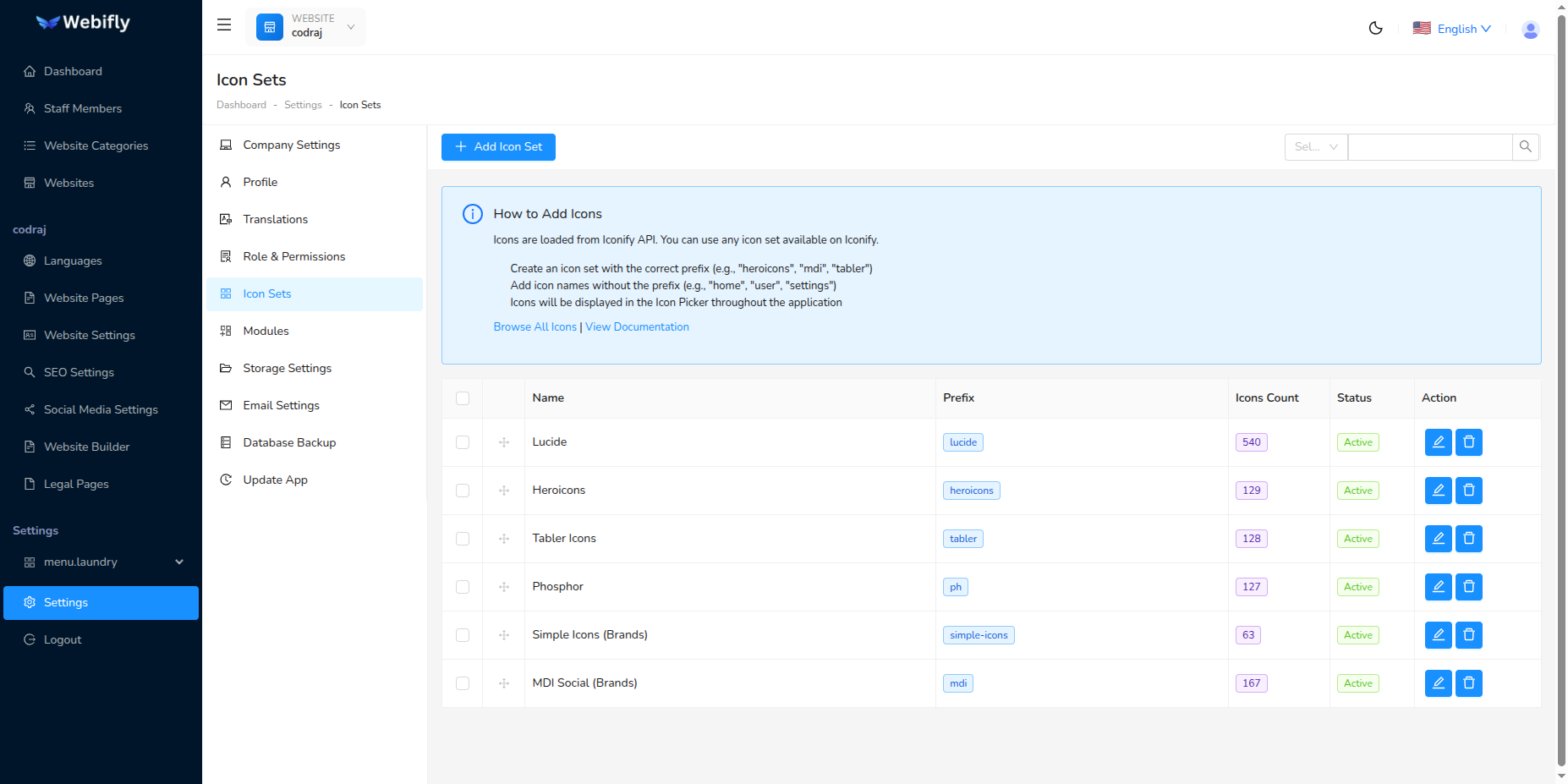
Navigate to Settings → Icon Sets from the admin panel to manage your icon collections.
Icon Sets List Features
- Drag and Drop Reordering: Use the drag handle to reorder icon sets
- Search & Filter: Search icon sets by name or prefix
- Bulk Delete: Select multiple icon sets and delete them at once
- Status Toggle: Enable/disable icon sets without deleting them
Browsing Available Icons
Before adding an icon set, you need to browse and find the icons you want to use:
- Visit Iconify Icon Sets to browse all available icon collections
- Search for icons by name, category, or browse by icon set
- When you find icons you like, note the prefix (e.g., "mdi" for Material Design Icons, "fa6-solid" for Font Awesome 6 Solid)
- Click on any icon to see its full name (e.g., "account-circle", "home", "settings")
Useful Resources:
- Browse All Icon Sets - Visual browser for all available icons
- Iconify Documentation - Complete documentation and icon lists
Adding a New Icon Set
To create a new icon set:
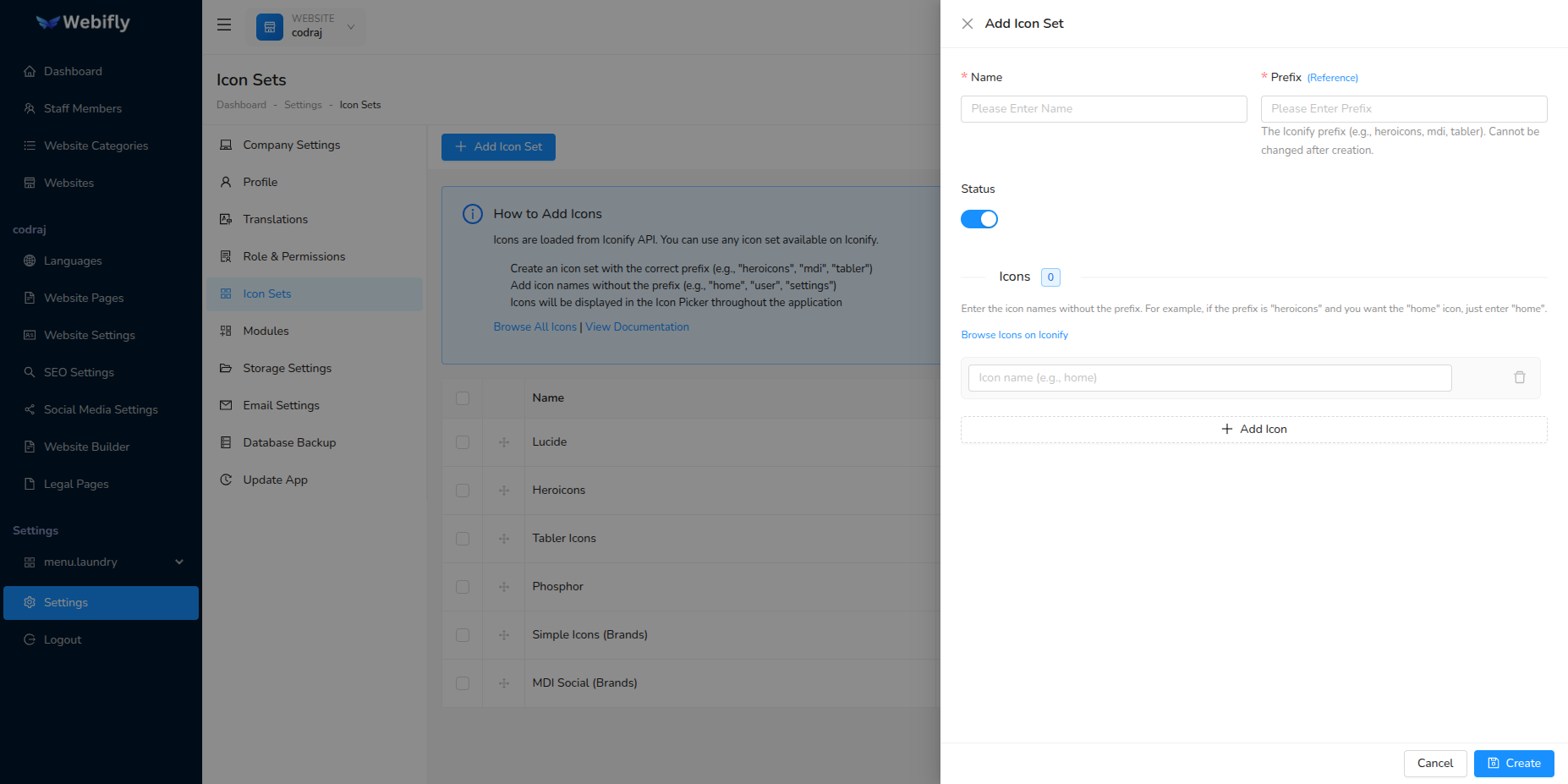
- Click the Add Icon Set button
- Fill in the required information:
Icon Set Information
Name (Required)
- A descriptive name for your icon set
- Example: "Material Design Icons", "Font Awesome Solid", "My Brand Icons"
- This name is for your reference and helps organize your icon collections
Prefix (Required)
- The Iconify prefix that identifies the icon collection
- Examples:
mdi,fa6-solid,bi,heroicons,carbon - Find the correct prefix on the Iconify Collections Reference
- Important: The prefix cannot be changed after creation
Status
- Toggle to activate or deactivate the icon set
- Inactive icon sets won't be available for use in your websites
Adding Icons to the Set
After entering the icon set details, you can add individual icons:
Enter Icon Names: In the icons section, type the icon name (without the prefix)
- Example: If using Material Design Icons (
mdi), just typehome,account,settings - The full icon name will be
mdi:home,mdi:account,mdi:settings
- Example: If using Material Design Icons (
Real-time Preview: As you type the icon name, you'll see a live preview of the icon
- This helps verify you're using the correct icon name
- Invalid icon names won't show a preview
Auto-add New Row: When you start typing in the last row, a new empty row is automatically added
Remove Icons: Click the delete button to remove any icon from the list
Bulk Entry: You can add multiple icons at once by typing each name and pressing Enter to move to the next row
Click Create to save the icon set with all selected icons
Editing an Icon Set
To edit an existing icon set:
- Click the Edit button on any icon set in the list
- You can modify:
- Icon set name
- Active/inactive status
- Add or remove individual icons
- Note: The prefix cannot be changed after creation
- The icon list will load automatically, showing all previously saved icons
- Click Update to save your changes
Icon Set Table Columns
The icon sets table displays:
- Drag Handle: Drag to reorder icon sets
- Name: The icon set name you provided
- Prefix: The Iconify prefix (displayed as a blue tag)
- Icons Count: Number of icons in this set (displayed as a purple tag)
- Status: Active or Inactive status
- Actions: Edit and Delete buttons
Reordering Icon Sets
You can change the order of icon sets using drag and drop:
- Click and hold the drag handle (⋮⋮) on the left side of any row
- Drag the row to the desired position
- Release to drop
- The new order is saved automatically
Using Icons in Your Websites
Once you've added icon sets, you can use these icons throughout your Webifly AI websites in:
- Website Builder Sections: Add icons to features, services, and other components
- Website Pages: Include icons in your page content
- Navigation Menus: Enhance menu items with icons
- Buttons and CTAs: Make buttons more visually appealing
- Feature Lists: Create icon-based feature showcases
The icons are referenced using the format: prefix:icon-name
- Example:
mdi:home,fa6-solid:user,bi:envelope
Popular Icon Set Prefixes
Here are some commonly used Iconify prefixes:
| Icon Set | Prefix | Example |
|---|---|---|
| Material Design Icons | mdi | mdi:home |
| Font Awesome 6 Solid | fa6-solid | fa6-solid:user |
| Font Awesome 6 Regular | fa6-regular | fa6-regular:heart |
| Bootstrap Icons | bi | bi:envelope |
| Heroicons | heroicons | heroicons:home |
| Feather Icons | feather | feather:mail |
| Carbon Icons | carbon | carbon:settings |
| Tabler Icons | tabler | tabler:user |
| Lucide Icons | lucide | lucide:star |
Find the complete list of available prefixes at the Iconify Collections Reference.
Best Practices
Icon Set Management Tips
- Organize by Purpose: Create separate icon sets for different purposes (e.g., "Social Media Icons", "Navigation Icons", "Feature Icons")
- Use Consistent Icon Sets: Stick to one or two icon families for a cohesive design
- Verify Icon Names: Always check the preview to ensure you're using the correct icon name
- Start Small: Add only the icons you need rather than entire icon libraries
- Deactivate Instead of Delete: If you're not sure about removing an icon set, deactivate it instead
Important Notes
- The prefix cannot be changed after creating an icon set. If you need a different prefix, create a new icon set.
- Make sure to use the exact icon name as it appears in the Iconify library for the preview to work correctly.
- Icons are rendered as SVG, providing perfect quality at any size.