
Websites
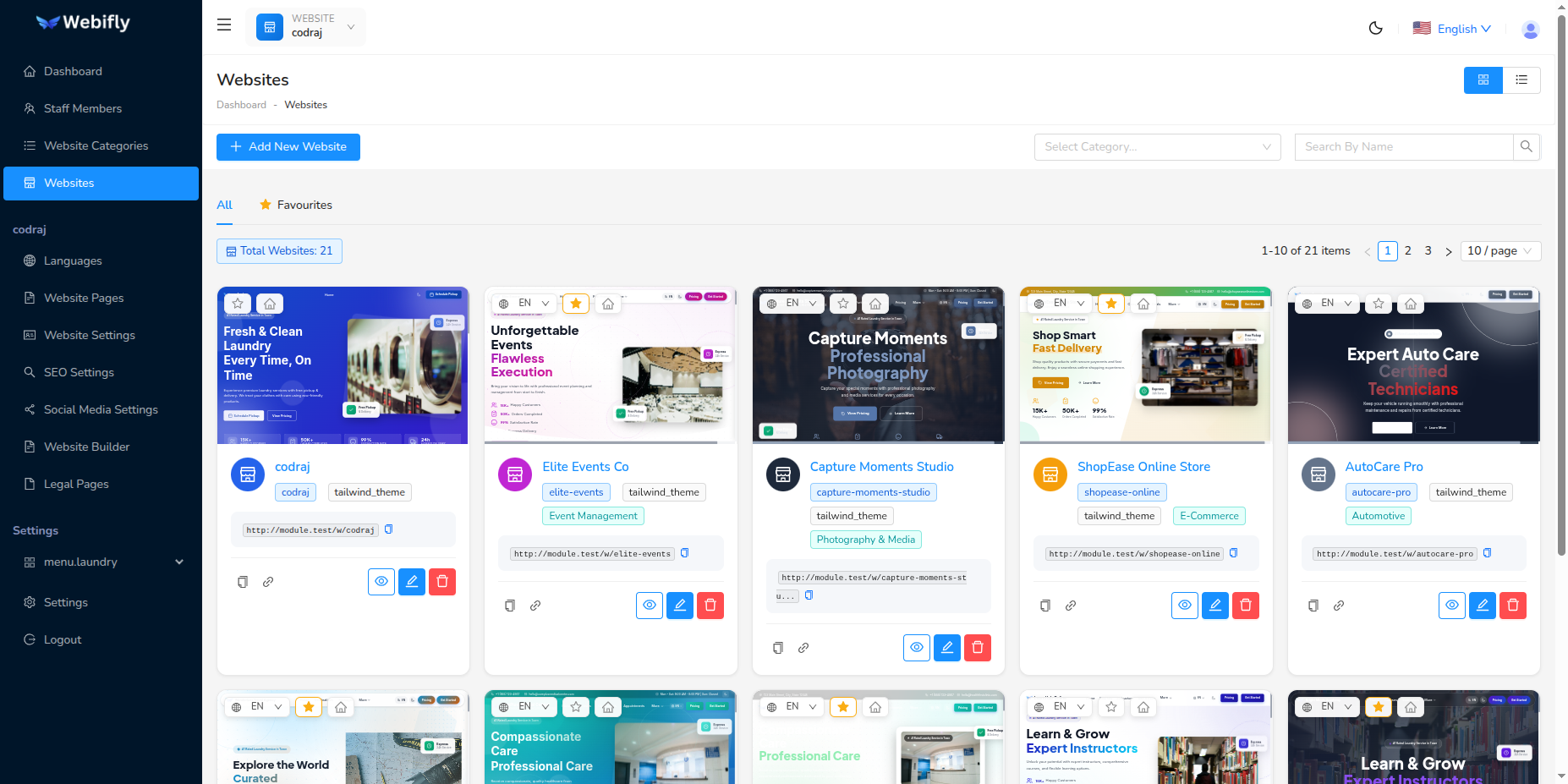
The Websites section is the core of Webifly AI. From here, you can create and manage multiple websites with different themes, languages, and configurations.
Creating a Website
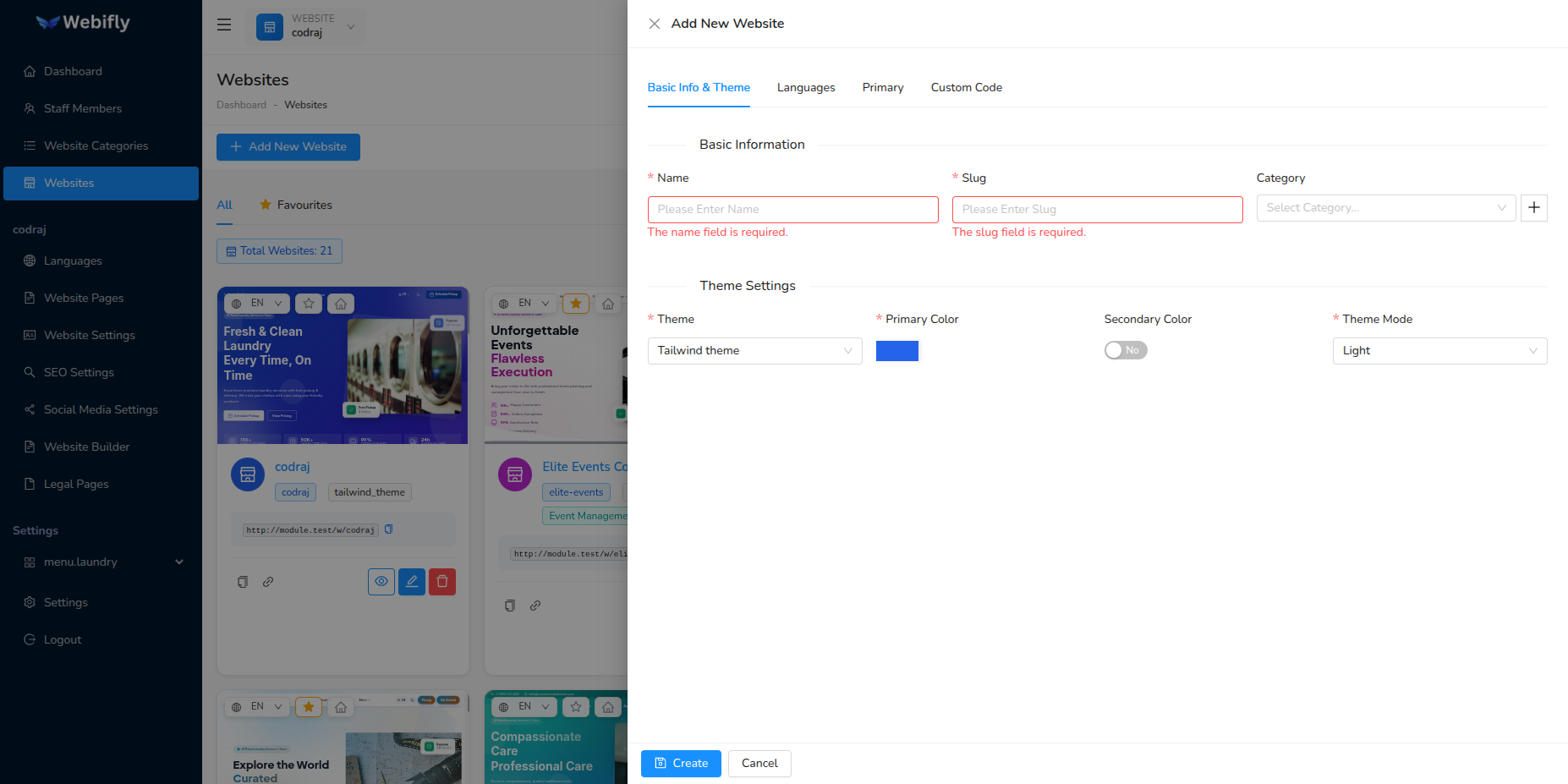
To create a new website, click the Add New Website button. You'll need to provide the following information:
Basic Information & Theme Settings
Basic Info:
- Name: The name of your website (e.g., "Elite Events Co", "Capture Moments Studio")
- Slug: URL-friendly identifier (auto-generated from name)
- Category: Select a website category (Event Management, Photography, E-Commerce, etc.)
Theme Settings:
- Theme Name: Choose from available themes (Tailwind Theme, Modern Theme, etc.)
- Theme Primary Color: Select your brand's primary color
- Theme Secondary Color: Optional secondary color for accents
- Theme Mode: Choose between Light or Dark mode
Multi-Language Support
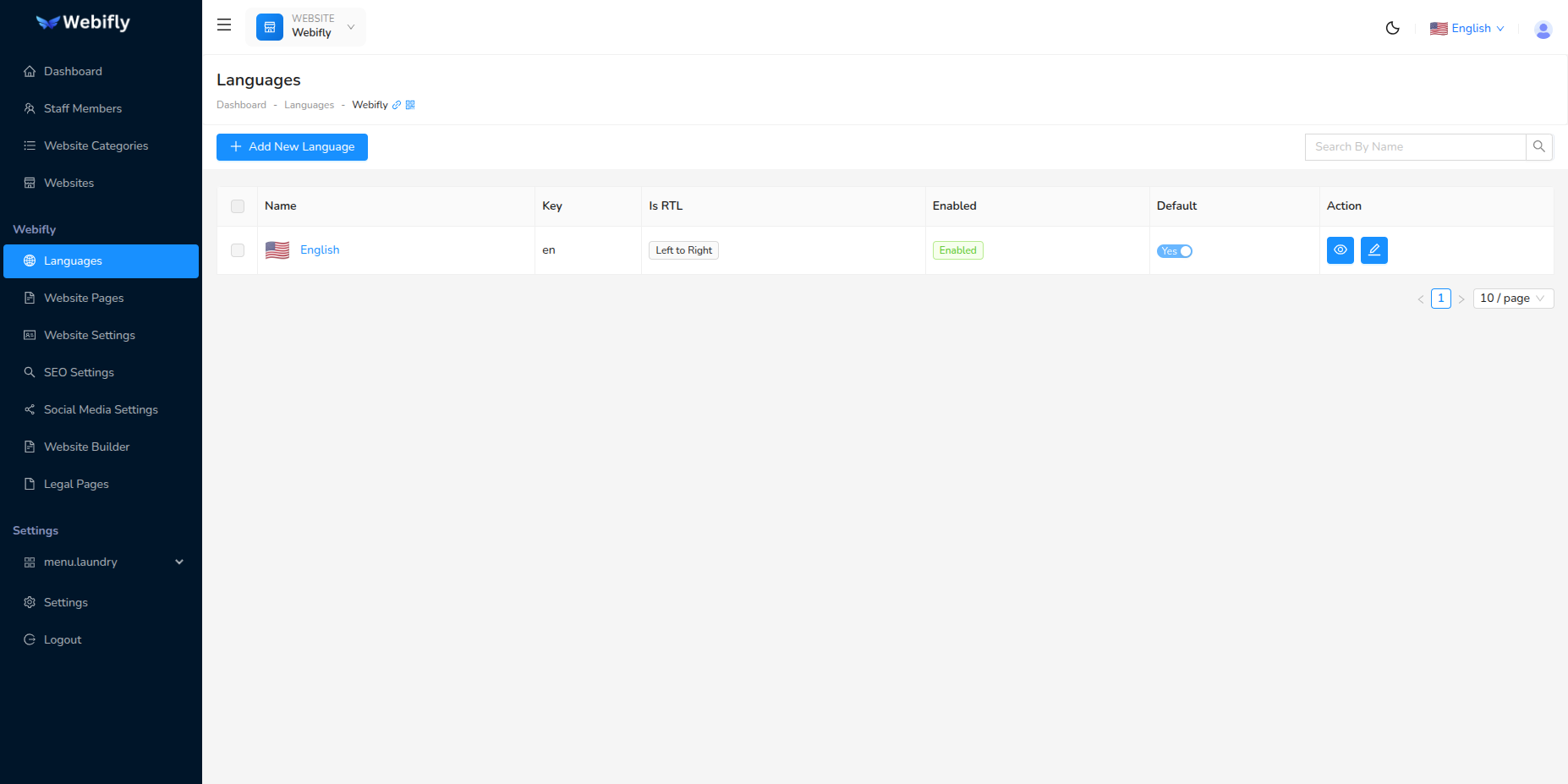
Webifly AI supports multiple languages for each website. You can:
- Add multiple languages with country flags
- Set a default language
- Enable/disable languages
- Configure RTL (Right-to-Left) support for languages like Arabic
Custom Code
For advanced users, you can add:
- Custom CSS: Add your own styles to customize the appearance
- Custom JavaScript: Add custom functionality with JavaScript code
WARNING
Be careful when adding custom code as it can affect website functionality if not written correctly.
Website Categories
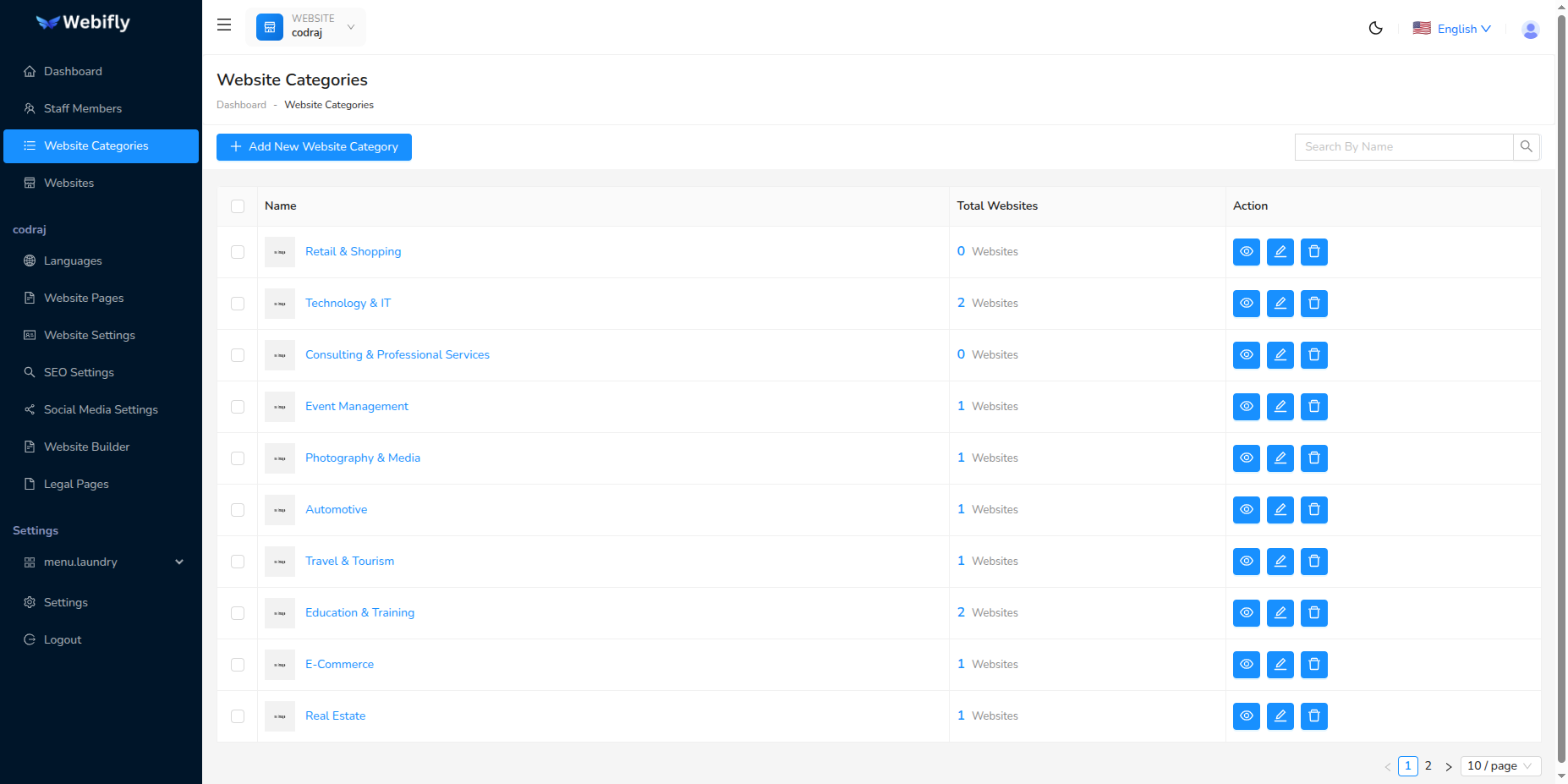
Websites can be organized into categories for better management:
- Event Management
- Photography & Media
- E-Commerce
- Travel & Tourism
- Automotive
- Healthcare
- Education
- And more...
Marking Websites as Favorites
You can mark important websites as favorites for quick access using the star icon.
Website Actions
For each website, you can perform the following actions:
- View: Preview the website
- Edit: Modify website settings
- Copy Link: Copy the website URL
- Delete: Remove the website