
Dashboard
The Dashboard provides a comprehensive overview of your Webifly AI website management system. It displays real-time statistics and quick access to important features.
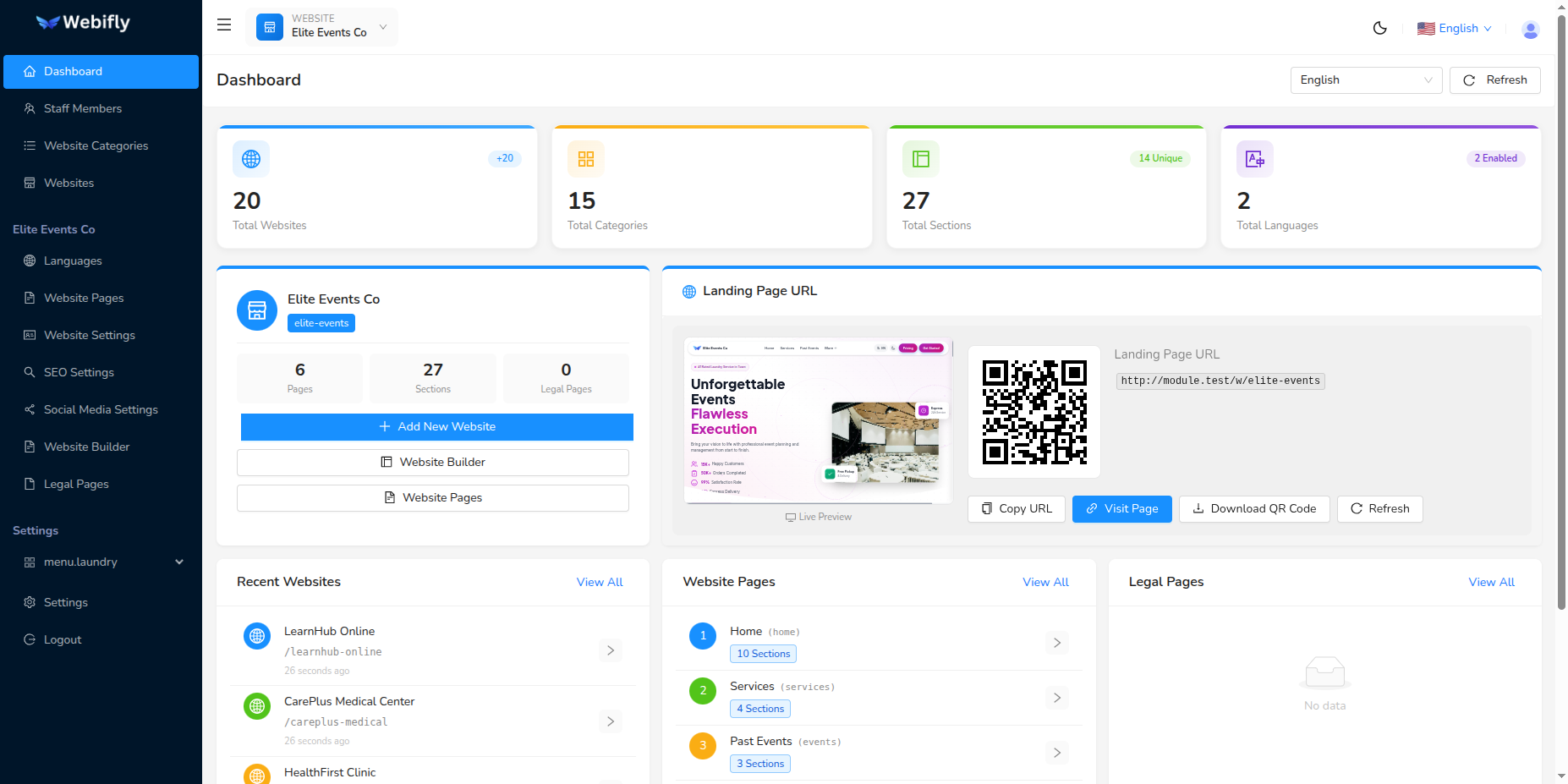
Key Statistics Cards
The dashboard displays four main statistics cards at the top:
Total Websites
- Shows the total number of websites created in your system
- Displays a badge showing how many websites were created this month
- Click on this card to navigate to the Websites page (if you have permission)
Total Categories
- Displays the total number of website categories
- Click on this card to navigate to the Website Categories page (if you have permission)
Total Sections
- Shows the total number of sections for the currently selected website
- Displays a badge showing the number of unique sections
- Click on this card to navigate to the Website Builder (if you have permission)
Total Languages
- Shows the total number of languages configured for the selected website
- Displays a badge showing how many languages are currently enabled
- Click on this card to navigate to the Website Languages page (if you have permission)
Language Selection
At the top of the dashboard, you can select a language from the dropdown menu. This allows you to view statistics and content specific to that language for the currently selected website.
Business Information Card
When a website is selected, the dashboard displays a Business Info card showing:
- Website Name: The name of the currently selected website
- Slug: The URL-friendly identifier for the website
- Quick Stats: Number of pages, sections, and legal pages for the website
- Quick Actions:
- Add new website
- Go to Website Builder
- Go to Website Pages
Landing Page URL Card
This card displays the landing page URL for your selected website, allowing you to:
- View the complete URL for your website
- Copy the URL to share with others
- Preview your website in a new tab
Quick Access Lists
The dashboard provides three convenient lists for quick access to your content:
Recent Websites
- Shows the 5 most recently created websites
- Displays website name, slug, and creation time
- Shows a "Primary" badge for the primary website
- Click on any website to open it in a new tab
- Click "View All" to navigate to the Websites page
Website Pages
- Shows all pages for the currently selected website in the selected language
- Displays page name, page key, and number of sections
- Click on any page to open it in a new tab
- Click "View All" to navigate to the Website Pages section
- Note: Select a website first to view its pages
Legal Pages
- Shows all legal pages for the currently selected website
- Displays the page title and status (active/inactive)
- Click on any legal page to open it in a new tab
- Click "View All" to navigate to the Legal Pages section
- Note: Select a website first to view its legal pages
Refresh Dashboard
Click the Refresh button at the top to reload all dashboard statistics and data with the latest information.
TIP
The dashboard updates automatically when you change the selected website or language. All statistics are calculated in real-time based on your current selection.