
Website Builder With AI
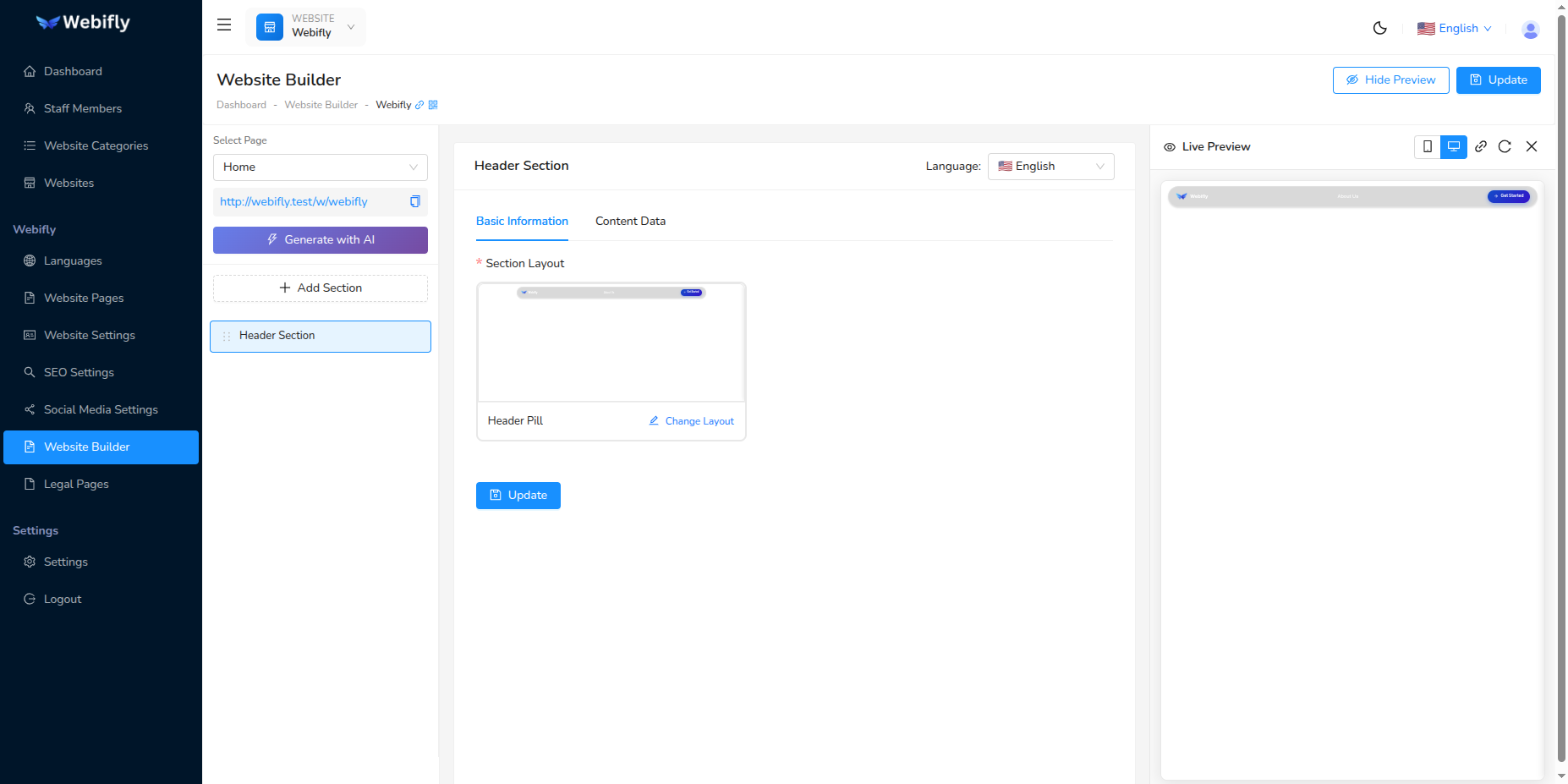
The Website Builder With AI feature allows you to automatically generate professional content sections for your website pages using artificial intelligence. Instead of manually creating sections one by one, AI analyzes your business and generates complete, customized sections with content in all your configured languages.
Overview
This feature is integrated directly into the Website Builder section, providing an intelligent way to:
- Generate multiple content sections at once based on your page and business type
- Create sections with pre-filled, relevant content for all languages
- Choose from AI-suggested section types (Hero, Features, Services, Contact, etc.)
- Save hours compared to manually building sections and writing content
Prerequisites
Before using AI Section Generation, ensure you have:
- AI Provider Configured: An AI provider (OpenAI, Claude, or Perplexity) must be set up in Settings → AI Settings
- Website Selected: You must have a website selected from the top navigation
- Page Selected: Select a page from the Website Builder page dropdown
- Languages Configured: Your website should have at least one language configured
- Pages Created: Your website should have pages to add sections to
- API Credits: Sufficient credits with your AI provider
Important
The AI Generate button only appears when:
- AI is properly configured
- You have a website selected
- You have pages configured
- You have the required permissions
Accessing AI Section Generation
From Website Builder:
- Go to Website Builder from the sidebar menu
- Ensure you have a website selected in the top navigation
- Select a page from the Select Page dropdown
- Look for the ⚡ Generate with AI button below the page selector
- Click the button to open the AI section generator
The Generation Process
The AI Section Generation follows a 3-step process:
Process Overview
| Step | Name | Description |
|---|---|---|
| Step 1 | Generate Suggestions | AI suggests relevant sections for your selected page |
| Step 2 | Select Sections | Choose which sections to generate content for |
| Step 3 | Review & Save | Review generated content and save sections |
Step 1: AI Analyzes and Suggests Sections
When you click the ⚡ Generate with AI button, the AI analyzes your website and page to suggest appropriate sections.
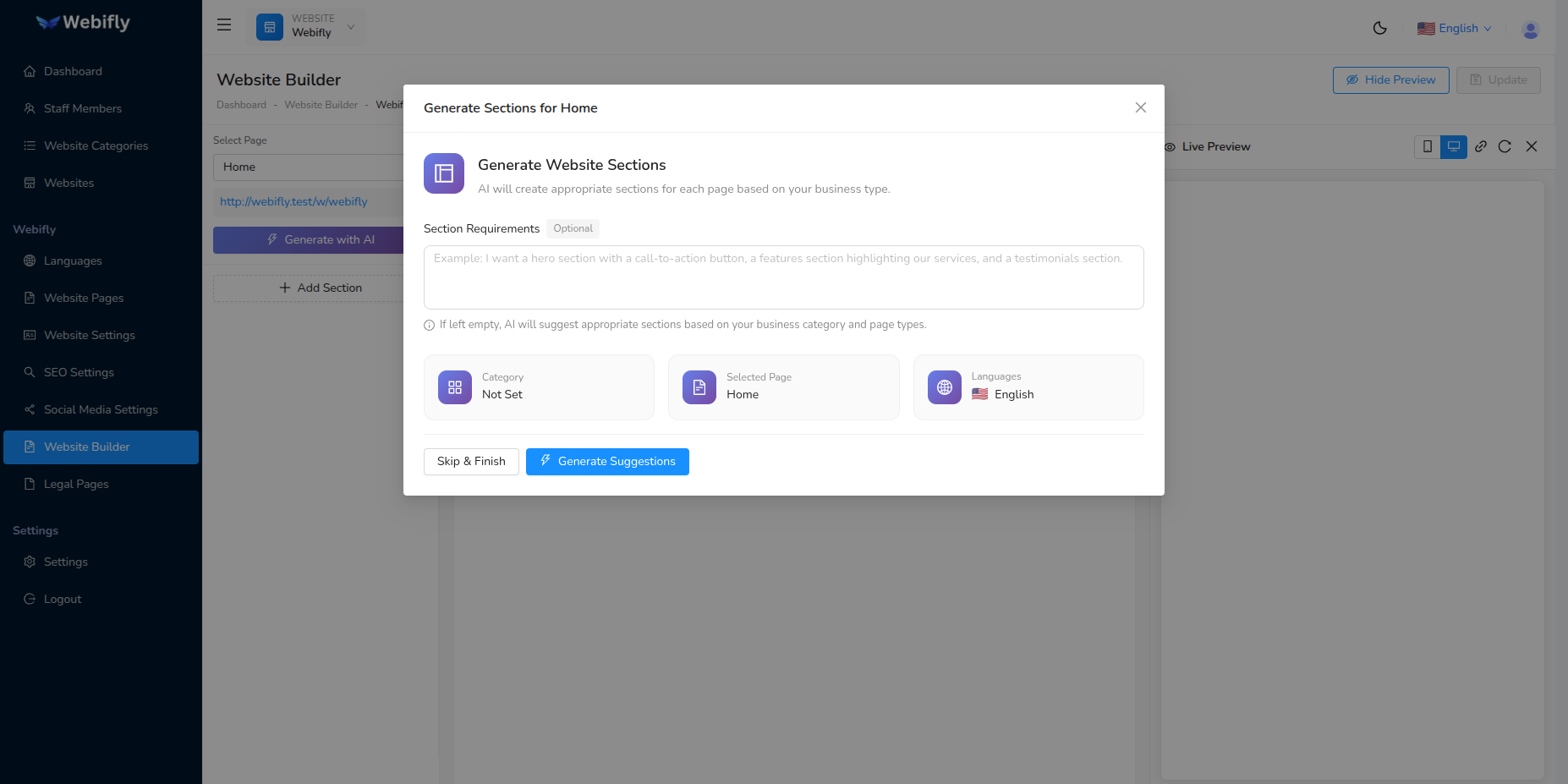
What the AI Analyzes:
- Website Category: Your business type (Healthcare, E-commerce, Events, etc.)
- Website Description: Your business description and details
- Selected Page: The page you're building (Home, About, Services, etc.)
- Existing Sections: Sections already added to this page
- Configured Languages: All enabled languages
- Website Settings: Header/footer configuration
Suggested Section Types:
Based on your page and business, AI might suggest:
For Home Page:
- Hero/Banner Section
- Features Section
- Services Overview
- About Preview
- Testimonials
- Call-to-Action
- Contact Section
For About Page:
- About Hero
- Our Story
- Our Team
- Our Values
- Mission & Vision
- Timeline
For Services Page:
- Services Hero
- Service List
- Service Features
- Pricing Plans
- Call-to-Action
For Contact Page:
- Contact Hero
- Contact Form
- Contact Information
- Map Section
Step 2: Select Sections to Generate
After analysis, you'll see suggested sections for your selected page.
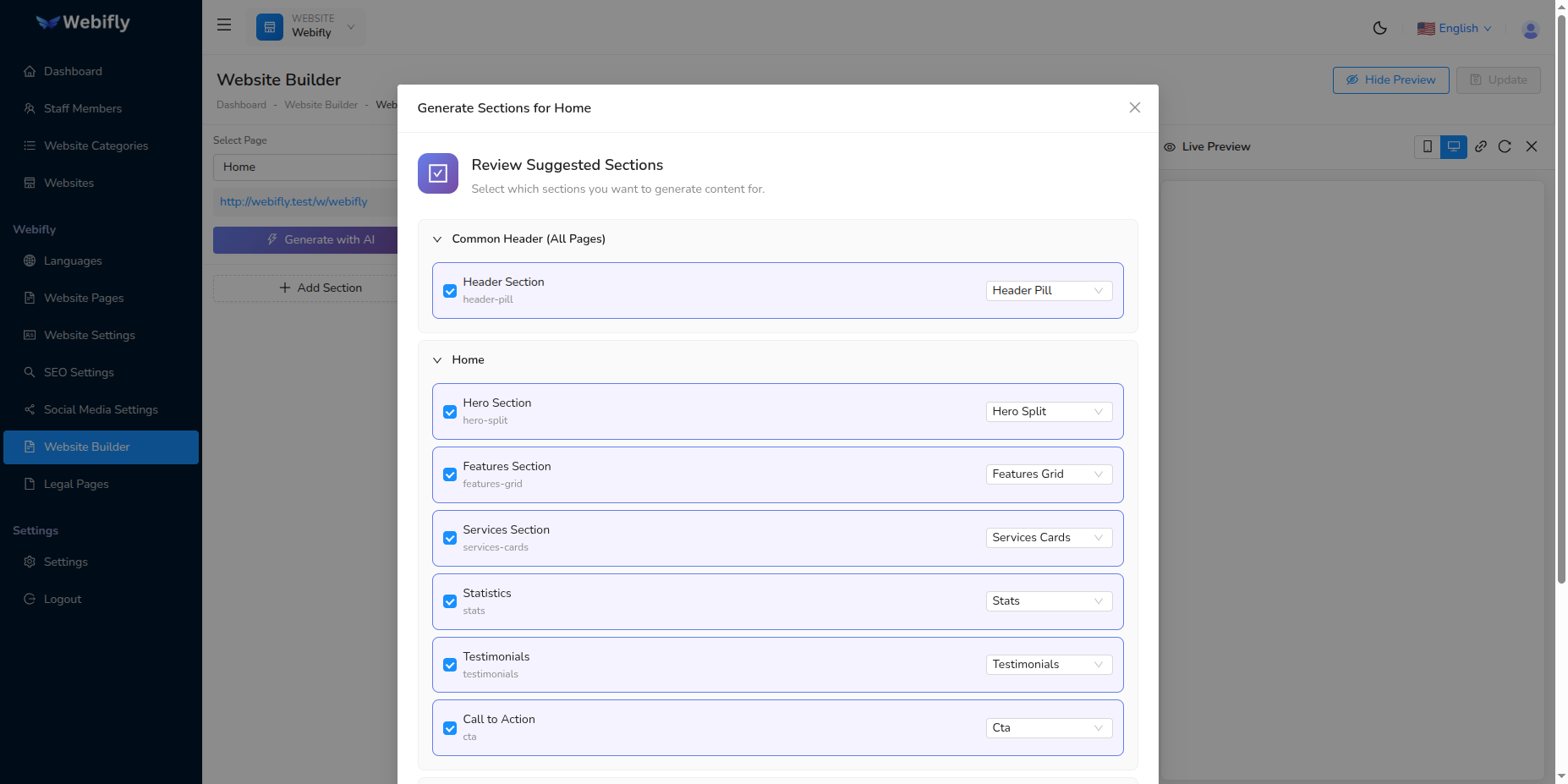
What You'll See:
For each suggested section:
- Checkbox: Select which sections to generate
- Section Name: Descriptive name of the section
- Section Type: Type identifier (hero, features, services, etc.)
- Layout: Visual layout style
- Description: What content will be included
- Page Assignment: Which page it belongs to
Actions:
- Review all suggested sections
- Check/uncheck sections you want to generate
- Click ⚡ Generate Content button
The AI generates complete content for selected sections, including text in all your configured languages.
Step 3: Review and Save Generated Sections
After generation, review the AI-created content before saving.
Generated Content Includes:
For each section:
- Headings: Section titles in all languages
- Descriptions: Body text and paragraphs
- Button Text: Call-to-action buttons with labels
- Subheadings: Supporting titles
- Content Items: List items, features, service descriptions
- All Languages: Complete translations for every configured language
Actions:
- Review generated content for each section
- Edit any text if needed (titles, descriptions, button labels)
- Verify translations are appropriate
- Click Save button to add sections to your page
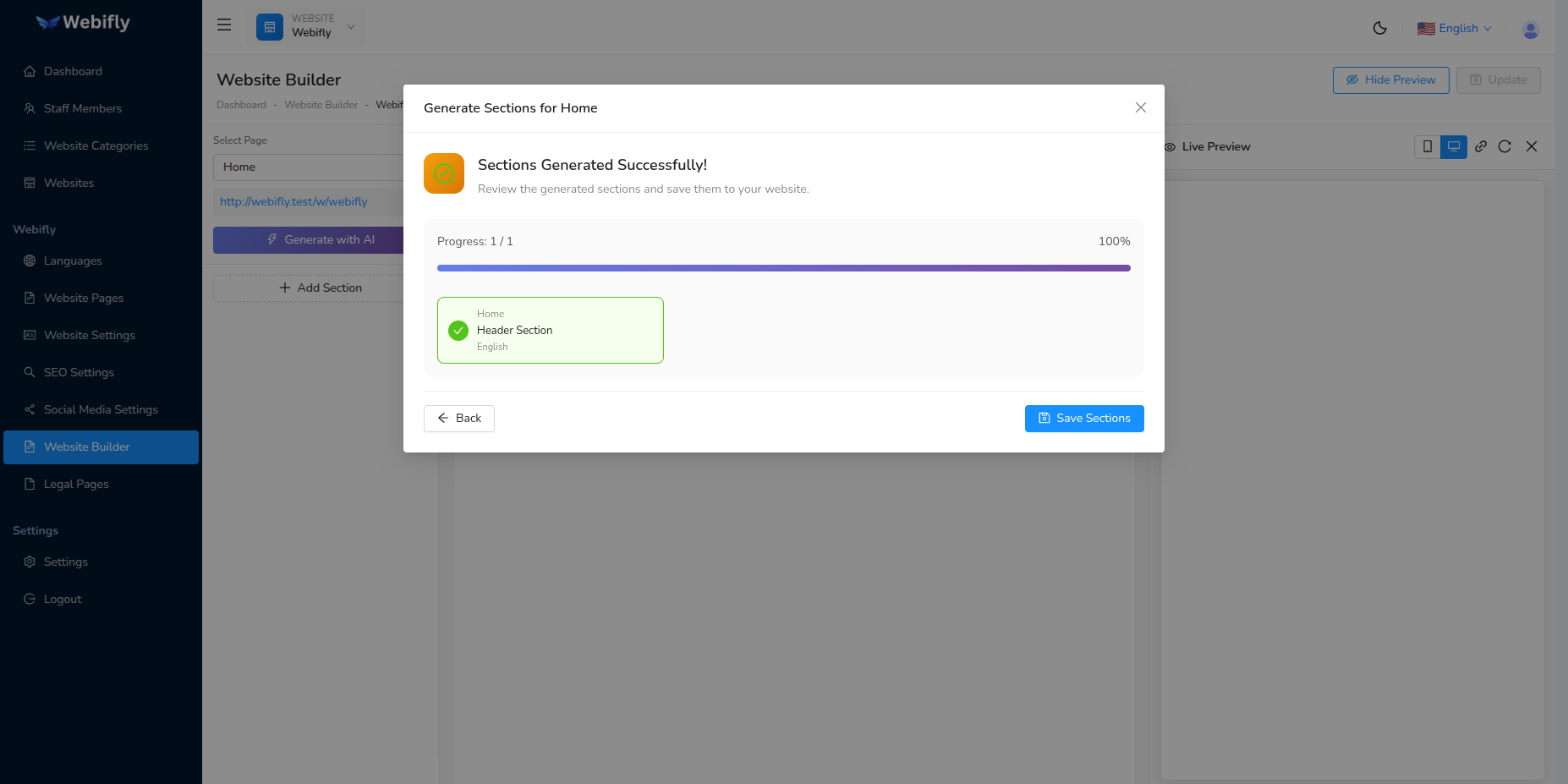
Success! All sections are now added to your selected page with complete content in all languages.
Generation Modes
The AI Section Generator works in two modes:
Single Page Mode (Default)
When you have a page selected in Website Builder:
- Generates sections only for the currently selected page
- Faster and more focused
- Perfect for adding content to one page at a time
- Modal title: "Generate Sections for [Page Name]"
Multi-Page Mode
When generating for multiple pages (via AI Website Wizard):
- Generates sections for all website pages at once
- Considers page-specific content for each page
- Handles header/footer sections across pages
- Modal title: "Generate Website Sections"
Key Features
Intelligent Content Generation
The AI creates:
- Contextual Content: Tailored to your business type and page purpose
- Professional Copy: Well-written, engaging text
- Multi-Language: Complete translations in all configured languages
- SEO-Friendly: Content optimized for search engines
- Brand-Aligned: Matches your business description and category
Smart Section Suggestions
AI considers:
- Page Type: Different sections for Home, About, Services, Contact
- Industry Standards: Common sections for your business category
- User Experience: Sections that improve visitor engagement
- Conversion Focus: Call-to-action and lead generation sections
Flexible Editing
After generation:
- Edit any content directly in the review screen
- Modify content later in Website Builder
- Add more sections manually
- Reorder sections via drag-and-drop
- Delete unwanted sections
Managing Generated Sections
After saving sections, you can manage them in Website Builder:
View Sections
- All sections appear in the left sidebar
- Listed in order for the selected page
- Click any section to edit its content
Edit Sections
- Select language from dropdown
- Modify headings, descriptions, button text
- Update images and media
- Change colors and styling
- Click Update to save changes
Reorder Sections
- Use drag handle (⋮⋮) on each section
- Drag and drop to reorder
- Order is saved automatically
- Affects how sections appear on your live website
Delete Sections
- Click delete button (trash icon) on any section
- Confirm deletion
- Section is removed immediately
Add More Sections
- Click Add Section button
- Choose from available section types
- Manually add content or generate with AI again
Live Preview
Website Builder includes a live preview panel:
Preview Features:
- Real-Time Updates: See changes as you edit
- Device Toggle: Switch between Mobile and Desktop views
- Language Preview: View content in different languages
- Refresh: Reload preview to see latest changes
- Open in New Tab: View full website in browser
Using Preview:
- Click Show Preview button to toggle preview panel
- Select device view (Mobile/Desktop)
- Preview automatically updates when you save changes
- Use refresh button if preview gets out of sync
Best Practices
AI Section Generation Best Practices
1. Select the Right Page
- Choose the page you want to build before generating
- Different pages get different section suggestions
- Generate for one page at a time for best results
2. Review AI Suggestions
- Not all suggested sections may be relevant
- Select only sections you actually need
- You can always generate more later
3. Customize Generated Content
- AI provides great starting content
- Personalize it with specific details about your business
- Add your actual contact info, addresses, phone numbers
- Replace generic text with your unique value propositions
4. Add Your Images
- AI generates content but not images
- Upload your own photos and graphics
- Use high-quality images that represent your brand
- Replace placeholder images in Website Builder
5. Verify Translations
- Check AI-generated translations if you know the language
- Adjust terminology to match your brand voice
- Ensure cultural appropriateness for different markets
6. Combine Manual and AI
- Use AI for quick content generation
- Add custom sections manually for unique needs
- Mix AI-generated and manual sections for best results
Limitations
What AI Section Generation Does:
✅ Generates section structure and layout ✅ Creates content text in all languages ✅ Provides headings, descriptions, button labels ✅ Suggests relevant sections for each page type ✅ Saves time on content creation
What It Doesn't Do:
❌ Does not generate or upload images ❌ Does not create custom section layouts ❌ Does not integrate forms or interactive elements ❌ Does not configure advanced section settings ❌ Does not optimize images or media
Troubleshooting
AI Button Not Showing
Solutions:
- Verify AI is configured in Settings → AI Settings
- Ensure website is selected
- Check that pages exist for the website
- Confirm you have required permissions
No Sections Suggested
Solutions:
- Check if page already has all standard sections
- Verify website category is set correctly
- Ensure website description is provided
- Check AI provider has sufficient credits
Generation Fails
Solutions:
- Check internet connection
- Verify AI provider is responding
- Ensure sufficient API credits
- Try generating fewer sections at once
Content Not Saving
Solutions:
- Check browser console for errors
- Verify you have edit permissions
- Ensure page is selected
- Try refreshing and saving again
Sections Not Appearing on Website
Solutions:
- Check if sections were saved successfully
- Verify page assignment is correct
- Refresh website preview
- Clear website cache
Cost Considerations
Token Usage:
- Per Section: ~500-1500 tokens depending on complexity
- Typical Page: 2000-5000 tokens for 3-5 sections
- Full Website: 10,000-20,000 tokens for all pages
Tips to Reduce Costs:
- Generate sections for one page at a time
- Select only sections you need
- Use simpler section types when possible
- Supplement with manual content for simple sections
Frequently Asked Questions
Q: Can I edit AI-generated content? A: Yes, you can edit all content before saving and after in Website Builder.
Q: Will sections include images? A: No, you need to upload your own images in Website Builder.
Q: Can I generate sections for multiple pages? A: In Website Builder, generate for one page at a time. Use AI Website Wizard for multi-page generation.
Q: What if I don't like the generated sections? A: Delete unwanted sections and generate new ones, or edit manually.
Q: Can I add more sections later? A: Yes, run the generator again or add sections manually.
Q: How do I change section order? A: Drag and drop sections in the Website Builder sidebar.
Q: Does this work with all themes? A: Yes, sections adapt to your selected theme automatically.
Q: Can I use this multiple times? A: Yes, generate sections as many times as needed.