
Adjustment Types
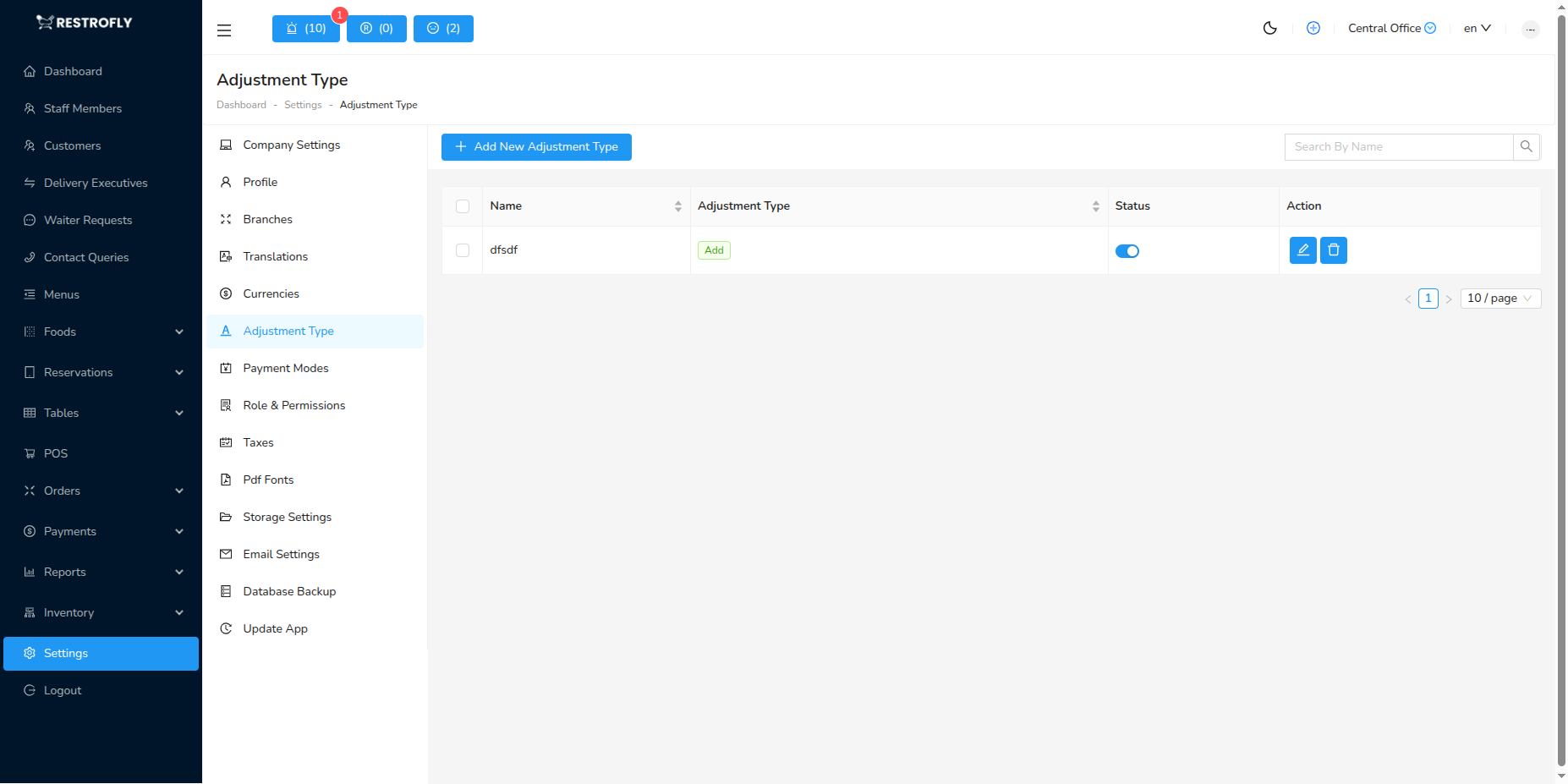
Adjustment Types are used to categorize and manage different types of inventory adjustments in your restaurant. Each adjustment type can either add stock to your inventory or subtract stock from it, allowing you to track various inventory changes like waste, returns, donations, corrections, or incoming stock transfers.
You can create and manage adjustment types by navigating to Settings → Adjustment Types.
Understanding Adjustment Types
Adjustment Types help you maintain accurate inventory records by categorizing why and how your stock quantities change outside of normal order/purchase operations.
Key Benefits:
- Track inventory losses and gains systematically
- Identify patterns in waste or damage
- Maintain accurate stock counts
- Generate reports on inventory adjustments
- Comply with food safety and audit requirements
Creating a New Adjustment Type
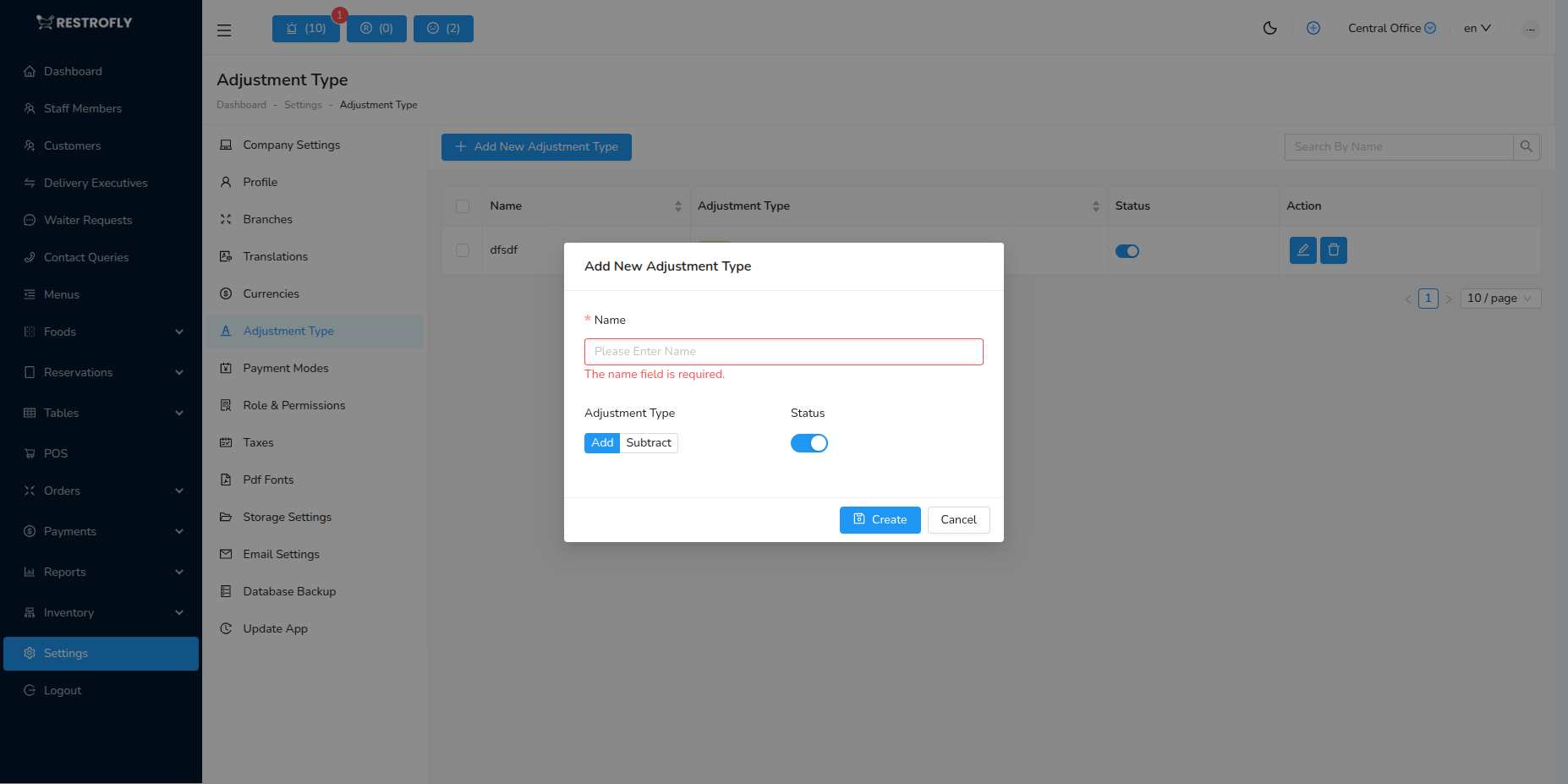
When creating or editing an adjustment type, configure the following fields:
Adjustment Name
- Name: Clear, descriptive name for the adjustment type (required)
- Identifies the reason for inventory adjustment
- Appears in dropdown menus when making adjustments
- Should be specific and self-explanatory
- Examples: "Spoiled Food", "Returned Items", "Damaged During Delivery"
Adjustment Type
- Adjustment Type: Choose whether this adjustment adds or subtracts from inventory (required)
- Add (+): Increases inventory quantity
- Use for: Returns, corrections (when stock was undercounted), found items, incoming transfers
- Example scenarios: Customer returns unused items, inventory recount reveals more stock than recorded
- Subtract (-): Decreases inventory quantity
- Use for: Waste, damage, theft, donations, corrections (when stock was overcounted)
- Example scenarios: Food spoilage, broken items, employee meals, samples
- Add (+): Increases inventory quantity
Choosing Add vs Subtract
Think about the end result: Will this adjustment make your inventory number go UP (Add) or DOWN (Subtract)? Most common adjustments like waste, damage, and theft are Subtract types.
Status
- Status: Enable or disable this adjustment type
- Active (ON): Adjustment type appears in selection lists and can be used
- Inactive (OFF): Adjustment type is hidden from selection lists but historical records remain
- Useful for temporarily disabling adjustment types you no longer use
Status vs Deletion
Setting an adjustment type to Inactive preserves historical data while preventing future use. This is better than deleting, which may affect existing adjustment records.
Common Adjustment Type Examples
Subtract Types (Reduce Inventory)
Food Waste/Spoilage
- Type: Subtract
- Use: Track expired or spoiled food items
- Helps identify: Food waste costs, storage issues, over-ordering
Damage/Breakage
- Type: Subtract
- Use: Items broken during storage, preparation, or handling
- Helps identify: Handling issues, packaging problems
Theft/Loss
- Type: Subtract
- Use: Missing items with unknown cause
- Helps identify: Security concerns, shrinkage
Employee Meals
- Type: Subtract
- Use: Food consumed by staff
- Helps identify: Employee meal costs
Samples/Tastings
- Type: Subtract
- Use: Food used for customer samples or quality testing
- Helps identify: Marketing costs
Donation
- Type: Subtract
- Use: Items donated to charities or food banks
- Helps identify: Charitable giving for tax purposes
Stock Count Correction - Overcount
- Type: Subtract
- Use: When physical count is less than system count
- Helps identify: Inventory tracking accuracy
Add Types (Increase Inventory)
Returned Items
- Type: Add
- Use: Items returned from events or temporary use
- Helps track: Returnable inventory
Stock Count Correction - Undercount
- Type: Add
- Use: When physical count is more than system count
- Helps identify: Inventory tracking accuracy
Found Items
- Type: Add
- Use: Items discovered that weren't previously recorded
- Helps identify: Inventory management gaps
Transfer In
- Type: Add
- Use: Items received from another branch (if using manual transfers)
- Helps track: Inter-branch transfers
Using Adjustment Types
Once created, adjustment types are used when making inventory adjustments:
- Navigate to Inventory → Adjustments
- Click Create New Adjustment
- Select the relevant Adjustment Type from dropdown
- Choose items and quantities to adjust
- System automatically adds or subtracts based on adjustment type
- Submit the adjustment
The adjustment type determines whether quantities increase or decrease automatically.
Managing Adjustment Types
Viewing Adjustment Types
The adjustment types list displays:
- Adjustment name
- Type (Add or Subtract indicator)
- Status (Active/Inactive)
- Action buttons (Edit, Delete)
Editing Adjustment Types
- Click the Edit icon next to the adjustment type
- Modify the name, type, or status
- Click Update to save changes
Changing Type (Add/Subtract)
Be careful when changing an adjustment type from Add to Subtract or vice versa. This affects future adjustments only; existing adjustment records remain unchanged. Consider creating a new adjustment type instead.
Deleting Adjustment Types
- Click the Delete icon next to the adjustment type
- Confirm deletion in the dialog
Deletion Warning
Deleting an adjustment type may affect existing adjustment records that use this type. Consider setting the status to Inactive instead of deleting.
Best Practices
Naming Conventions
Be Specific:
- ✅ Good: "Spoiled - Past Expiration Date"
- ❌ Bad: "Waste"
Be Consistent:
- Use similar format for all types
- Example: "Damage - Transport", "Damage - Preparation", "Damage - Storage"
Be Clear:
- Anyone should understand the purpose at a glance
- Avoid abbreviations or internal jargon
Organization Strategy
Start with Essential Types:
- Spoilage/Waste
- Damage/Breakage
- Stock Count Correction - Overcount (Subtract)
- Stock Count Correction - Undercount (Add)
Add Specific Types as Needed:
- Don't create too many types initially
- Add new types when you identify specific tracking needs
- Review and consolidate if you have too many similar types
Reporting and Analysis
Regular Review:
- Weekly: Check which adjustment types are used most
- Monthly: Analyze trends in specific adjustment categories
- Quarterly: Evaluate if adjustment types need refinement
Cost Tracking:
- Calculate costs associated with each adjustment type
- Identify areas for improvement (reduce waste, improve handling)
- Set goals for reducing negative adjustments
Troubleshooting
Adjustment Type Not Appearing in Dropdown
Problem: Can't find adjustment type when making adjustment
Solutions:
- Check if status is set to Active
- Verify the adjustment type was saved successfully
- Refresh the page and try again
- Check user permissions for inventory adjustments
Wrong Type Selected (Add vs Subtract)
Problem: Created adjustment type with wrong add/subtract setting
Solutions:
- Edit the adjustment type and change the type
- Or create a new correctly configured type
- Update any recent adjustments that used wrong type
- Set old type to Inactive if no longer needed
Can't Delete Adjustment Type
Problem: Delete button doesn't work or shows error
Solutions:
- Check if adjustment type is currently in use
- Verify you have admin/delete permissions
- Set status to Inactive instead of deleting
- Contact support if issue persists
Frequently Asked Questions
Q: How many adjustment types should I create? A: Start with 4-6 essential types covering your main scenarios (waste, damage, corrections). Add more only when you identify specific tracking needs.
Q: Can I change an adjustment type from Add to Subtract later? A: Yes, but this only affects future adjustments. Existing records remain unchanged. Consider creating a new type instead for clarity.
Q: What's the difference between Inactive and Deleted? A: Inactive types are hidden from selection but preserve all historical data. Deleted types are permanently removed and may affect historical records. Always prefer Inactive.
Q: Do adjustment types affect pricing? A: No, adjustment types only track quantity changes and categorize the reason. Pricing/costing is handled in the adjustment record itself, not in the type.
Q: Can different branches have different adjustment types? A: Adjustment types are global across all branches. All branches share the same set of adjustment types.
Q: Should employee meals be tracked as adjustments? A: Yes, if you want to track the cost and quantity of food consumed by staff. Create an "Employee Meals" adjustment type (Subtract) for this purpose.
Q: How do I track stock corrections after physical counts? A: Create two types: "Stock Correction - Undercount" (Add) for when you find more stock than recorded, and "Stock Correction - Overcount" (Subtract) for when you find less.
Q: Can I see reports by adjustment type? A: Yes, inventory adjustment reports can typically be filtered or grouped by adjustment type, allowing you to analyze patterns and costs.
Q: What if I need to adjust stock for multiple reasons? A: Create separate adjustment records for each reason/type. Don't try to combine different scenarios into one adjustment type.