
App Settings
After successful installation you have to update settings according to your restaurant business like your restaurant name, logo, timezone, date format, appearance preferences, and more. App Settings is the central configuration hub for your Restrofly application.
Accessing App Settings
This is a special settings page which is only visible to users with Admin role or having permission Company Settings. You can access this page by navigating to:
Settings → Company Settings
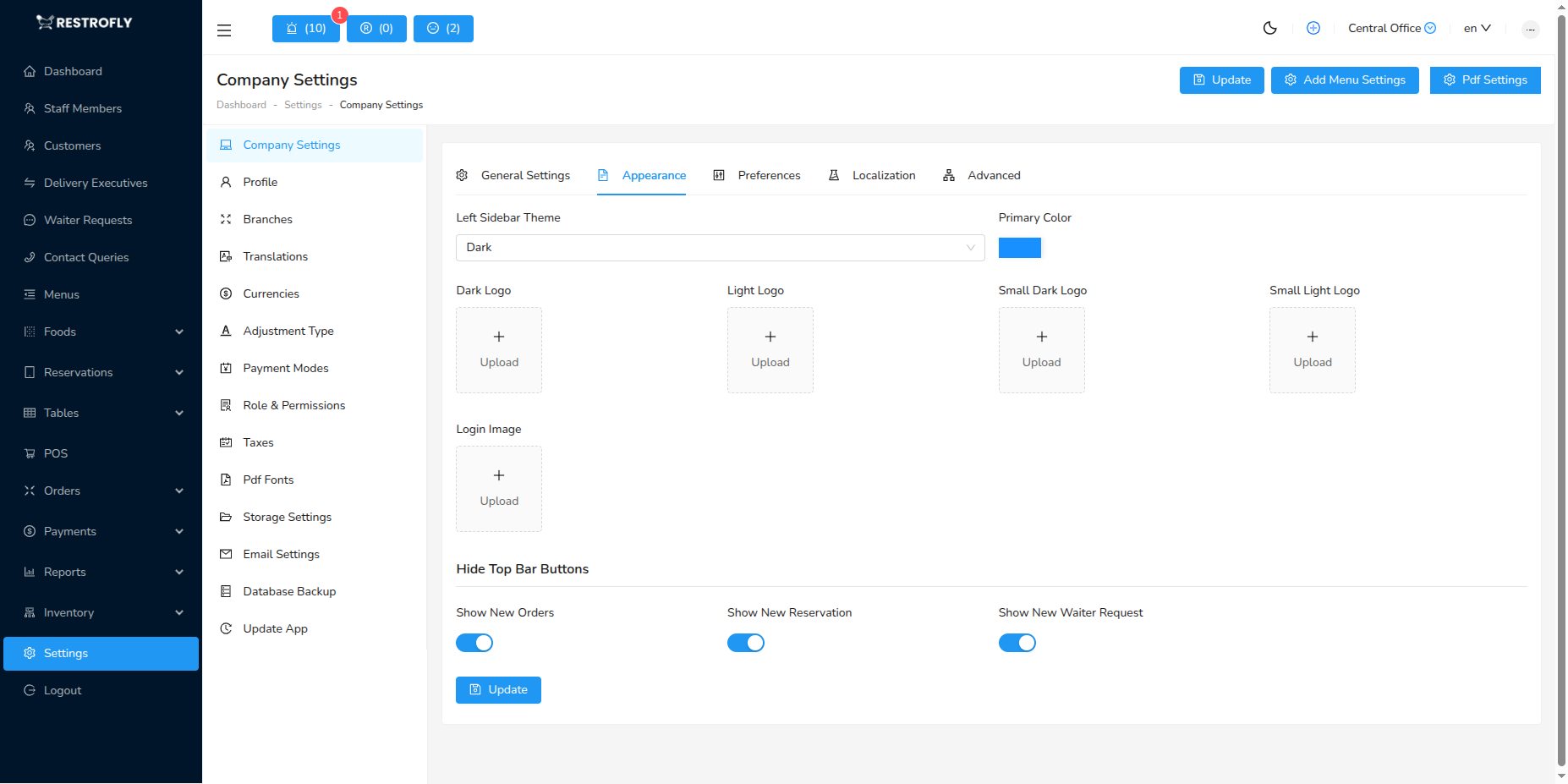
The settings are organized into five tabs for easy management:
- General Settings
- Appearance
- Preferences
- Localization
- Advanced
General Settings
This tab contains your basic restaurant information that will be displayed throughout the application.
Restaurant Details
Configure your restaurant's core information:
- Name: Full name of your restaurant (required)
- Short Name: Abbreviated name for display in compact spaces (required)
- Email: Primary email address for your restaurant (required)
- Phone: Contact phone number for your restaurant (required)
- Address: Physical address of your restaurant
Business Information
Ensure all your restaurant details are accurate as they will appear on invoices, receipts, customer communications, and public-facing pages.
Appearance
Customize the visual appearance of your application to match your restaurant's branding.
Theme Settings
Left Sidebar Theme: Choose between Dark or Light sidebar theme
- Dark: Professional dark theme for the sidebar menu
- Light: Bright and clean light theme (available when app theme is not in dark mode)
Primary Color: Select your brand's primary color that will be used throughout the application
- Used for buttons, links, highlights, and active states
- Choose a color that matches your restaurant's branding
- Uses a color picker for easy selection
Logo Management
Upload different logo variations for various display scenarios:
Dark Logo: Logo displayed when using light backgrounds
- Recommended: Dark colored logo on transparent background
- Used in light theme mode
Light Logo: Logo displayed when using dark backgrounds
- Recommended: Light/white colored logo on transparent background
- Used in dark theme mode
Small Dark Logo: Compact version of dark logo
- Used in mobile view or collapsed sidebar
- Recommended size: Square dimensions (64x64px or similar)
Small Light Logo: Compact version of light logo
- Used in mobile view with dark backgrounds
- Recommended size: Square dimensions (64x64px or similar)
Login Image: Background image for the login page (Non-SAAS only)
- Displayed on the authentication screens
- Recommended: High-resolution landscape image
Logo Format
Use PNG format with transparent backgrounds for logos. Recommended dimensions: 200x60px for main logos, 64x64px for small logos. Maximum file size: 2MB.
Top Bar Notifications (Non-SAAS only)
Control which real-time notifications appear in the top bar:
Show New Orders: Display notification icon for new orders in top bar
- Toggle ON to show real-time order notifications
- Toggle OFF to hide from top bar
Show New Reservations: Display notification icon for new reservations
- Toggle ON to show reservation notifications
- Toggle OFF to hide from top bar
Show New Waiter Requests: Display notification for waiter call requests
- Toggle ON to show when customers request service
- Toggle OFF to hide from top bar
Notification Management
Enable only the notifications relevant to your workflow to avoid clutter. Notifications can still be accessed from their respective modules even when hidden from the top bar.
Preferences
Configure your restaurant's operational preferences and default settings.
Currency Settings
- Currency: Select your default currency for all transactions
- Choose from available currencies in the system
- All pricing, invoices, and reports will use this currency
- Can add new currencies using the "+" button
- Displays currency name and symbol (e.g., US Dollar ($))
Currency Change
Changing the default currency will affect all new transactions. Existing records will retain their original currency. Plan currency changes carefully.
Layout Direction
- Layout: Choose the text direction for your application
- LTR (Left to Right): For English, Spanish, French, and similar languages
- RTL (Right to Left): For Arabic, Hebrew, Persian, and similar languages
- Changes the entire application layout and text flow
Menu Placement
- Shortcut Menu Placement: Control where quick access menus appear
- Top and Bottom: Shortcut menus appear in both header and footer
- Top Header: Menus only in the top header bar
- Bottom Corner: Menus only in the bottom corner of the screen
User Experience
Choose menu placement based on your screen size and user preference. "Top and Bottom" provides easy access from anywhere, while single placement options reduce visual clutter.
Localization
Configure date, time, and timezone settings for your restaurant's location.
Timezone Configuration
Auto Detect Timezone: Automatically detect user's timezone
- Toggle ON to use browser's detected timezone
- Toggle OFF to use manually configured default timezone
- Useful for restaurants with customers in multiple timezones
Default Timezone: Set your restaurant's primary timezone (required)
- Select from comprehensive list of world timezones
- Format: Continent/City (e.g., Asia/Kolkata, America/New_York)
- Used for all timestamp storage and display
- Affects reservation times, order times, and report generation
Timezone Importance
Set the correct timezone during initial setup. Changing timezone later may cause confusion with existing reservation and order times. Always backup your database before timezone changes.
Date Format
- Date Format: Choose how dates are displayed throughout the application (required)
- Multiple format options available
- Examples:
- DD-MM-YYYY → 27-01-2026
- MM/DD/YYYY → 01/27/2026
- YYYY-MM-DD → 2026-01-27
- DD MMM, YYYY → 27 Jan, 2026
- Preview shows current date in selected format
- Affects invoices, reports, reservations, and all date displays
Time Format
- Time Format: Choose 12-hour or 24-hour time display (required)
- 12-hour format (h:mm A): 02:30 PM, 11:45 AM
- 24-hour format (HH:mm): 14:30, 23:45
- Preview shows current time in selected format
- Affects reservation times, order times, shift schedules
Format Consistency
Choose date and time formats that match your region's standards and customer expectations. Consistent formatting improves user experience and reduces confusion.
Advanced
Advanced system settings for debugging and app maintenance (Non-SAAS only).
System Settings
App Debug: Enable or disable debug mode
- Toggle ON to show detailed error messages and logs
- Toggle OFF for production environment (recommended)
- ⚠️ Never enable debug mode on production servers - it exposes sensitive information
Update App Notification: Show notifications for available updates
- Toggle ON to receive alerts about new Restrofly versions
- Toggle OFF to hide update notifications
- Recommended: Keep enabled to stay updated with bug fixes and new features
Security Warning
Always disable App Debug mode in production environments. Debug mode can expose sensitive configuration, database queries, and error details that could be exploited by attackers.
Saving Changes
After configuring your settings:
- Review all tabs to ensure accuracy
- Click the Update button (available at top right and bottom of the page)
- Wait for the success confirmation message
- Changes will be applied immediately throughout the application
Best Practices
- Complete all required fields marked with asterisks (*)
- Upload high-quality logos for professional appearance
- Set correct timezone before starting operations
- Choose date/time formats familiar to your region
- Disable debug mode in production
- Keep app update notifications enabled
Troubleshooting
Logo Not Displaying
Problem: Uploaded logo doesn't appear correctly
Solutions:
- Ensure image is in PNG or JPG format
- Check file size is under 2MB
- Verify image has transparent background (for logos)
- Clear browser cache and refresh
- Re-upload the image
Timezone Issues
Problem: Reservations showing wrong time
Solutions:
- Verify Default Timezone is set correctly
- Check if Auto Detect Timezone is interfering
- Ensure server timezone matches application setting
- Ask users to check their device timezone
Color Changes Not Applying
Problem: Primary color changes don't reflect
Solutions:
- Clear browser cache
- Hard refresh the page (Ctrl+F5 or Cmd+Shift+R)
- Log out and log back in
- Check if browser has cached CSS files
Settings Not Saving
Problem: Changes revert after clicking Update
Solutions:
- Check for validation errors in form fields
- Ensure all required fields are filled
- Verify you have admin permissions
- Check server error logs
- Try one tab at a time instead of all at once
Frequently Asked Questions
Q: Can I have different settings for different branches? A: App Settings are global for the admin panel. However, each branch has extensive customization including its own front website, menu, food items, tables, staff members, and branding. Configure these in the Branches section.
Q: What happens if I change the currency after recording transactions? A: Existing transactions retain their original currency. Only new transactions will use the updated currency. It's recommended to change currency only before starting operations.
Q: Can I upload animated logos? A: No, only static images (PNG, JPG) are supported. GIF animations are not recommended for logos.
Q: How do I restore default settings? A: There's no automatic restore function. You'll need to manually update each field to default values. Keep a backup of your settings.
Q: What's the difference between Dark Logo and Light Logo? A: Dark Logo (dark colored) shows on light backgrounds. Light Logo (light colored) shows on dark backgrounds. This ensures your logo is always visible regardless of theme.
Q: Why can't I see the Advanced tab? A: The Advanced tab is only available in non-SAAS versions. SAAS versions have restricted access to these system-level settings.
Q: Can customers see the timezone I set? A: Customers see times displayed according to your set timezone. If Auto Detect is enabled, times may adjust to their local timezone depending on configuration.
Q: How often should I check for updates? A: Check monthly or enable Update App Notification to be alerted automatically when new versions are available.