
Stock Transfer
Transfer inventory between branches or locations. Navigate to Inventory → Stock Transfer to manage transfers.
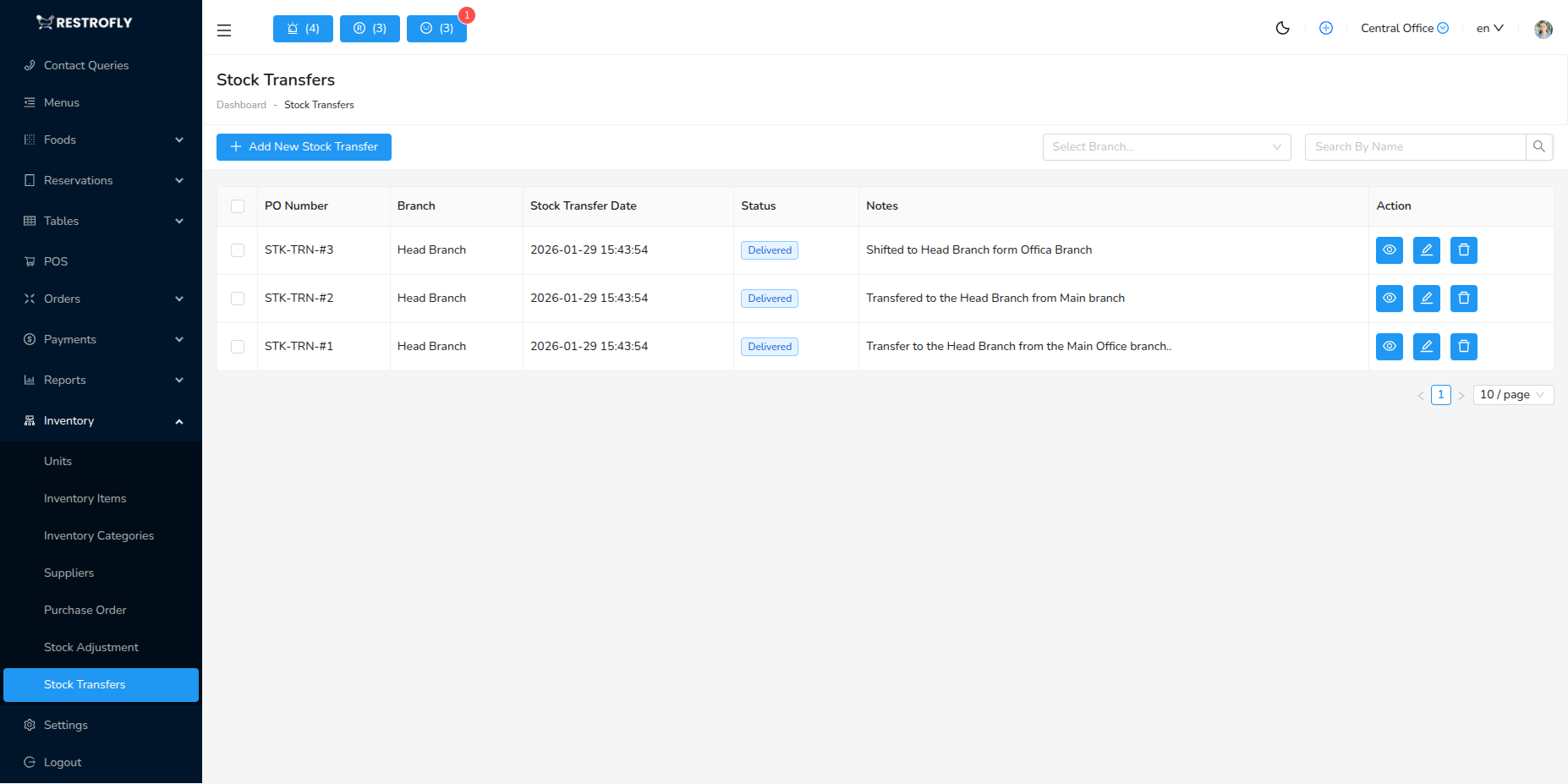
Overview
If you operate multiple restaurant branches, Stock Transfer allows moving inventory from one location to another. Helps balance stock levels across locations.
Creating Stock Transfer
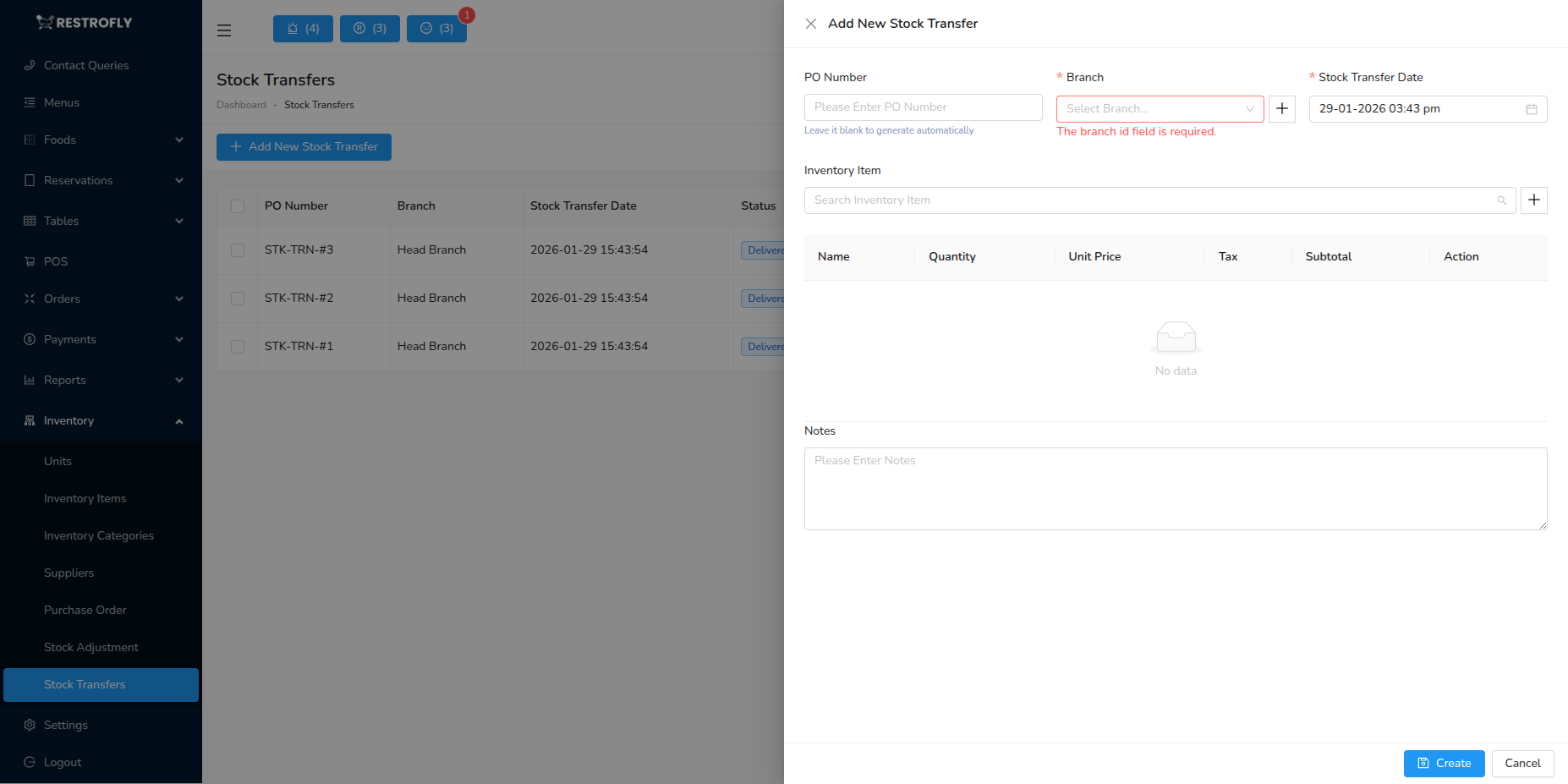
From Branch: Source location
To Branch: Destination location
Transfer Date: When transfer occurs
Items: Select items with quantities to transfer
Status: Pending, In Transit, Received, Cancelled
Notes: Transfer reason, special instructions
Transfer Workflow
- Create Transfer: Draft transfer order
- Approve: Manager approval if required
- Pack & Ship: Prepare items for transfer
- In Transit: Mark as in transit
- Receive: Destination confirms receipt
- Update Inventory: Both locations' stock updated automatically
Best Practices
Approval Process: Require manager approval for transfers, prevents unauthorized movements
Documentation: Maintain transfer records, receipt confirmation, tracking
Regular Transfers: Schedule regular transfers for efficiency, consolidate items
Balance Stock: Transfer excess stock to locations running low, optimize inventory across network
Quality Check: Inspect transferred goods upon receipt, verify quantities and condition
Central Kitchen
If you have central kitchen, use stock transfers to distribute prepared items to service locations. Tracks movement and maintains accurate inventory at all locations.