
Branches
Restrofly is designed as a multi-branch restaurant management system where each branch operates independently with its own menu, food items, categories, tables, staff members, and customizable front website. This powerful architecture allows you to manage multiple restaurant locations from a single admin panel while giving each branch complete autonomy over its operations and branding.
This feature is only available in the non-SAAS version.
Accessing Branches
Navigate to Settings → Branches to view, create, and manage all your restaurant branches.
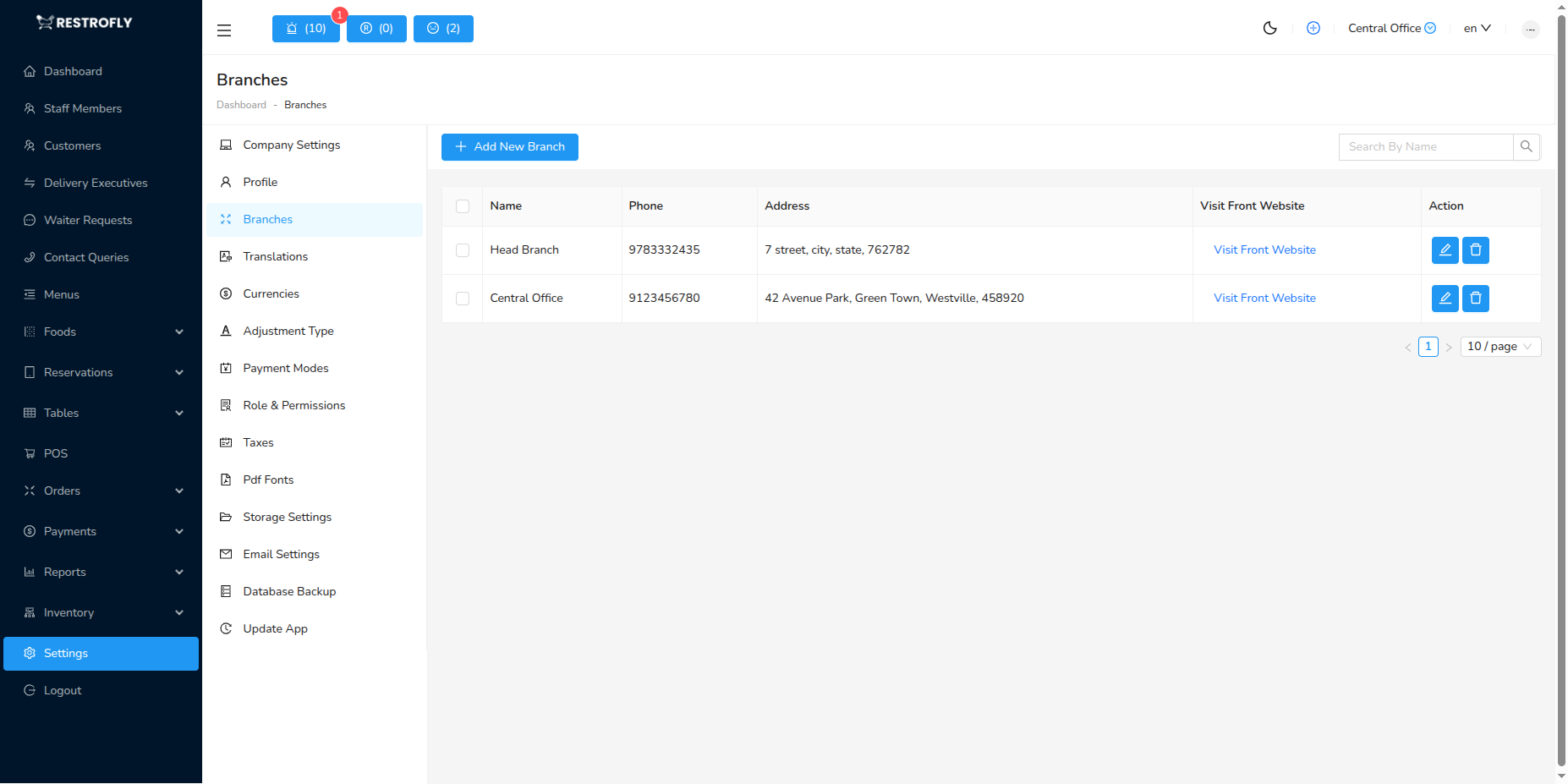
Branch Architecture
Each branch in Restrofly has independent control over:
- Menu Management: Unique menus, food types, categories, and items
- Table Management: Number of tables, table arrangements, QR codes
- Staff Management: Branch-specific staff members and assignments
- Front Website: Customizable public-facing website with unique branding
- Orders & Reservations: Separate order and reservation systems
- Inventory: Independent inventory tracking (if enabled)
Multi-Location Restaurant Management
Perfect for restaurant chains, franchises, or businesses with multiple locations. Each branch can have its own identity while maintaining centralized admin oversight.
Creating a New Branch
When creating or editing a branch, you'll work with five tabs containing different settings:
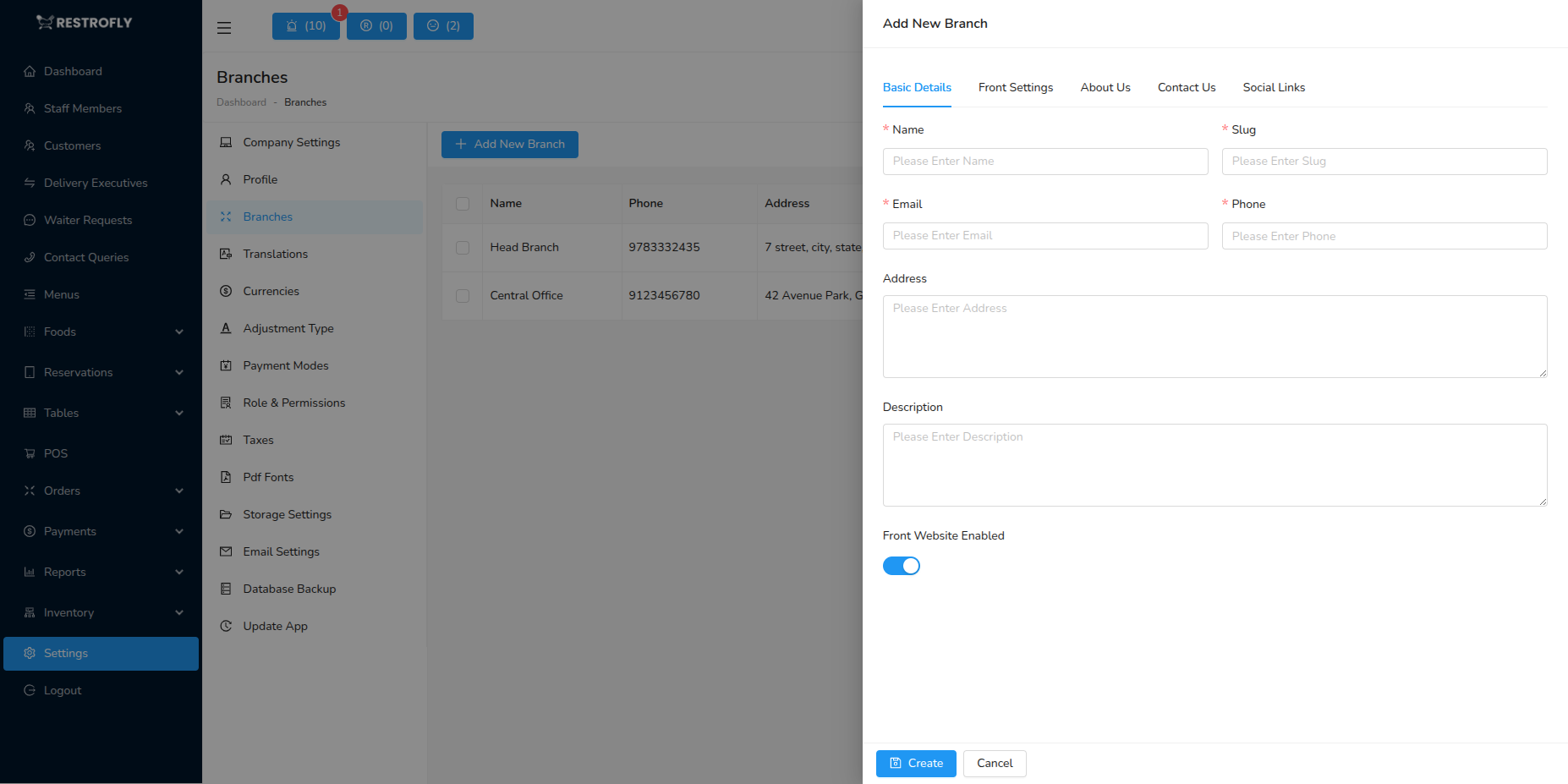
- Basic Details
- Front Settings
- About Us
- Contact Us
- Social Links
Let's explore each tab in detail.
Tab 1: Basic Details
Configure core information and contact details for your branch.
Branch Information
Name: Full name of the branch (required)
- Example: "Downtown Branch", "Airport Location", "Main Street"
- Displayed throughout the admin panel
- Auto-generates slug from the name
Slug: URL-friendly identifier (required)
- Automatically created from branch name
- Used in URLs and internal references
- Example: "downtown-branch", "airport-location"
- Can be manually edited if needed
Contact Details
Email: Branch contact email address (required)
- Used for customer inquiries specific to this branch
- Displayed on branch's front website
- Receives notifications for this branch
Phone: Branch contact phone number (required)
- Direct line to this specific branch
- Displayed on front website and reservation confirmations
- Format: Numeric input
Address: Physical address of the branch
- Full street address including city, state, postal code
- Shown on front website and in customer communications
- Used for delivery/pickup orders
- Multi-line text area for detailed address
Branch Description
- Description: Detailed information about this branch
- Special features of this location
- Operating hours specifics
- Unique offerings or specialties
- Internal notes about the branch
Front Website Toggle
- Front Website Enabled: Enable/disable public-facing website for this branch
- Toggle ON to activate the branch's front website
- Toggle OFF to disable public access (admin still accessible)
- When enabled, customers can view menu, make reservations, place orders
- Each branch can have its website independently enabled/disabled
Important
Only enable Front Website when you've completed all front-facing settings (logo, hero section, about us, etc.) to ensure customers see a complete, professional website.
Tab 2: Front Settings
Customize the public-facing website appearance and content for this branch.
Branding & Visual Identity
Front Logo
- Upload branch-specific logo for the front website
- Appears in website header/navigation
- Recommended size: 200x60px or similar
- Format: PNG with transparent background preferred
- Can differ from admin panel logo
Hero Section Image
- Large banner/background image for homepage
- First visual impression for website visitors
- Recommended size: 1920x800px (full-width banner)
- High-quality image of restaurant ambiance, signature dishes, or location
- Format: JPG or PNG
Hero Section Content
The hero section is the prominent area visitors see first on your branch website.
Hero Section Title
- Main headline on the homepage
- Example: "Welcome to Downtown Branch", "Experience Fine Dining", "Your Neighborhood Restaurant"
- Short, impactful message (5-10 words)
- Supports multi-language if configured
Hero Section Button Text
- Call-to-action button text
- Example: "Book a Table", "View Menu", "Order Now", "Reserve Your Spot"
- Action-oriented, encouraging engagement
- Button appears prominently in hero section
Hero Section Description
- Descriptive text below the title
- 2-3 sentences about what makes this branch special
- Example: "Serving authentic Italian cuisine in the heart of downtown since 2020. Fresh ingredients, traditional recipes, modern atmosphere."
- Multi-line text area
- Supports paragraph formatting
Footer & Theme
Footer
- Footer text displayed at bottom of all pages
- Copyright notice, additional info, legal disclaimers
- Example: "© 2026 Downtown Branch. All rights reserved. Made with ♥ in New York"
- Multi-line text area
Front Theme Color
- Primary color for the front website
- Used for buttons, links, highlights, active states
- Color picker for easy selection
- Independent from admin panel theme color
- Choose brand colors specific to this branch
Consistent Branding
Use colors and imagery that reflect this specific branch's atmosphere. A beachside location might use blues and coastal images, while a downtown branch might use urban photography and sophisticated colors.
Tab 3: About Us
Create the "About Us" page content for this branch's website.
Visual Content
About Us Image
- Image for the About Us page
- Can be: restaurant interior, chef photo, team photo, ambiance shot
- Recommended size: 600x400px or larger
- Format: JPG or PNG
- Appears alongside about us text
About Us Content
About Us Title
- Heading for the About Us section
- Example: "Our Story", "About Downtown Branch", "Who We Are"
- Typically 2-5 words
About Us Description
- Detailed story and information about this branch
- History of the location
- Philosophy and values
- What makes this branch unique
- Multi-paragraph text area
- Can be extensive (200-500 words)
Call-to-Action Buttons
About Us Button Text - First
- Primary action button on About Us page
- Example: "View Our Menu", "Make Reservation", "See Menu"
- Links to relevant section
About Us Button Text - Second
- Secondary action button
- Example: "Contact Us", "Gallery", "Our Team"
- Provides alternative action for visitors
Key Highlights (Points)
About Us Points
- Bullet-point highlights about the branch
- Example points:
- "Family-owned since 2015"
- "Farm-to-table fresh ingredients"
- "Award-winning chef"
- "Outdoor patio seating available"
- "Private event space for 50+ guests"
Dynamic Point Management:
- Add multiple points using "Add Point" button
- Remove points using red minus (-) button
- Minimum 1 point required
- Each point is a short phrase or sentence
- Displayed as bulleted list on website
Writing About Us Content
Be authentic and specific to this location. Mention local connections, community involvement, signature dishes, awards, or unique features that distinguish this branch from others.
Tab 4: Contact Us
Configure the Contact Us page for this branch.
Contact Information
Contact Us Description
- Text displayed on the Contact Us page
- Invitation to reach out
- Additional instructions for contacting this branch
- Example: "We'd love to hear from you! Whether you have questions about our menu, want to make a reservation, or have feedback to share, our team is here to help."
- Can include:
- Best times to call
- Response time expectations
- Specific departments/contacts
- Additional contact methods
Contact Page Content
The contact description complements the email and phone already configured in Basic Details. Both will be displayed on the Contact Us page, so make this text welcoming and informative.
Tab 5: Social Links
Connect this branch's social media profiles.
Social Media Integration
Each branch can have its own social media presence:
- Full Facebook page URL for this branch
- Example: https://facebook.com/downtown-branch-restaurant
- Leave empty if branch doesn't have Facebook
- Full Twitter/X profile URL for this branch
- Example: https://twitter.com/downtown_branch
- Leave empty if not applicable
- Full Instagram profile URL for this branch
- Example: https://instagram.com/downtown_branch_eats
- Most commonly used for restaurant marketing
YouTube
- Full YouTube channel URL for this branch
- Example: https://youtube.com/@downtown-branch
- For video content, tours, cooking demonstrations
Social Media Strategy
Each branch can maintain its own social media presence for local marketing and community engagement. Share branch-specific events, daily specials, and local promotions.
Saving Branch Configuration
After configuring all tabs:
- Review each tab to ensure all required fields are filled
- Upload all images (logos, hero images, about us images)
- Verify contact information accuracy
- Check Front Website Enabled toggle
- Click Create (for new branch) or Update (for existing branch)
- Wait for success confirmation
- New branch will appear in the branches list
Required Fields
Name, Slug, Email, and Phone are required fields. Ensure these are filled before attempting to save.
Managing Multiple Branches
Branch List View
The branches list shows:
- Branch name
- Branch slug
- Email address
- Phone number
- Front website status (enabled/disabled)
- Action buttons (Edit, Delete, View Front Website)
Branch Operations
Edit Branch
- Click edit icon to modify branch settings
- Update any tab as needed
- Changes apply immediately after saving
Delete Branch
- Permanently removes branch and all associated data
- ⚠️ Warning: Cannot be undone
- Deletes: menu items, categories, tables, orders, reservations
- Staff members are not deleted but unassigned
View Front Website
- Opens branch's public website in new tab
- Preview how customers see the branch
- Check appearance and functionality
Data Loss Warning
Deleting a branch permanently removes all branch-specific data including menu, orders, reservations, and table configurations. This action cannot be undone. Export data before deletion if needed.
Branch-Specific Features
Independent Menu Management
Each branch can have:
- Unique food types (appetizers, mains, desserts, etc.)
- Different food categories per type
- Distinct food items with individual pricing
- Branch-specific menu availability
- Separate menu images and descriptions
Use Case: Downtown branch offers lunch specials while airport branch focuses on quick meals; beachside branch has seafood specialties.
Table Management
Each branch configures:
- Number of tables
- Table numbers/names
- Table capacity (number of seats)
- QR code generation per table
- Table status management
Use Case: Small branch has 10 tables, flagship location has 50 tables with private dining rooms.
Staff Assignment
- Staff members can be assigned to specific branches
- Multi-branch staff can have access to multiple locations
- Branch managers oversee specific branches
- Role-based permissions per branch
Use Case: Head chef works across all branches, while line cooks are assigned to specific locations.
Separate Front Websites
- Each branch has unique URL/subdomain
- Independent branding and content
- Branch-specific promotions and announcements
- Localized content and imagery
Use Case: Beach branch website shows ocean views and seafood, city branch shows urban dining and business lunch menus.
Best Practices
Branch Setup Workflow
- Create branch with basic info (name, contact details)
- Upload all visual assets (logo, hero image, about us image)
- Configure front settings (theme color, hero content, footer)
- Write about us content (story, highlights, buttons)
- Add social media links (if available)
- Set contact us description
- Enable front website once everything is complete
- Add menu items for this branch
- Configure tables and table arrangements
- Assign staff members to the branch
Content Guidelines
For Hero Section:
- Use high-resolution, professional photos
- Keep title short and memorable
- Make button text action-oriented
- Write description that highlights unique value
For About Us:
- Tell authentic story of this location
- Mention local connections and community ties
- Highlight what makes this branch special
- Include awards, certifications, or recognition
- Update seasonally or when major changes occur
For Social Media:
- Ensure URLs are complete and correct
- Only include active social profiles
- Keep profiles updated and engaging
- Use consistent branding across platforms
Multi-Branch Consistency
Maintain consistency in:
- Service quality standards
- Core menu items (signature dishes)
- Brand values and messaging
- Customer service approach
Allow flexibility in:
- Local menu specialties
- Pricing based on location
- Website imagery and local content
- Social media content and local marketing
- Operating hours and special events
Troubleshooting
Front Website Not Displaying
Problem: Branch website shows error or doesn't load
Solutions:
- Verify "Front Website Enabled" is turned ON
- Check all required fields are filled in Basic Details
- Ensure at least hero section content is configured
- Clear browser cache and reload
- Check if slug is unique and valid
Images Not Appearing
Problem: Uploaded images don't show on front website
Solutions:
- Ensure images are under 2MB file size
- Use JPG or PNG format only
- Verify image upload completed successfully
- Check internet connection during upload
- Re-upload the image
- Clear CDN/cache if using cloud storage
Social Links Not Working
Problem: Social media icons link to wrong pages
Solutions:
- Ensure full URL including https://
- Verify URL format is correct
- Test links in separate browser tab before saving
- Check for typos in URL
- Leave empty if branch doesn't have that social profile
Branch Deletion Blocked
Problem: Cannot delete branch
Solutions:
- Check if branch has active orders or reservations
- Ensure you're not deleting the last remaining branch
- Verify you have admin permissions
- Complete any pending transactions first
- Contact support if issue persists
Slug Already Exists
Problem: Error when saving - "Slug already in use"
Solutions:
- Each branch must have unique slug
- Modify the slug to make it unique
- Add location identifier (e.g., "restaurant-downtown" vs "restaurant-uptown")
- Avoid special characters and spaces
Frequently Asked Questions
Q: How many branches can I create? A: There's no hard limit on branches. Create as many as needed for your restaurant business. Performance depends on your server resources.
Q: Can branches share menu items? A: No, each branch has independent menu management. However, you can manually create similar items across branches or use import/export features if available.
Q: Can I disable a branch temporarily? A: Yes, turn OFF "Front Website Enabled" to hide the branch from customers while keeping data intact. The admin panel still has access to manage the branch.
Q: Do all branches need front websites? A: No, you can enable front websites only for branches that need public access. Kitchen-only or administrative branches can remain disabled.
Q: Can branches have different pricing? A: Yes, since menus are independent per branch, you can set different prices based on location costs, market conditions, etc.
Q: What happens to orders when a branch is deleted? A: Historical order data is typically retained in the database, but the branch-specific configuration and active data are removed. Always backup before deletion.
Q: Can I copy settings from one branch to another? A: Currently, manual configuration is required for each branch. Consider documenting your standard setup process for consistency when adding new branches.
Q: Do branches share staff members? A: Staff members can be assigned to one or multiple branches. Configure this in staff member management, not in branch settings.
Q: Can customers order from multiple branches in one transaction? A: No, orders are branch-specific. Customers select a branch and order from that branch's menu only.
Q: How do I change a branch's URL/slug after creation? A: Edit the branch and modify the slug field. Note that existing links with the old slug will break, so update any external references.
Q: Can branches have different languages? A: Languages are configured globally, but branch content (hero text, about us, etc.) supports all configured languages. Each branch can translate its specific content.
Q: What's the difference between branch address in Basic Details and Contact Us page? A: Basic Details address is for admin/operational use. The address appears on the front website automatically. Contact Us description adds context and additional contact information.