
Menu
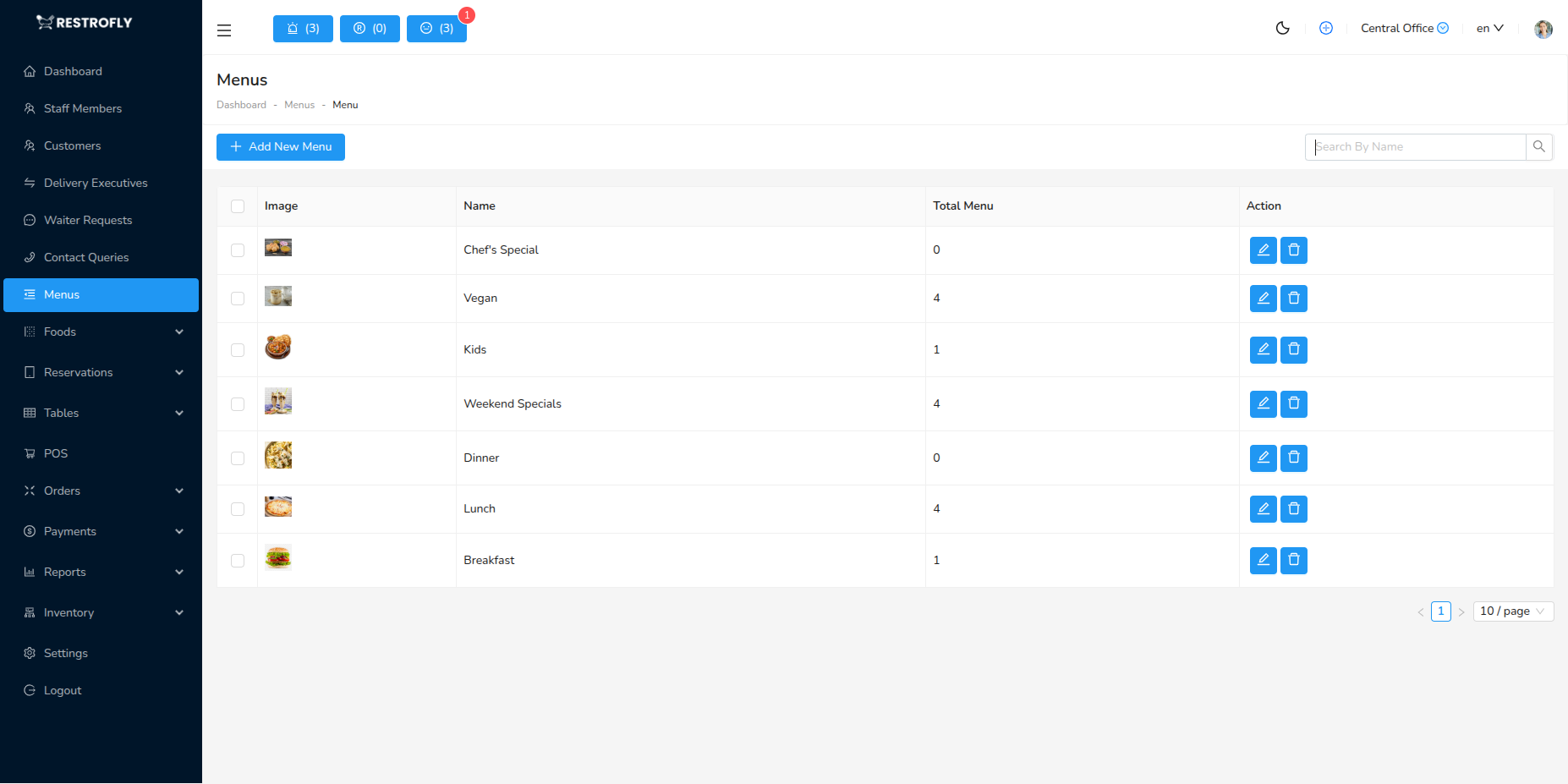
Create and manage menu lists for your restaurant, such as Breakfast, Lunch, Dinner, Drinks, or Desserts menus. Navigate to Menu → Menu to manage your menu lists.
Overview
Menus are top-level categories that organize your food items. Think of them as "Menu Cards" or "Menu Books" that group items by meal time or category. For example, you might have a Breakfast Menu, Lunch Menu, Dinner Menu, and Drinks Menu.
Menu vs. Food Items
Don't confuse Menu with Food Items. Menu is the container (like "Breakfast Menu"), while Food Items are the actual dishes (like "Pancakes" or "Omelette"). You create Menus here, then assign Food Items to those Menus later.
Creating a New Menu
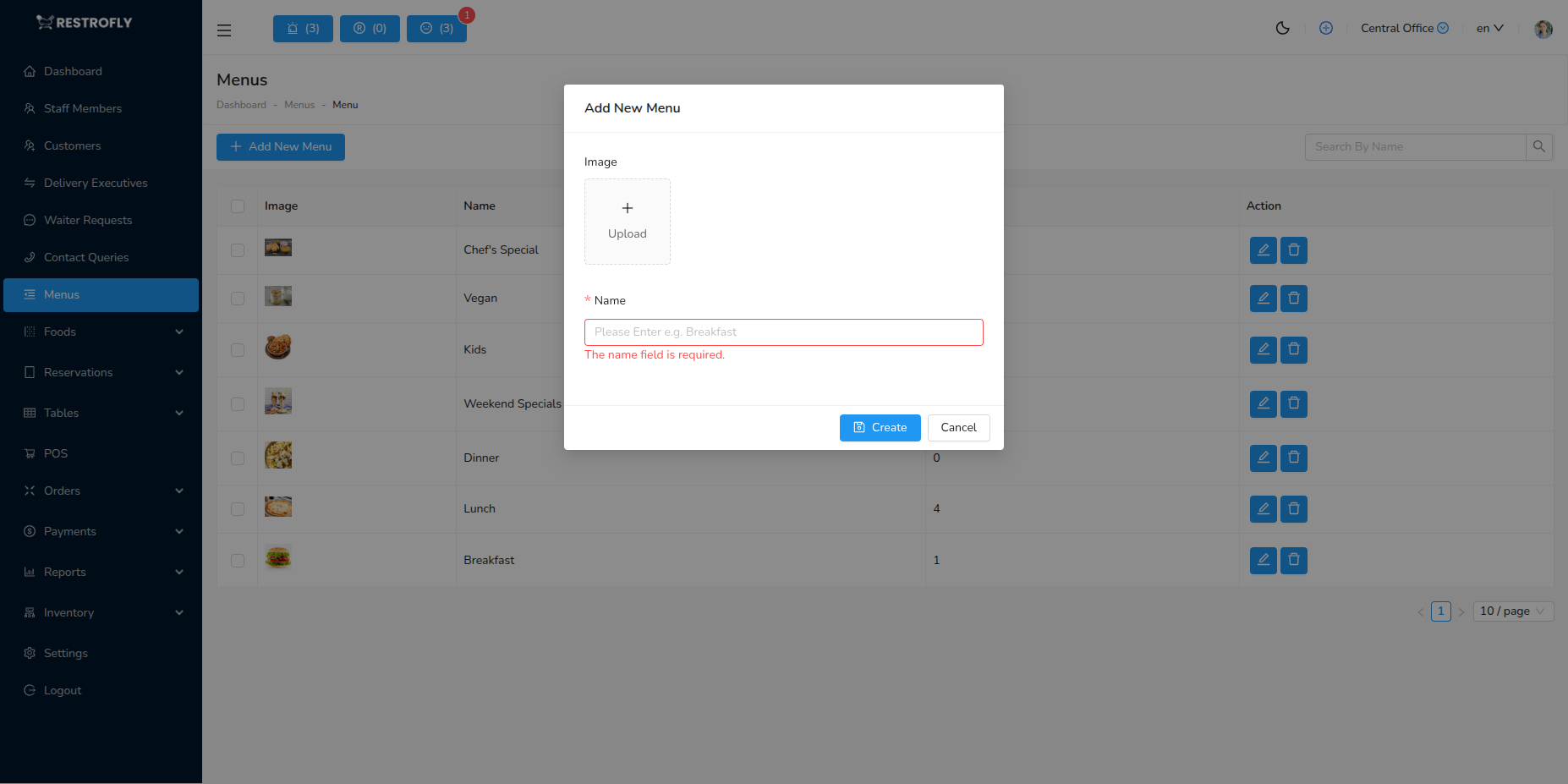
Click Add Menu to create a new menu list.
Image
- Upload an image representing the menu
- Could be a photo of popular items from this menu
- Or a decorative image matching the menu theme
- Displays on front-end website if applicable
- Optional but enhances visual appeal
Name (Required)
- Name of the menu list
- Examples:
- Breakfast Menu
- Lunch Specials
- Dinner Menu
- Drinks & Beverages
- Desserts
- Kids Menu
- Vegan Options
- Weekend Brunch
- Keep names clear and customer-friendly
- Appears on website and POS system
Menu List View
The menu list displays:
- Image: Menu thumbnail
- Name: Menu name
- Menu Count: Number of food items assigned to this menu
- Actions: Edit, Delete buttons
Search
- Search menus by name
- Useful when you have many menu lists
Bulk Actions
- Select multiple menus
- Bulk delete (use cautiously)
Deleting Menus
You cannot delete a menu that has food items assigned to it. First, remove or reassign all food items from the menu, then delete. This prevents accidental deletion of menus in use.
Managing Menus
Editing Menus
- Click Edit to modify menu details
- Update name or image
- Changes reflect immediately on website and POS
Menu Organization
- Create menus that match your service style
- Align with actual printed menus if you use them
- Consider how customers think about your offerings
Assigning Food Items
- After creating menus, go to Food Items section
- When creating/editing food items, select which menu they belong to
- Items can belong to multiple menus if needed
Common Menu Structures
Meal-Based Menus
- Breakfast Menu (6 AM - 11 AM)
- Lunch Menu (11 AM - 4 PM)
- Dinner Menu (4 PM - 10 PM)
- All-Day Menu
Category-Based Menus
- Appetizers
- Main Courses
- Desserts
- Beverages
- Sides
Dietary Menus
- Vegan Menu
- Vegetarian Menu
- Gluten-Free Menu
- Low-Carb Options
Special Menus
- Kids Menu
- Senior Menu
- Party Menu
- Catering Menu
Cuisine-Based Menus (Multi-Cuisine Restaurants)
- Chinese Menu
- Italian Menu
- Indian Menu
- Continental Menu
Best Practices
Clear Naming
- Use names customers understand
- "Breakfast Menu" is better than "Morning Options"
- "Drinks" is better than "Liquid Refreshments"
- Keep it simple and intuitive
Logical Organization
- Group items as customers expect
- Follow common restaurant conventions
- Match your physical menu structure
- Make it easy for customers to find items
Seasonal Menus
- Create seasonal menus (Summer Specials, Winter Warmers)
- Easy to enable/disable seasonally
- Keeps menu fresh and exciting
Limited Number
- Don't create too many menus (5-10 is typical)
- Too many menus confuse customers and staff
- Consolidate similar categories
Visual Consistency
- Use consistent image style across menus
- Professional photos preferred
- Images should be appetizing and high-quality
Regular Updates
- Review menus quarterly
- Remove discontinued items
- Add new seasonal offerings
- Keep menus current and relevant
Website Integration
- Menus appear on your customer-facing website
- Ensure names and images are customer-ready
- Test how they display on mobile devices
Menu Availability
Some systems allow setting time-based availability for menus (e.g., Breakfast Menu only shown 6-11 AM). Check your system configuration for this feature. This prevents customers from ordering breakfast items at dinner time.
Menu Count
The "Menu Count" shows how many food items are in each menu. Before deleting a menu, check this count. A count of 0 means the menu is empty and safe to delete. Any other count means items are assigned and must be moved first.