
KOT (Kitchen Order Ticket)
View and manage Kitchen Order Tickets - the orders sent to kitchen for preparation. Navigate to Orders → KOT to access kitchen view.
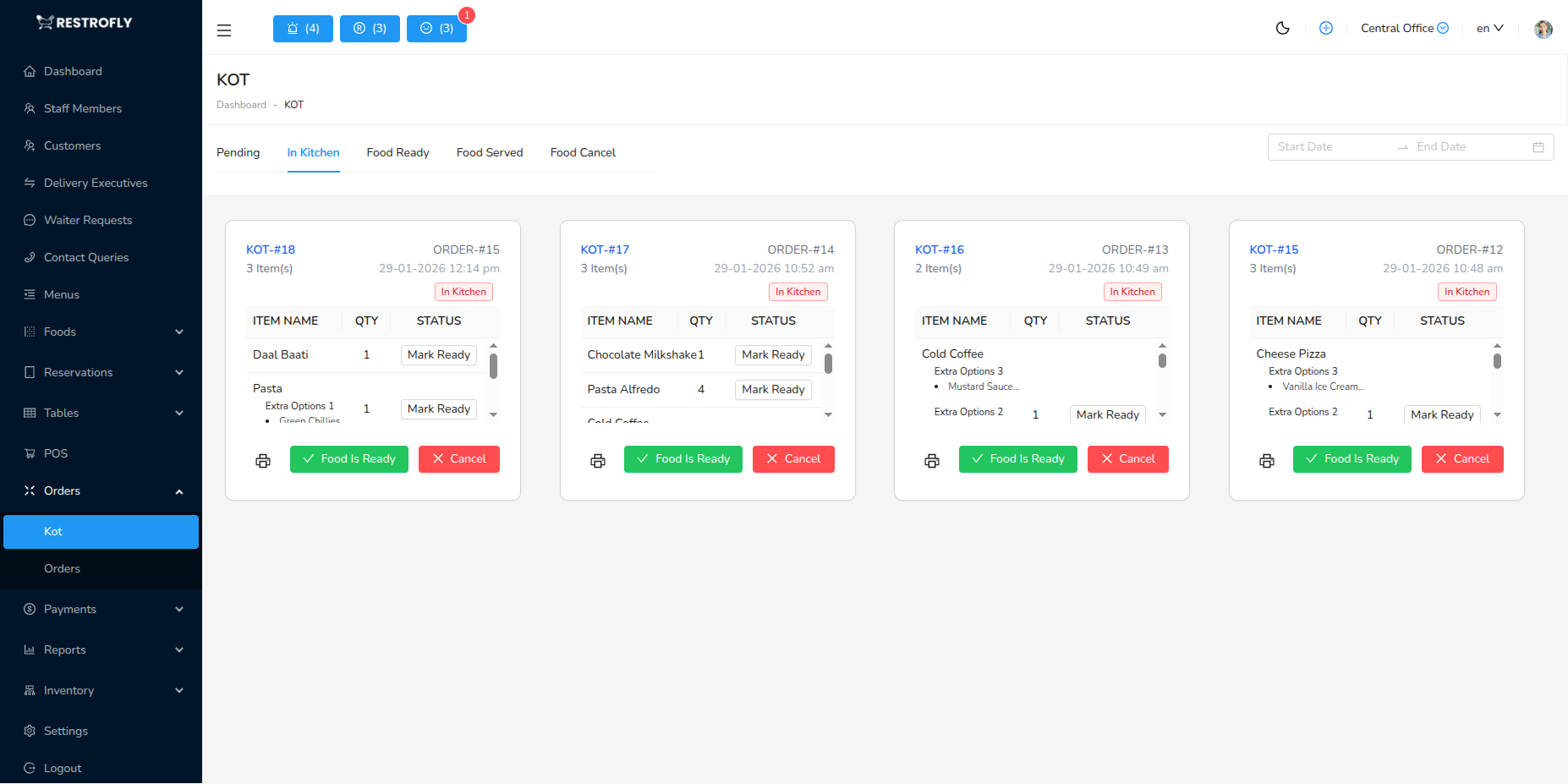
Overview
KOT is the kitchen-facing view of orders. When staff creates an order in POS and sends it to kitchen, it appears here as a KOT. Kitchen staff uses this screen to see what needs to be prepared.
KOT Grid View
Cards Displayed:
- KOT Number: Unique ticket identifier
- Order ID: Parent order reference
- Table: Table number (dine-in orders)
- Items: Food items to prepare with quantities
- Special Instructions: Customer notes (allergies, preferences)
- Status: Pending, Preparing, Ready, Served
- Time: When order was placed
- Waiter: Who took the order
Status Flow:
- Pending: Just arrived, not started
- Preparing: Kitchen working on it
- Ready: Finished, ready to serve
- Served: Delivered to customer
Filters:
- Filter by status
- Filter by time range
- Search by KOT or order number
- Filter by table
Kitchen Workflow
- KOT Arrives: Order appears in Pending tab
- Start Preparation: Click "Start" to mark as Preparing
- During Cooking: KOT shows in Preparing tab
- Complete Dish: Mark as Ready when finished
- Server Notified: Front-of-house sees Ready status
- Server Delivers: Marks as Served when delivered to table
KOT Features
Priority Indicators: Rush orders highlighted, special dietary requirements flagged, VIP customer orders marked
Timing: Shows elapsed time since order placed, alerts if taking too long, helps prioritize old orders
Item Grouping: Items grouped by cooking station if applicable (grill, fryer, salad station)
Special Instructions Highlighting: Allergy warnings in red, cooking preferences clear, customer notes prominent
Print KOT: Reprint if physical ticket lost, multiple kitchen stations get copies, backup physical tickets
Kitchen Display System (KDS)
If using kitchen display screens:
- Orders appear on screen automatically
- Touch to change status
- Color coding for priority
- Audio alert for new orders
- No paper tickets needed
Best Practices
Acknowledge Orders: Mark as "Preparing" immediately so staff knows it's being handled
Prioritize: Cook oldest orders first (FIFO - First In First Out), except rush orders or time-sensitive items
Communicate: Call out when dishes ready, alert if running behind, notify of any issues immediately
Quality Control: Verify all items before marking Ready, check special instructions followed, ensure presentation standards met
Clear Completed: Move served KOTs out of active view, keeps screen uncluttered, focus on current orders
Estimated Time
Display estimated prep time per dish. Kitchen can plan workflow and staff can inform customers of wait times accurately.
Special Instructions
Read special instructions carefully. Missing allergy notes or dietary restrictions can have serious consequences.