
PDF Fonts
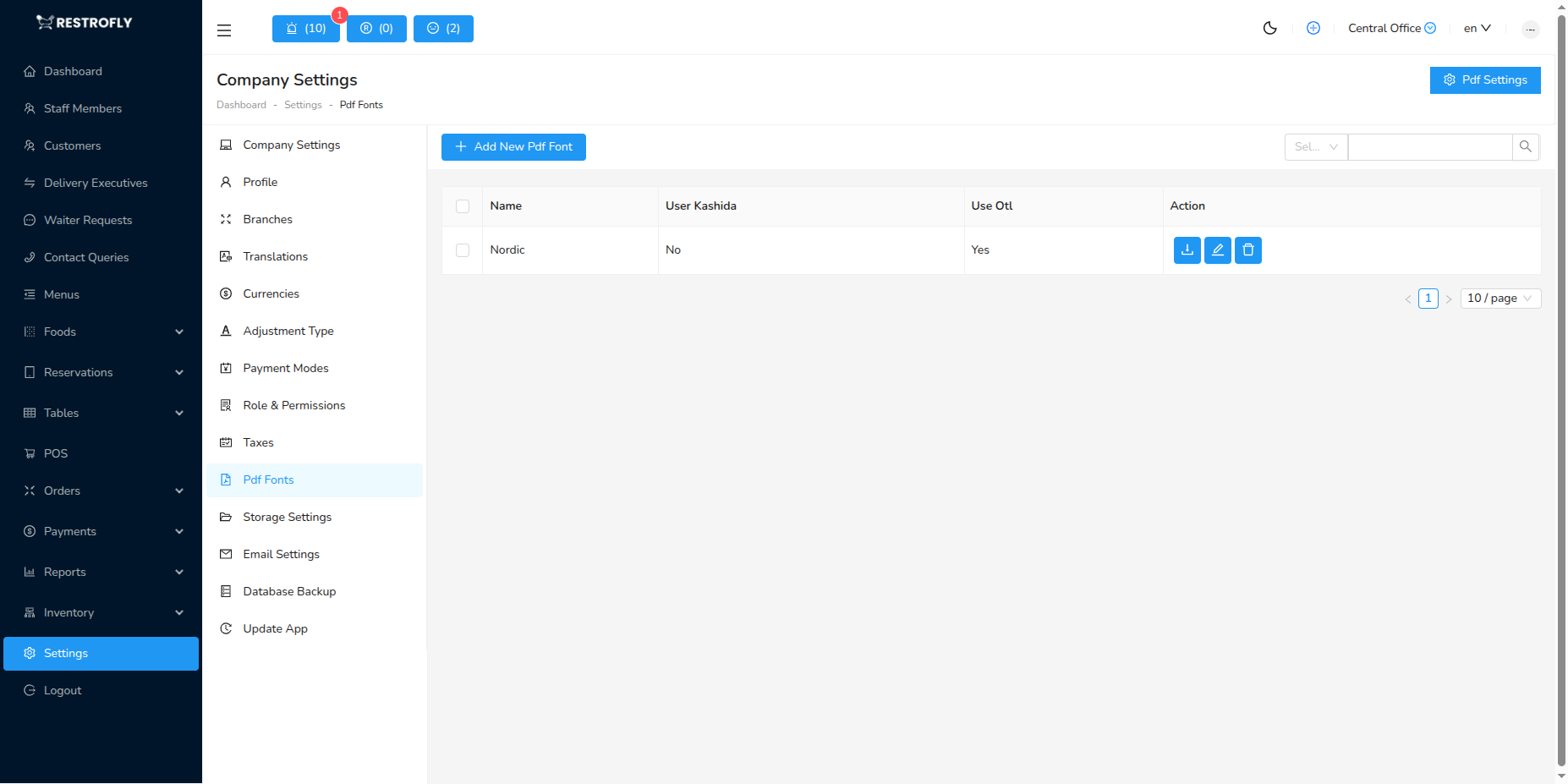
PDF Fonts allow you to customize the typography of your printed materials. This is especially useful for multilingual support (Arabic, Hindi, Chinese, etc.), maintaining brand consistency, and ensuring proper character rendering in PDF documents like bills, invoices, and reports. Navigate to Settings → PDF Fonts to manage fonts.
Why Custom PDF Fonts?
Multilingual Support
- Default fonts may not support all characters in languages like Arabic, Hindi, Thai, Chinese, Japanese
- Custom fonts ensure proper rendering of special characters and scripts
- Essential for restaurants serving international communities
Brand Consistency
- Match your restaurant's brand fonts on printed materials
- Create professional, cohesive look across all customer touchpoints
- Use the same fonts as your menu, signage, and website
Character Support
- Some special characters or symbols require specific fonts
- Ensure currency symbols, measurement units, and special characters display correctly
- Avoid "missing character" boxes in PDFs
Creating a New PDF Font
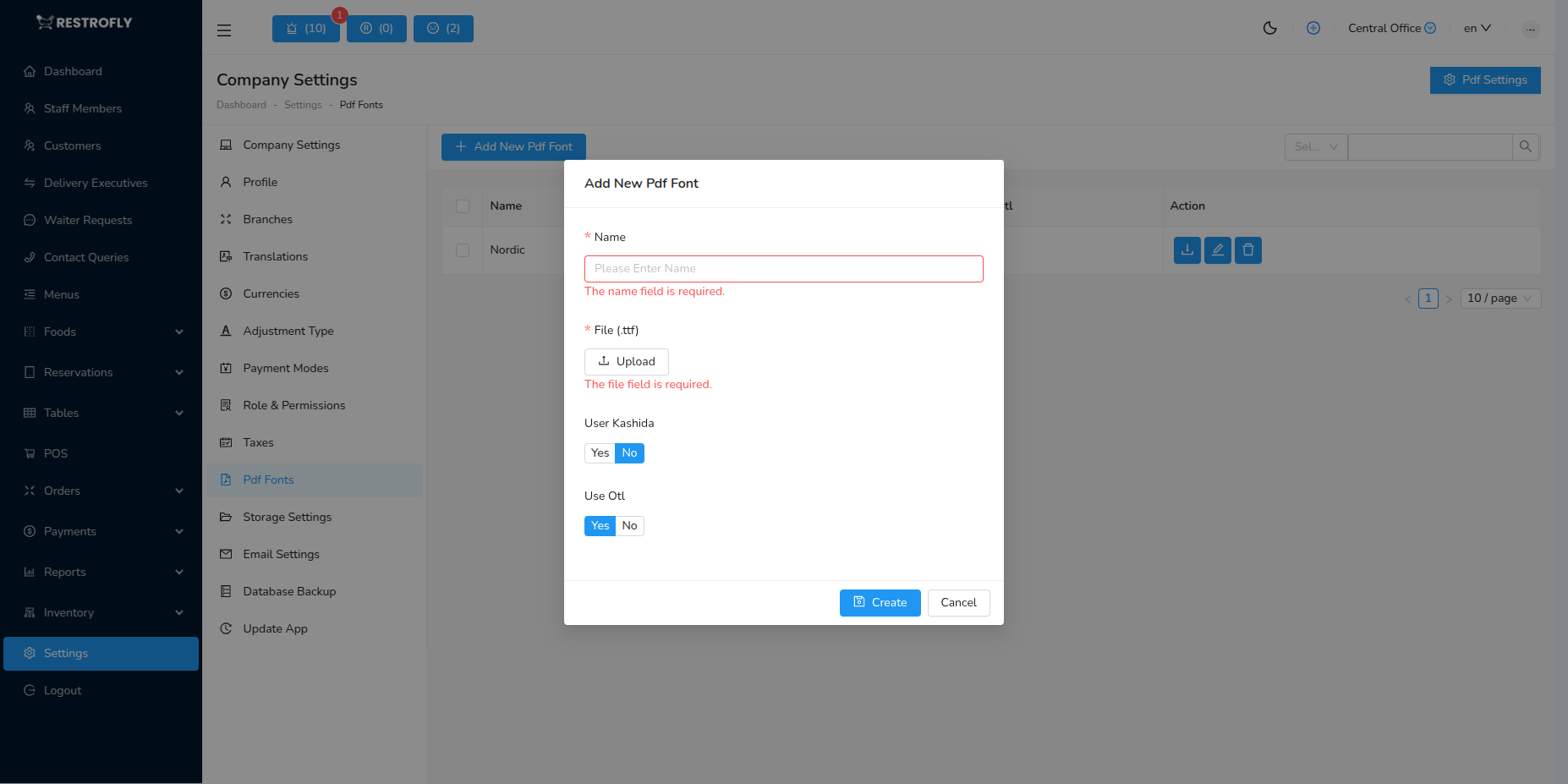
When creating or editing a PDF font, configure the following fields:
Name
- Font Name: Enter the full, descriptive name of the font (required)
- Examples: Roboto Regular, Noto Sans Arabic, Helvetica Bold, Open Sans
- Should clearly identify the font family and style
- Appears in font selection dropdowns throughout the application
File
- Font File: Upload the font file (required)
- Accepted Format: .ttf (TrueType Font) files only
- Font file size should be reasonable (typically under 5MB)
- Ensure you have proper licensing rights to use the font
- Where to get fonts:
- Google Fonts (free, open-source)
- Adobe Fonts (with subscription)
- Purchase from font foundries
- Your designer may provide branded fonts
Font Licensing
Ensure you have the legal right to use any font you upload. Many fonts require commercial licenses for business use, even if they're free for personal use.
Use Kashida
- Use Kashida: Enable or disable Kashida justification (Yes/No)
- Value: Yes (1) or No (0)
- What is Kashida?
- A typographic feature used primarily in Arabic script
- Elongates certain characters to justify text
- Creates visually balanced text alignment
- When to use:
- Set to Yes if you're using an Arabic font and want proper text justification
- Set to No for non-Arabic fonts or if you don't need this feature
- Default: No (0) for most fonts
Arabic Fonts
If your restaurant serves Arabic-speaking customers and prints materials in Arabic, set Use Kashida to Yes for Arabic fonts. For all other languages, leave it as No.
Use OTL
- Use OTL: Enable or disable OpenType Layout features (Yes/No)
- Value: Yes (255) or No (0)
- What is OTL?
- OpenType Layout provides advanced typography features
- Includes ligatures, kerning, contextual alternates
- Improves text rendering for complex scripts
- When to use:
- Set to Yes (255) for fonts with OpenType features, especially:
- Arabic, Persian, Urdu fonts
- Devanagari (Hindi) fonts
- Complex script fonts
- Fonts with special ligatures
- Set to No (0) for simple Latin fonts without special features
- Set to Yes (255) for fonts with OpenType features, especially:
- Default: No (0) for most Latin fonts
Complex Scripts
If you're using fonts for languages with complex character shaping (Arabic, Hindi, Thai, etc.), set Use OTL to Yes (255) for proper character rendering. For standard English/Latin fonts, No (0) is fine.
Font Examples by Language
English / Latin Scripts
Font: Roboto, Open Sans, Helvetica, Arial
- Use Kashida: No
- Use OTL: No
- Use: Standard English restaurant materials
Arabic
Font: Noto Sans Arabic, Cairo, Amiri
- Use Kashida: Yes
- Use OTL: Yes
- Use: Arabic bills, menus, signage
Hindi / Devanagari
Font: Noto Sans Devanagari, Lohit Devanagari
- Use Kashida: No
- Use OTL: Yes
- Use: Hindi restaurant materials
Chinese
Font: Noto Sans CJK, Source Han Sans
- Use Kashida: No
- Use OTL: No (unless font has advanced features)
- Use: Chinese menus and bills
Japanese
Font: Noto Sans JP, Source Han Sans JP
- Use Kashida: No
- Use OTL: No (unless font has advanced features)
- Use: Japanese restaurant materials
Thai
Font: Noto Sans Thai, Sarabun
- Use Kashida: No
- Use OTL: Yes
- Use: Thai bills and menus
Step-by-Step: Adding a Font
1. Obtain the Font File
- Download from Google Fonts (free) or purchase
- Ensure file is in .ttf format
- Check licensing for commercial use
2. Upload to Restrofly
- Go to Settings → PDF Fonts
- Click Add New Font
- Enter Name (e.g., "Noto Sans Arabic Regular")
- Click Upload or Choose File
- Select your .ttf file from your computer
- Wait for upload to complete
3. Configure Font Settings
- Set Use Kashida: - Yes: For Arabic fonts only - No: For all other languages
- Set Use OTL: - Yes: For Arabic, Hindi, Thai, and complex scripts - No: For simple English/Latin fonts
4. Save and Test
- Click Save or Create
- Go to App Settings → Appearance
- Select your new font for PDFs
- Generate a test invoice/bill
- Verify characters render correctly
Using PDF Fonts
After uploading fonts:
Set Default PDF Font - Go to App Settings → Appearance (or Preferences) - Find PDF Font or Bill Font setting - Select your uploaded font from dropdown - Save settings
Generate PDFs - When you generate bills, invoices, or reports as PDFs - The system uses your selected font - All characters should render properly
Verify Output - Print a test bill to ensure font displays correctly - Check all special characters and numbers - Verify line spacing and readability
Best Practices
Choose Readable Fonts
- Bills and invoices need clear, legible fonts
- Avoid overly decorative fonts for transactional documents
- Reserve fancy fonts for marketing materials
Test Before Production
- Always generate test PDFs after adding a new font
- Verify all characters, numbers, and currency symbols display correctly
- Print test pages to check real-world appearance
Keep Font Files Organized
- Use consistent naming: "FontFamily-Style" (e.g., "Roboto-Bold")
- Document which fonts are used where
- Keep backup copies of font files
Mind the File Size
- Larger font files increase PDF generation time
- If possible, use optimized font files
- Consider subsetting fonts if available (only include needed characters)
Licensing Compliance
- Only upload fonts you have rights to use commercially
- Keep license documentation for audits
- Use open-source fonts (Google Fonts, Open Font License) to avoid licensing issues
Multilingual Setup
- Upload separate fonts for each language if needed
- Name fonts clearly: "Arabic Font", "Hindi Font", etc.
- Test with actual content in each language
Update Fonts When Needed
- If a font is updated (bug fixes, new characters), re-upload
- Delete old font version to avoid confusion
- Notify staff if font appearance changes
Troubleshooting
Characters Not Displaying (Showing Boxes)
- The uploaded font doesn't support those characters
- Solution: Upload a font that includes the character set for your language
- Try Noto Sans fonts from Google Fonts (comprehensive language support)
Font Not Appearing in Selection Dropdown
- Font upload may have failed
- Solution: Try uploading again, ensure file is .ttf format
- Check file size is not too large
PDF Generation is Slow
- Large font files can slow down PDF creation
- Solution: Use optimized/compressed font files if available
- Consider using web-safe fonts for simple documents
Text Appears Jumbled (Arabic, Hindi)
- Use Kashida or Use OTL settings are incorrect
- Solution: For Arabic, enable Use Kashida = Yes and Use OTL = Yes
- For Hindi/Devanagari, enable Use OTL = Yes
- Regenerate PDF
Font Looks Different in PDF vs Screen
- PDF rendering may differ slightly from screen rendering
- Solution: This is normal; verify PDF output is acceptable
- Adjust font choice if needed
Can't Delete a Font
- Font may be set as default or in use
- Solution: Change default font to another option first
- Then delete the unwanted font
Recommended Free Fonts
For Multilingual Support:
- Noto Sans family (Google Fonts) - supports 100+ languages
- Open Sans (Google Fonts) - excellent readability
- Roboto (Google Fonts) - modern, clean appearance
For Arabic:
- Noto Sans Arabic
- Cairo
- Amiri
For Hindi/Devanagari:
- Noto Sans Devanagari
- Hind
For Chinese:
- Noto Sans SC (Simplified Chinese)
- Noto Sans TC (Traditional Chinese)
For Japanese:
- Noto Sans JP
All Noto fonts are free, open-source, and available at https://fonts.google.com/noto
Font Recommendation
For multi-language restaurants, the Noto Sans font family from Google Fonts is highly recommended. It's free, covers almost all languages, and maintains consistent appearance across scripts.
System Fonts vs Uploaded Fonts
Default system fonts may not render correctly in PDFs for all languages. Always upload and explicitly select fonts for PDF generation, especially for non-Latin scripts.