
Food Items
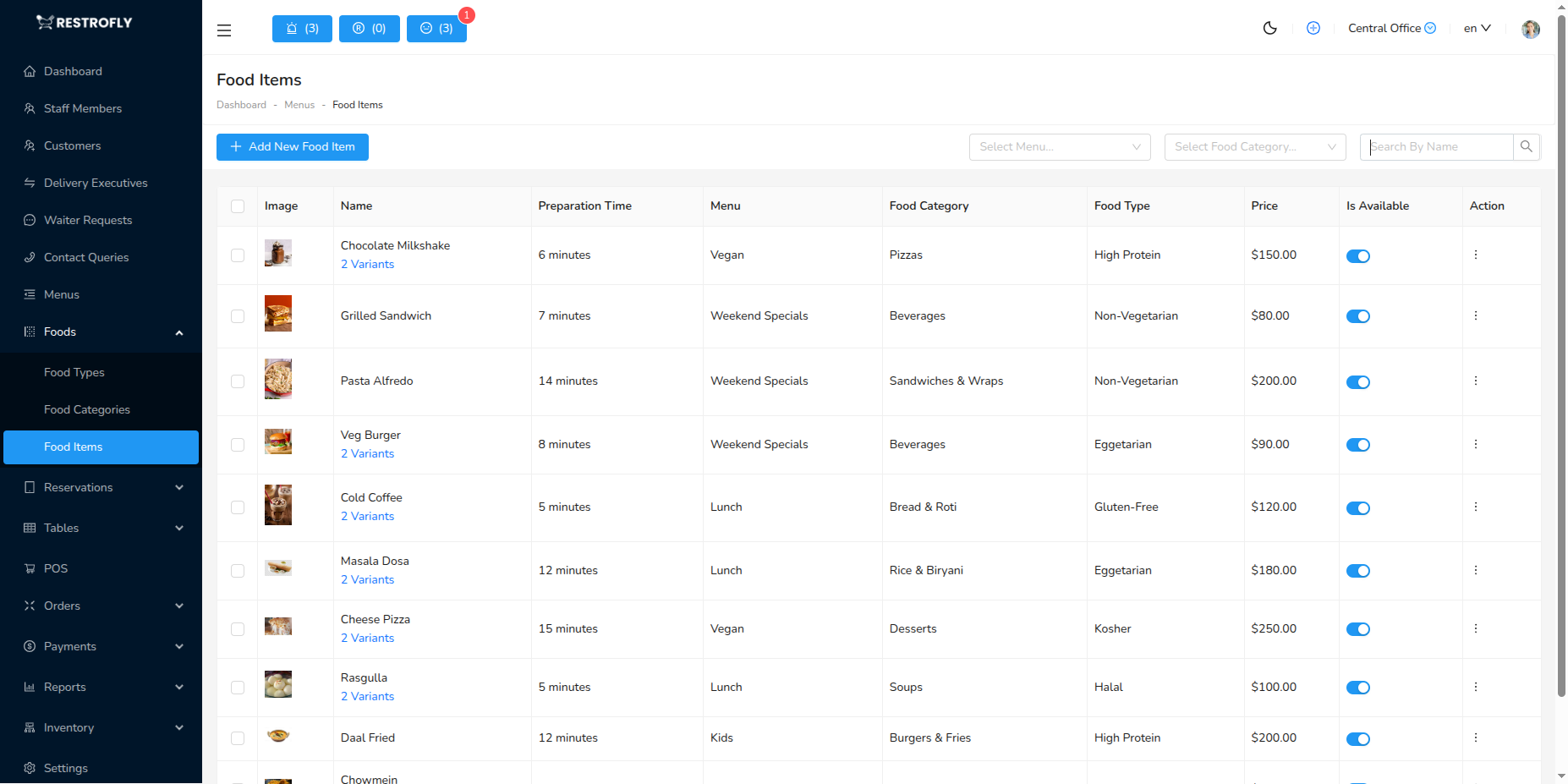
Food Items are the actual dishes on your menu - the products customers order. Navigate to Foods → Food Items to manage your complete menu inventory.
Overview
This is where you create and manage every dish, drink, and item available for customers to order. Food Items are the core of your restaurant's menu system.
Creating a Food Item
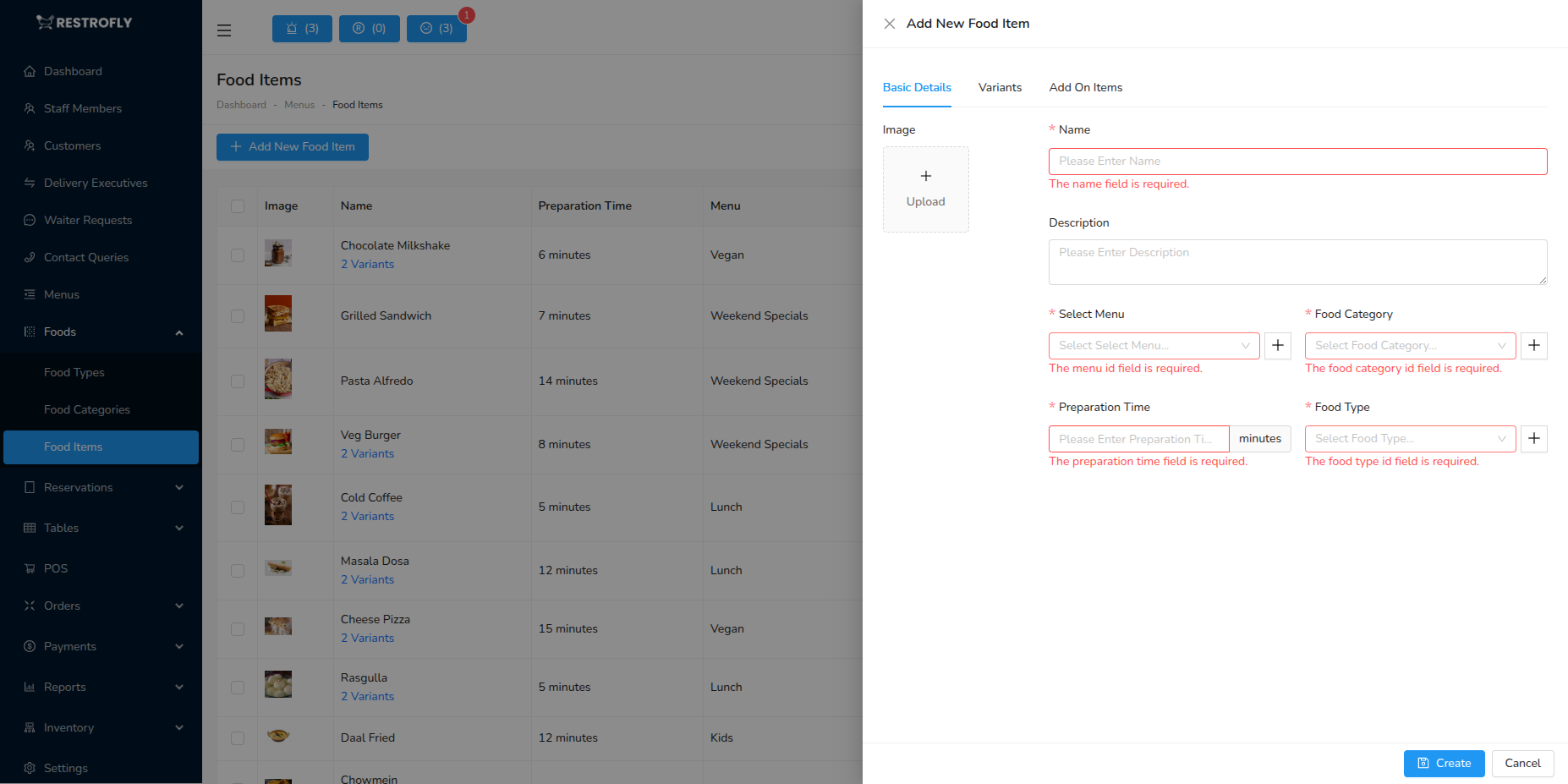
Click Add Food Item to create a new menu item. The form has multiple sections:
Basic Information
Image (Recommended)
- Upload an appetizing photo of the dish
- High-quality, professional food photography preferred
- Significantly increases order rate on digital menus
- Displays on website, mobile apps, and digital displays
Name (Required)
- Official name of the dish
- Examples: "Grilled Chicken Breast", "Margherita Pizza", "Caesar Salad"
- Use consistent naming conventions
- Should match menu and receipts
Description
- Detailed description of the dish
- Include key ingredients and cooking method
- Examples:
- "Tender chicken breast marinated in herbs, grilled to perfection, served with seasonal vegetables"
- "Classic pizza with tomato sauce, fresh mozzarella, and basil"
- Helps customers make informed choices
- Useful for dietary restrictions and allergen information
Menu (Required)
- Select which menu this item belongs to
- Examples: Breakfast Menu, Lunch Menu, Dinner Menu
- Controls when item is available (if time-based menus enabled)
Food Type (Required)
- High-level category: Appetizers, Main Courses, Desserts, etc.
- First level of organization
- Helps customers browse menu
Food Category (Required)
- Specific sub-category within food type
- Examples: Chicken Dishes, Pasta, Salads
- Provides detailed organization
Pricing & Taxes
Price (Required)
- Base price of the item in your currency
- Enter numbers only (no currency symbols)
- Example: 15.99, 250, 1200.50
- This is the default price (can be overridden by variants)
Tax (Required)
- Select applicable tax rate
- Taxes must be configured first in Settings → Taxes
- Can be VAT, GST, Sales Tax, or custom
- Applied at checkout and shown on receipts
Preparation Time
- Estimated cooking/preparation time in minutes
- Example: 15, 20, 30 minutes
- Helps set customer expectations
- Used for delivery time estimates
- Useful for kitchen planning
Availability & Status
Is Available
- Toggle switch: Yes or No
- Controls whether item can be ordered
- Set to "No" for:
- Temporarily out of stock items
- Seasonal items currently out of season
- Items being discontinued
- Unavailable items don't show on website/app
- Still visible in admin for reference
Is Featured
- Toggle switch: Mark as featured item
- Featured items may appear in:
- Special section on website
- Homepage highlights
- "Chef's Recommendations"
- Use for signature dishes and specials
Is Popular
- Toggle switch: Mark as popular item
- Popular items may show "Popular" badge
- Influences customer choices
- Based on sales data or manual designation
Advanced Features
Variants & Groups
Food items can have variants (size, customizations) and add-on groups (extras).
Has Variation
- Toggle switch: Enable if item has multiple options
- Examples of variants:
- Pizza: Small, Medium, Large, Extra Large
- Coffee: Regular, Large
- Burger: Single, Double, Triple
- Each variant can have different price
- Customers select variant at order time
Adding Variants
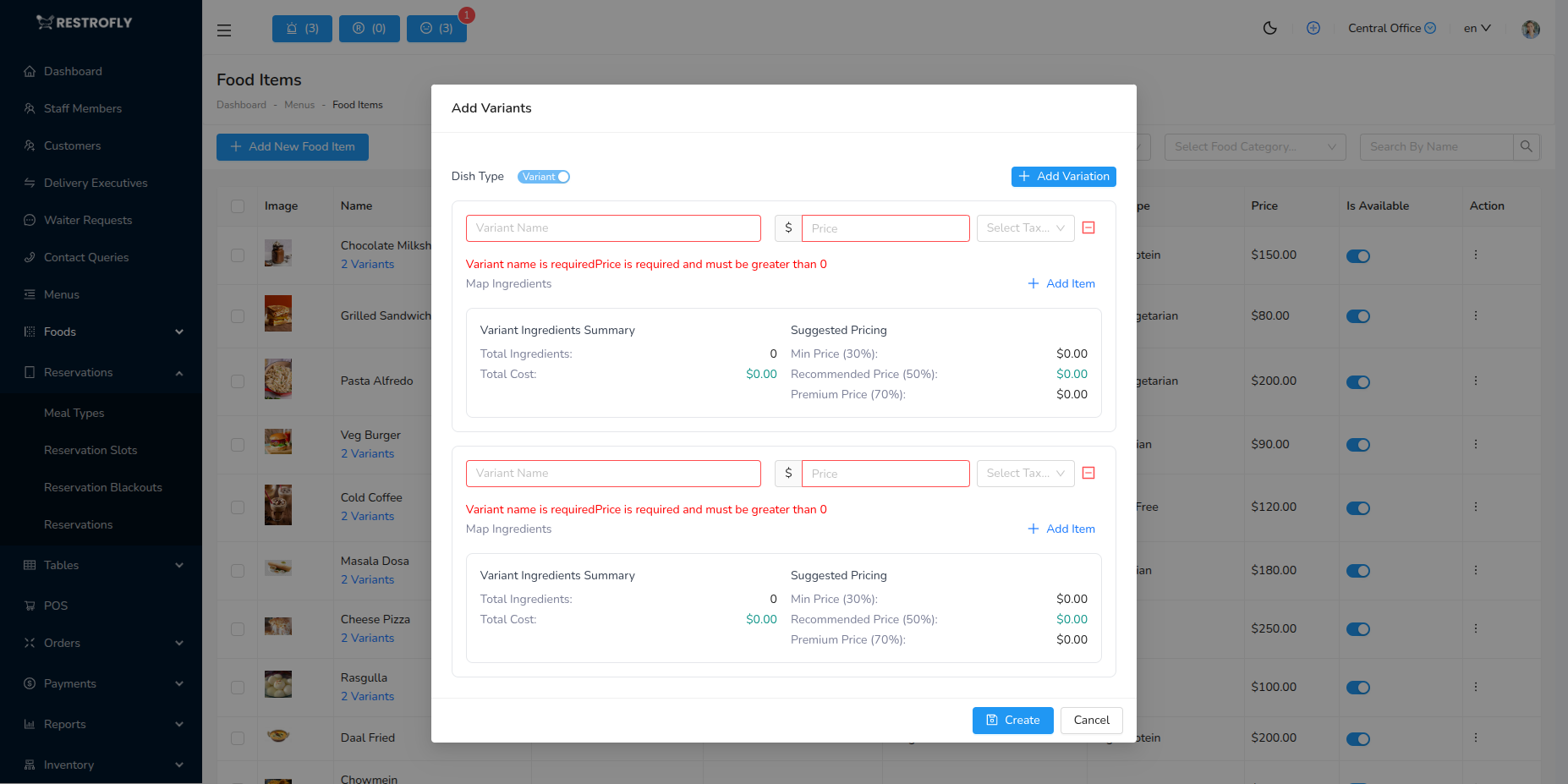
- Create the base food item first
- After saving, click Add Variants in actions menu
- Enter variant details:
- Variant Name: Small, Medium, Large, etc.
- Price: Price for this variant
- Is Default: Set one variant as default selection
- Add multiple variants as needed
- Variants appear as options when ordering
Example Variant Setup:
- Pizza (Base Item)
- Small (10") - ₹300
- Medium (12") - ₹450
- Large (14") - ₹600
- Extra Large (16") - ₹800
Add-On Groups
- Click Add Groups in actions menu
- Create customization groups:
- Group Name: Extra Toppings, Sauce Options, Side Choices
- Items: Individual options within the group
- Price: Additional charge for each option
- Required: Must customer select from this group?
- Multiple Selection: Can select multiple items?
Example Add-On Group:
- Burger (Base Item)
- Extra Toppings Group (Optional, Multiple Selection)
- Cheese +₹30
- Bacon +₹50
- Avocado +₹40
- Extra Patty +₹80
- Sauce Options Group (Required, Single Selection)
- BBQ Sauce
- Mayo
- Spicy Sauce
- Mustard
- Extra Toppings Group (Optional, Multiple Selection)
Variants vs Add-Ons
Variants are mutually exclusive options (customer picks one size). Add-Ons are extras that can be added (customer can add multiple toppings). Use variants for sizes/versions, add-ons for customizations.
Ingredients & Recipe
Ingredients
- List ingredients used in this dish
- Select from Inventory Items (if inventory module enabled)
- Specify quantity of each ingredient
- Used for:
- Automatic inventory deduction when item sold
- Recipe costing and profit margin calculation
- Allergen tracking and dietary information
- Stock alerts when ingredients low
Adding Ingredients:
- In Food Item form, find Ingredients section
- Click Add Ingredient
- Select ingredient from inventory
- Enter quantity used per serving
- Repeat for all ingredients
Example:
- Chicken Burger
- Burger Bun - 1 piece
- Chicken Breast - 150g
- Lettuce - 20g
- Tomato - 50g
- Cheese Slice - 1 piece
- Special Sauce - 30ml
Inventory Integration
Linking food items to inventory ingredients enables automatic stock tracking. When a Chicken Burger is sold, the system automatically deducts 1 bun, 150g chicken, etc. from inventory.
Food Items List View
Columns Displayed:
- Image: Thumbnail of dish
- Name: Item name with variant count (if applicable)
- Menu: Which menu(s) it belongs to
- Food Type: Category
- Food Category: Sub-category
- Price: Display price (or price range for items with variants)
- Preparation Time: Cook time in minutes
- Status: Available or Unavailable badge
- Actions: Edit, Delete, Add Variants, Add Groups
Filters:
- Menu Filter: Show items from specific menu
- Food Category Filter: Filter by category
- Search: Search by item name
Variant Indicator
- Items with variants show link: "3 Variants"
- Click to view all variant details
- Quick access to variant pricing
Managing Food Items
Editing Items
- Click Edit to modify item details
- Update any field
- Changes reflect immediately on website and POS
Availability Toggle
- Quick toggle in list view to mark available/unavailable
- No need to open full edit form
- Instant update across all systems
Deleting Items
- Click Delete to remove item
- Confirmation required
- Cannot delete items with order history (recommended to make unavailable instead)
Bulk Actions
- Select multiple items with checkboxes
- Bulk delete for cleanup
- Use cautiously to avoid mistakes
Best Practices
High-Quality Images
- Professional food photography increases orders by 30-40%
- Consistent style across all items
- Well-lit, appetizing, accurate representation
- Images should load fast (optimize file size)
Descriptive Names
- Clear, concise, appetizing
- "Grilled Salmon with Lemon Butter" better than just "Salmon"
- Include key selling points in name
- Keep under 50 characters when possible
Compelling Descriptions
- Describe flavors, cooking method, key ingredients
- Mention if organic, free-range, imported, etc.
- Indicate dietary suitability (vegetarian, gluten-free)
- Include allergen warnings
- Keep to 2-3 sentences
Accurate Pricing
- Update prices regularly
- Use variants for size-based pricing
- Consider food cost and profit margins
- Stay competitive with market rates
Realistic Prep Times
- Set achievable preparation times
- Account for peak hour delays
- Better to overestimate than underestimate
- Adjust based on kitchen feedback
Inventory Linking
- Link to inventory items when possible
- Enables automatic stock management
- Provides accurate costing data
- Alerts when ingredients running low
Menu Organization
- Assign to correct menu(s)
- Proper food type and category
- Makes ordering faster and easier
- Better browsing experience
Regular Updates
- Review items quarterly
- Remove unpopular items
- Update seasonal offerings
- Adjust prices based on costs
- Refresh photos periodically
Seasonal Items
- Mark seasonal items clearly
- Make unavailable when out of season
- Consider special "Seasonal Menu"
- Don't delete - reuse next year
Menu Psychology
Place most profitable items first in categories, with good images and descriptions. Items in top 2-3 positions get ordered most frequently.
Consistency Across Channels
Ensure food items appear consistently across POS, website, mobile app, and printed menus. Inconsistencies confuse customers and staff.
Upselling with Add-Ons
Use add-on groups strategically to increase average order value. "Make it a combo? +₹50" or "Add extra cheese? +₹30" are proven upsell techniques.