
Taxes
Taxes are essential for your restaurant billing and compliance. Restrofly supports both simple single taxes and complex multiple tax combinations, giving you flexibility to handle various tax regulations. You can create and manage different tax rates by navigating to Settings → Taxes.
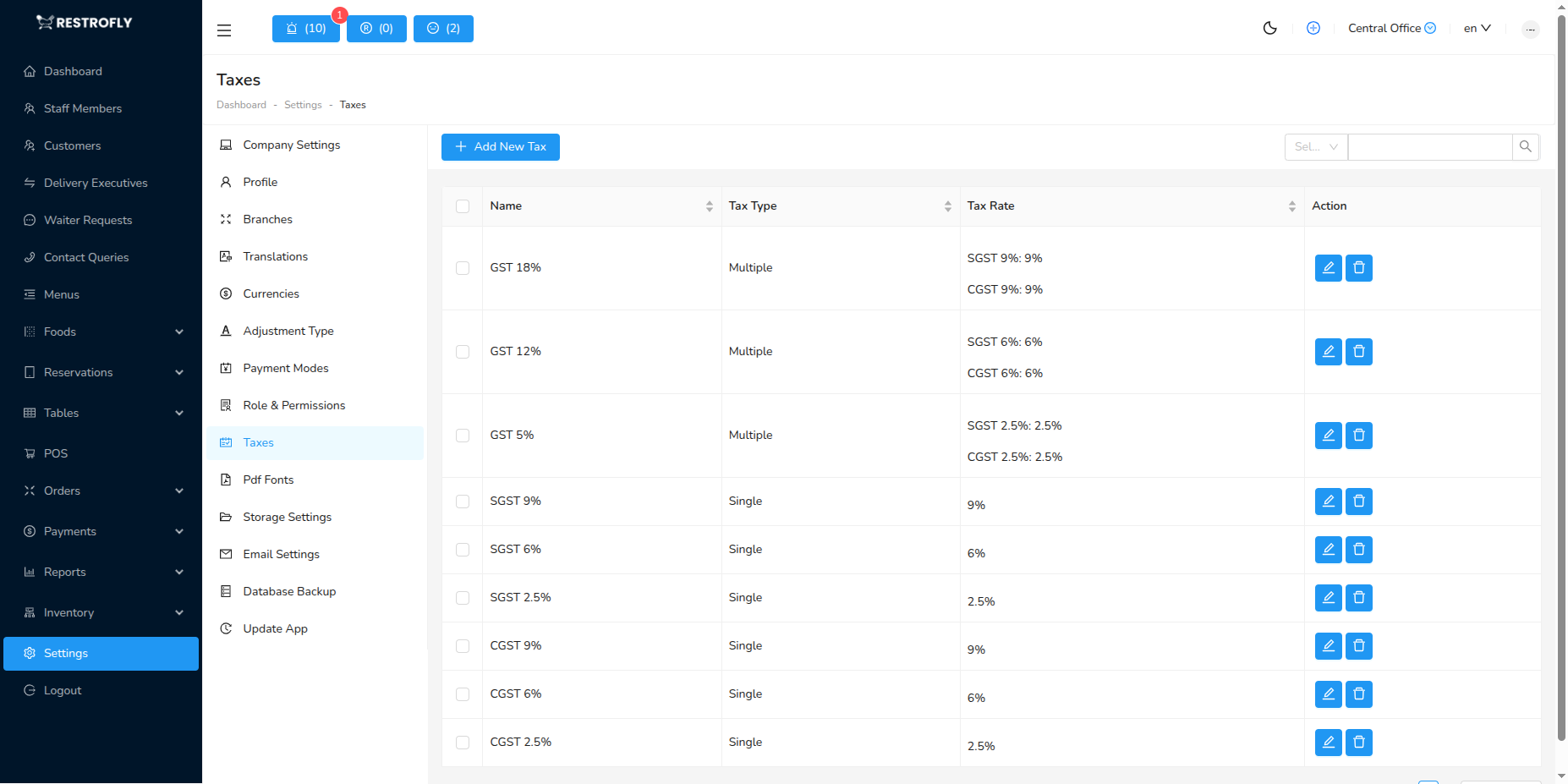
Understanding Tax Types
Restrofly offers two types of tax configurations:
Single Tax
A single tax is a standalone tax with its own rate. Use this for:
- Standard sales tax
- VAT (Value Added Tax)
- GST (Goods and Services Tax)
- Service charge
- Any individual tax that applies to items
Multiple Tax
A multiple tax is a combination of existing single taxes, automatically calculating the total rate. Use this for:
- Combined GST (e.g., CGST + SGST in India)
- Tax + Service Charge combinations
- Any scenario where multiple taxes apply together
Tax Strategy
Create all your basic taxes as Single taxes first. Then, if you need combinations, create Multiple taxes that reference those single taxes. This gives you maximum flexibility.
Creating a New Tax
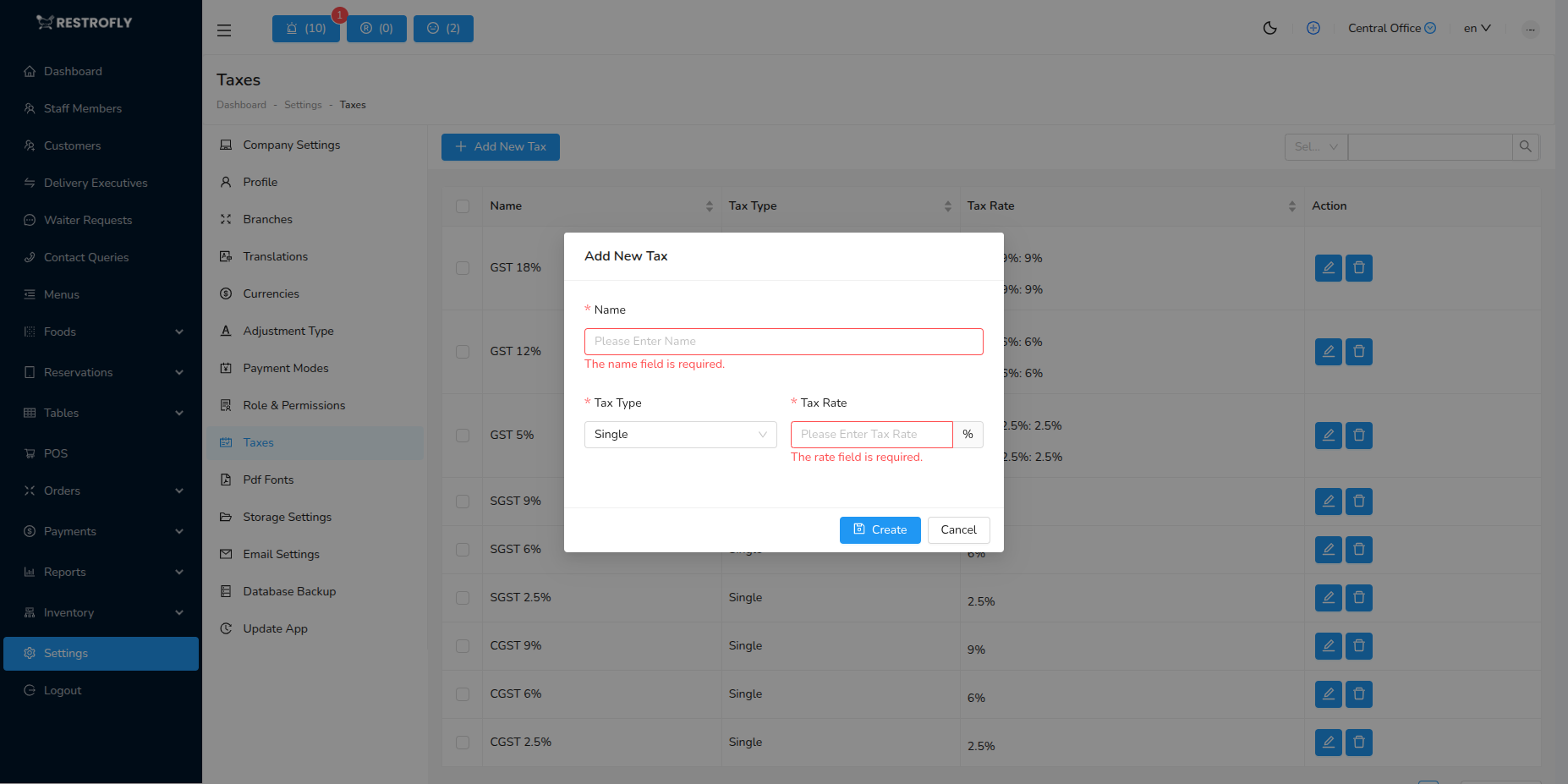
When creating or editing a tax, configure the following fields:
Tax Name
- Name: Enter a clear, descriptive name for the tax (required)
- Examples: Sales Tax, VAT, GST, Service Charge, CGST, SGST
- Appears on customer bills and invoices
- Should be recognizable to customers and staff
Tax Type
- Tax Type: Choose whether this is a single tax or multiple tax combination (required)
- Single: A standalone tax with its own rate
- You manually enter the tax rate percentage
- This tax can be used in multiple tax combinations
- Multiple: A combination of existing single taxes
- You select which single taxes to combine
- Rate is automatically calculated as the sum of selected taxes
- Cannot select other multiple taxes (only single taxes)
- Single: A standalone tax with its own rate
Tax Rate
- Rate: The tax percentage (required)
- For Single taxes: Enter the percentage manually
- Example: 5%, 10%, 18%
- Input as a number (e.g., 5 for 5%)
- For Multiple taxes: Automatically calculated
- Rate = Sum of all selected single tax rates
- Cannot be edited manually
- Updates automatically if you change the selected taxes
- For Single taxes: Enter the percentage manually
Multiple Tax Selection (Only for Multiple Tax Type)
- Select Single Taxes: Choose which single taxes to combine
- Only active single taxes appear in the selection list
- Can select 2 or more single taxes
- The combined rate shows in real-time as you select taxes
- Example: Select "CGST (9%)" + "SGST (9%)" → Total Rate: 18%
Multiple Tax Requirements
To create a Multiple tax, you must first create the Single taxes you want to combine. You cannot create a Multiple tax if no Single taxes exist.
Common Tax Examples
Single Tax Examples
Sales Tax
- Name: Sales Tax
- Tax Type: Single
- Rate: 5%
- Use: Standard sales tax on food items
VAT
- Name: VAT
- Tax Type: Single
- Rate: 10%
- Use: Value Added Tax on goods and services
Service Charge
- Name: Service Charge
- Tax Type: Single
- Rate: 10%
- Use: Service charge on dining
CGST (Central GST - India)
- Name: CGST
- Tax Type: Single
- Rate: 9%
- Use: Central component of GST
SGST (State GST - India)
- Name: SGST
- Tax Type: Single
- Rate: 9%
- Use: State component of GST
Multiple Tax Examples
GST + Service Charge
- Name: GST + Service Charge
- Tax Type: Multiple
- Selected Taxes: GST (18%) + Service Charge (10%)
- Calculated Rate: 28%
- Use: Combined tax and service charge
CGST + SGST (India)
- Name: GST 18%
- Tax Type: Multiple
- Selected Taxes: CGST (9%) + SGST (9%)
- Calculated Rate: 18%
- Use: Combined GST for Indian restaurants
Tax Workflow
Setting Up Taxes
Step 1: Create Single Taxes
- Go to Settings → Taxes
- Click Add New Tax
- Enter Name (e.g., "CGST")
- Select Tax Type: Single
- Enter Rate (e.g., 9)
- Save
Step 2: Create Multiple Taxes (Optional)
- Ensure you have at least 2 single taxes created
- Click Add New Tax
- Enter Name (e.g., "GST 18%")
- Select Tax Type: Multiple
- Select the single taxes to combine (e.g., CGST + SGST)
- Rate auto-calculates (18%)
- Save
Step 3: Apply Taxes to Items
- When creating/editing food items, select which tax applies
- You can choose either Single or Multiple taxes
- The selected tax rate will be applied to the item price
Managing Taxes
Editing Tax Rates
- Single Taxes: You can directly update the rate
- Changes affect all items using this tax
- If this single tax is used in multiple taxes, those will auto-update
- Multiple Taxes: Rate is auto-calculated
- To change the rate, modify the underlying single taxes
- Or change which single taxes are selected
Deleting Taxes
- Cannot delete taxes that are currently assigned to items
- Unassign the tax from all items first
- Then delete the tax
Deleting Single Taxes in Multiple Taxes
If you delete a Single tax that's used in Multiple tax combinations, those Multiple taxes will need to be updated or they may show incorrect rates.
Best Practices
Create Granular Single Taxes
- Create individual components as single taxes
- Example: Instead of one "Total Tax 28%", create "GST 18%" and "Service Charge 10%" separately
- This gives flexibility to apply them individually or combined
Use Meaningful Names
- "GST 18%" is better than "Tax1"
- "CGST 9%" clearly indicates it's the central component
- Include the rate in the name for quick reference
Verify Tax Calculations
- Test your taxes on sample orders before going live
- Ensure multiple tax calculations match your expectations
- Print sample bills to verify tax breakdown displays correctly
Stay Compliant
- Keep tax rates updated according to local regulations
- Document tax changes for audit purposes
- Consult with your accountant for complex tax scenarios
Regional Tax Examples
India (GST)
- Create CGST (9%) and SGST (9%) as single taxes
- Create "GST 18%" as multiple tax combining both
- For inter-state, create IGST (18%) as single tax
European Union (VAT)
- Create VAT at your country's rate (e.g., 20%) as single tax
- Service charge as separate single tax if applicable
United States
- Create state sales tax as single tax (varies by state)
- Create local tax as separate single tax if applicable
- Create multiple tax if both apply
Tax Compliance
Ensure your tax rates comply with local regulations and update them when tax laws change. Consult with a tax professional or accountant for your specific region.
Testing Taxes
After setting up taxes, create a test order with different items and verify the tax calculations are correct before processing real customer orders.