
Waiter Request
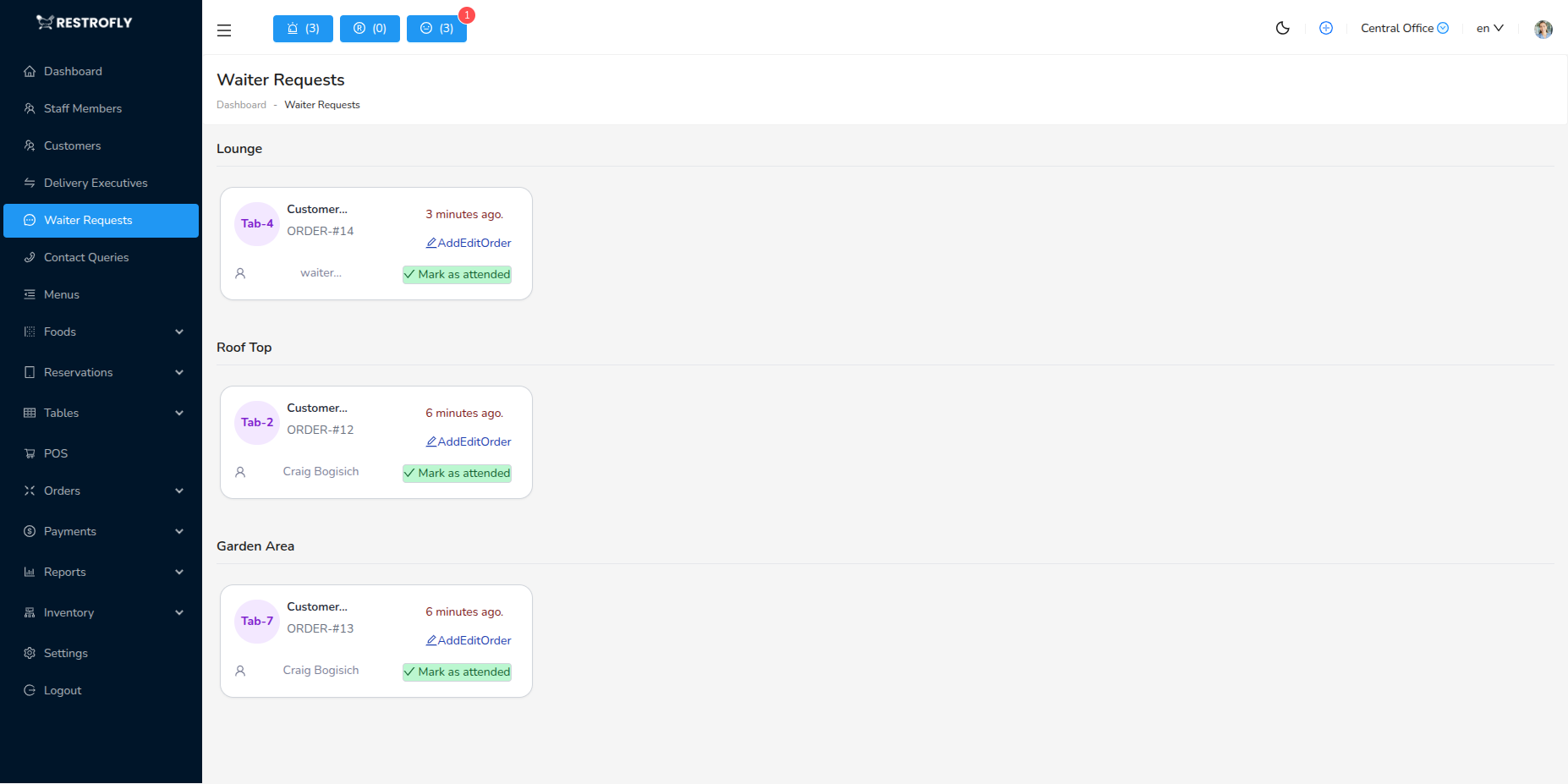
The Waiter Request module displays real-time requests from customers at tables who need waiter assistance. Navigate to Waiter Request to view and manage these requests.
Overview
When customers scan QR codes at their tables and request waiter service through the front-end website, these requests appear in the Waiter Request module. This feature enables faster service response and better customer experience.
How Waiter Requests Work
Customer Side
- Customer scans QR code at their table
- Opens restaurant menu/ordering system on their phone
- Clicks "Waiter Request" button on the top bar. A drawer will open.
- Request is sent to restaurant admin panel by selection of their table number and submit.
Admin Side
- Request appears in Waiter Request module in real-time
- Shows table number, area, and time of request
- Staff can view request details
- Staff can create order or mark request as attended
Waiter Request Interface
Requests are organized by restaurant area (floor/section):
Request Cards Display
- Table Number: Which table is requesting service
- Area: Floor or section (e.g., Ground Floor, First Floor, Patio)
- Request Time: When the request was made
- Order Status: Whether table has existing order (KOT status)
- Actions: Add Order or Mark Attended buttons
Visual Organization
- Requests grouped by area/floor
- Each area shows all active requests
- Empty areas show "No requests" message
- Real-time updates as new requests come in
Real-Time Updates
Waiter requests update in real-time. Keep this page open during service hours on a staff tablet or POS terminal to respond quickly to customer needs.
Responding to Waiter Requests
If Table Has No Order (New Order)
Add Order
- Click Add Order button on the request card
- System opens POS interface pre-selected to that table
- Take customer's order in the POS system
- Save and send order to kitchen (create KOT)
- Request is automatically resolved
If Table Has Existing Order (KOT Status)
Add to Existing Order
- Click Add Order button
- System opens existing order for that table
- Add additional items to the order
- Update and send to kitchen
- Request is automatically resolved
If Request is for Other Service
Mark as Attended
- Click Update Status or Mark Attended button
- Confirms that staff has acknowledged and handled the request
- Request is removed from the list
- Used when customer needs something other than ordering (water, bill, etc.)
Request Details
Each waiter request card shows:
Table Information
- Table code/number (e.g., Table 5, T-12)
- Area/section location
- Table capacity
Order Information
- Current order status (if exists)
- Whether table has active KOT (Kitchen Order Ticket)
- Order ID if applicable
Timing
- How long ago the request was made
- Helps prioritize older requests
- Indicates service response time
Best Practices
Staff Assignment
- Assign specific staff to monitor waiter requests
- Rotate responsibility during busy periods
- Ensure someone always monitors the screen
Response Time
- Respond to requests within 2-3 minutes
- Prioritize older requests first
- Apologize for delays if response is slow
Communication
- Train staff to check this module frequently
- Use tablets or mobile devices for mobility
- Notify floor managers of urgent requests
Hardware Setup
- Keep a dedicated tablet/screen for waiter requests
- Mount in visible location (e.g., service station)
- Ensure audio notifications are enabled if available
Customer Experience
- Fast response to waiter requests improves satisfaction
- Reduces customer frustration of waiting for staff
- Shows customers you're attentive and responsive
Follow-Up
- After marking attended, physically verify the table's needs are met
- Don't mark attended without actually servicing the table
- Use order notes for special requests
Peak Hours
- During busy periods, prioritize requests by wait time
- Have multiple staff members monitoring
- Pre-assign staff to specific areas/floors
Troubleshooting
- If requests seem stuck, verify table QR codes are working
- Check that front-end website is accessible
- Ensure real-time updates are functioning
Customer Satisfaction
Quick response to waiter requests significantly improves customer experience. Aim for under 3-minute response times. Customers appreciate not having to flag down busy staff.
Don't Ignore Requests
Never mark a request as "Attended" without actually servicing the table. This breaks customer trust and leads to negative reviews. Always physically visit the table.
Area Organization
Requests are grouped by area/floor. This helps you assign staff by section and ensures coverage across all dining areas. If you see no requests for an area, it doesn't mean customers don't need service – proactively check on tables.