
Currencies
Currencies play an important role in every business. You can exchange and calculate or show total transactions and profit/loss in your own currency. You can create and manage currencies by navigating to Settings → Currencies.
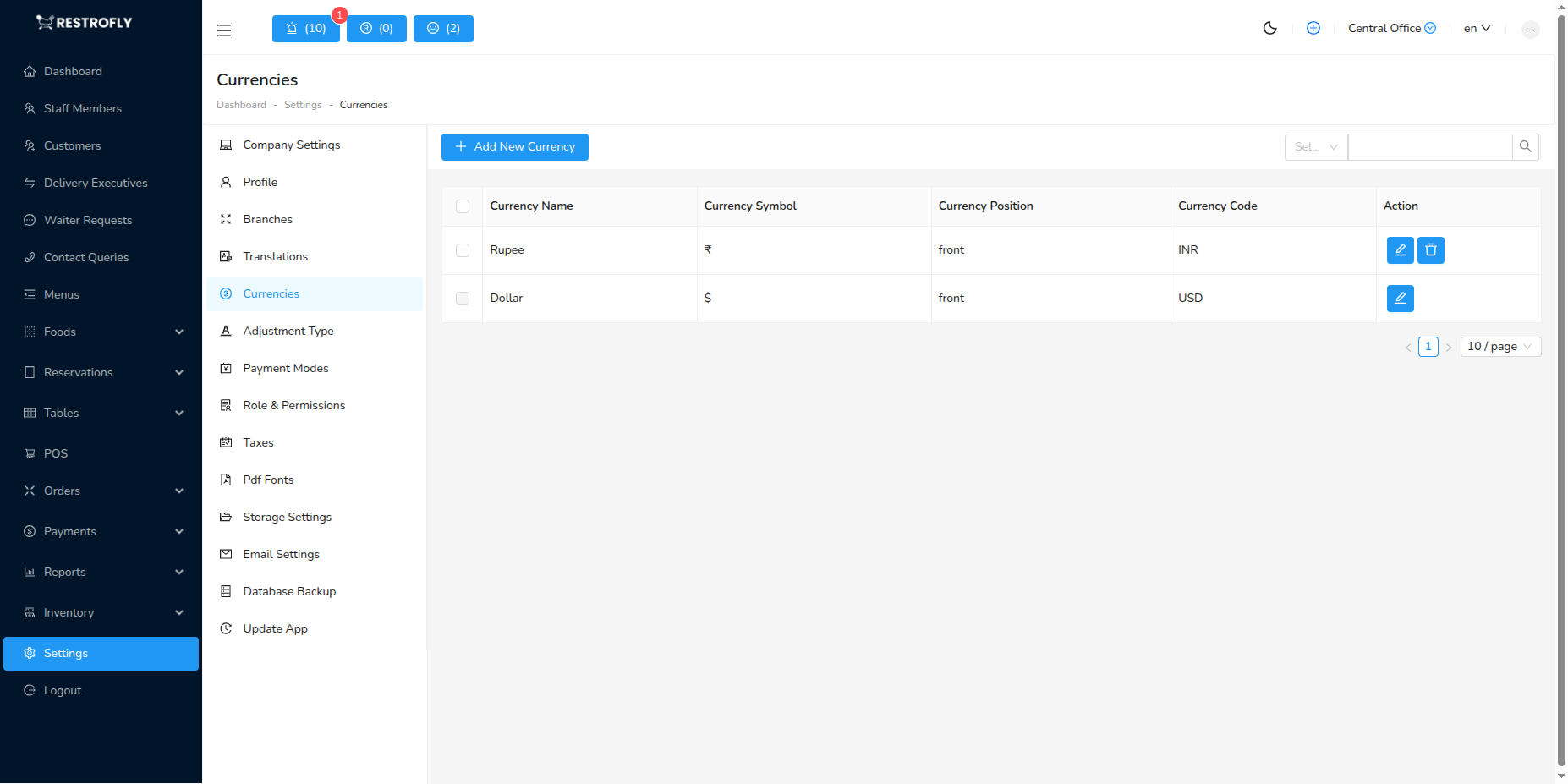
Creating a New Currency
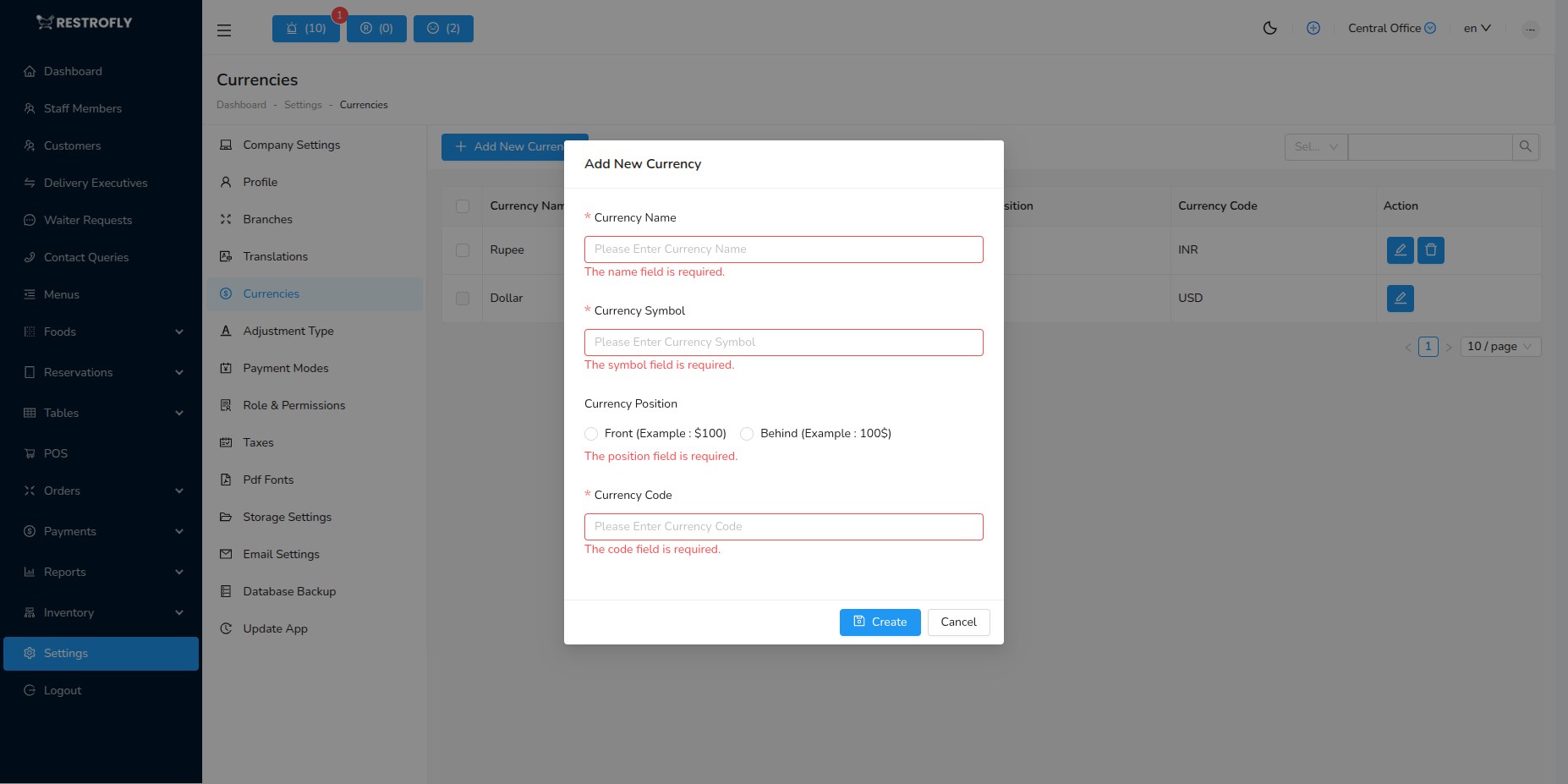
When creating or editing a currency, configure the following fields:
Name
- Currency Name: Enter the full name of the currency (required)
- Examples: US Dollar, Euro, British Pound, Indian Rupee
- Appears in currency selection dropdowns throughout the application
Symbol
- Currency Symbol: Enter the currency symbol (required)
- Used for display purposes in invoices, bills, and reports
- Examples: $, €, £, ₹, ¥
- Keep it short (1-3 characters) for better formatting
Position
- Currency Position: Choose where the symbol appears relative to the amount
- Front: Symbol appears before the amount
- Example: $100.00
- Common for: US Dollar, Canadian Dollar, Australian Dollar
- Behind: Symbol appears after the amount
- Example: 100.00€
- Common for: Euro, Swiss Franc
- Front: Symbol appears before the amount
Code
- Currency Code: Enter the standard 3-letter ISO currency code (required)
- Examples: USD, EUR, GBP, INR, JPY
- Must be uppercase, 3 characters
- Used for currency identification and conversions
Common Currency Examples
| Currency Name | Symbol | Position | Code |
|---|---|---|---|
| US Dollar | $ | Front | USD |
| Euro | € | Behind | EUR |
| British Pound | £ | Front | GBP |
| Indian Rupee | ₹ | Front | INR |
| Japanese Yen | ¥ | Front | JPY |
| Canadian Dollar | $ | Front | CAD |
| Australian Dollar | $ | Front | AUD |
| Swiss Franc | CHF | Behind | CHF |
Setting Default Currency
Set your primary business currency in App Settings → Preferences. This will be used as the default for all transactions.
Currency Changes
Changing the currency settings affects how amounts are displayed throughout the application. Ensure staff are informed when making changes to avoid confusion.