
Staff Members
Staff Members management allows you to create and manage your restaurant's employees, including waiters, chefs, managers, and other staff. Navigate to Staff Members → Staff Members to manage your team.
Overview
The Staff Members module helps you maintain complete employee records, assign roles and permissions, and manage access to the system. This is separate from Customers and Delivery Executives, which have their own dedicated sections.
Adding a New Staff Member
Click Add Staff Member to create a new employee record. The form is organized into two tabs:
Basic Information Tab
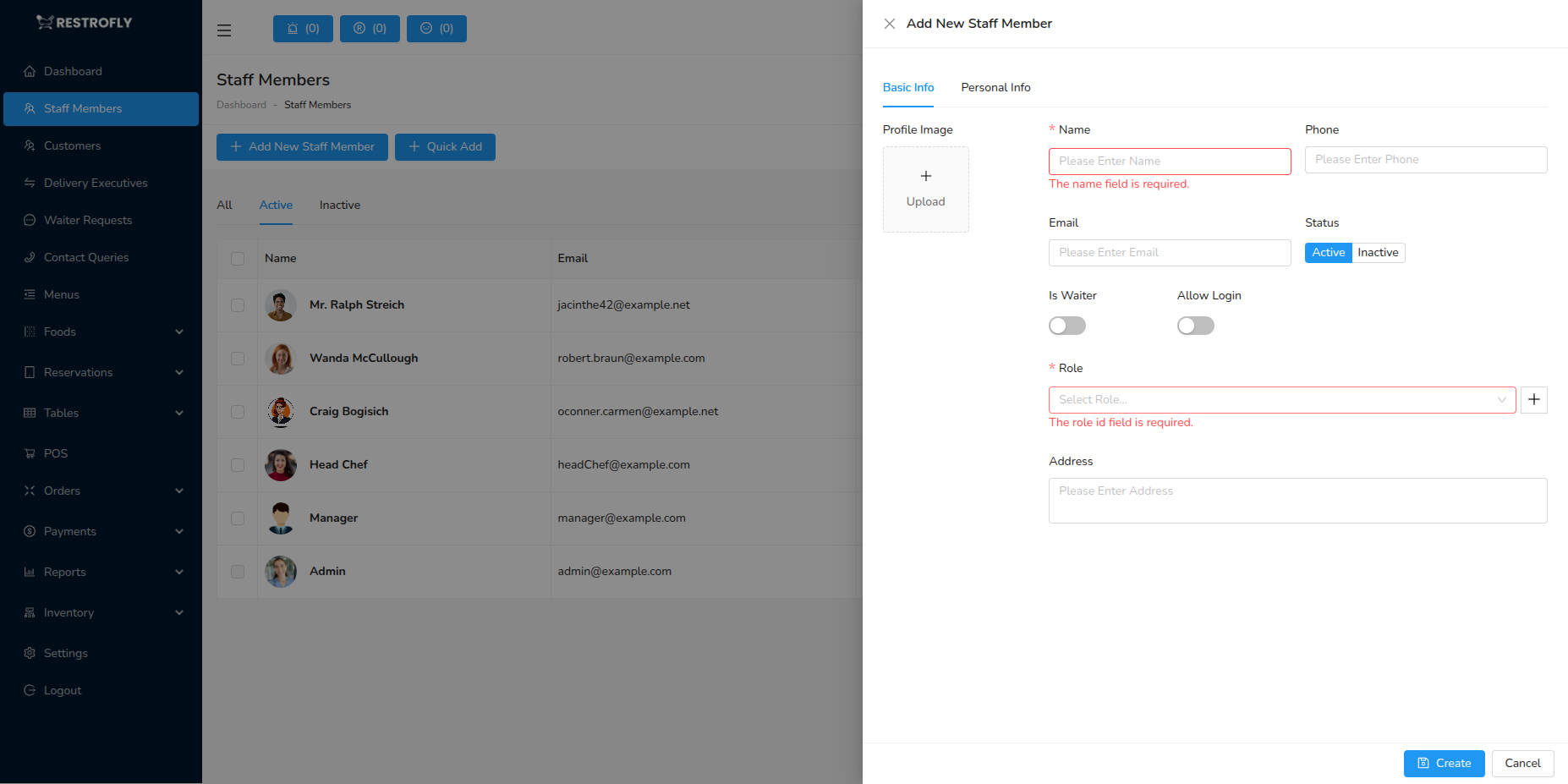
Profile Image
- Upload employee photo for easy identification
- Optional but recommended for better staff management
- Appears in orders, reports, and employee lists
Name (Required)
- Full name of the employee
- Example: "John Smith", "Sarah Johnson"
- Used throughout the system to identify the staff member
Working Phone (Required)
- Primary contact number for work-related communication
- Used for notifications and emergency contact
- Should be reachable during work hours
Working Email (Required)
- Official email address for the employee
- Used for system notifications and reports
- Should be unique for each staff member
Status (Required)
- Active: Employee can log in and work in the system
- Inactive: Employee account is disabled (for terminated or suspended staff)
- Set to Inactive for former employees to maintain data integrity
Is Waiter
- Toggle switch: Enable if this staff member is a waiter/server
- Waiter-enabled staff can be assigned to tables and orders
- Used for waiter performance tracking and commission calculations
- Waiters appear in waiter selection dropdowns throughout the system
Allow Login
- Toggle switch: Enable if employee needs system access
- When enabled, employee can log into the admin panel
- Requires password to be set
- Disable for staff who don't need system access (e.g., kitchen helpers)
Password (Required if Allow Login is Yes)
- Set initial password for employee login
- Only required when creating new account with login access
- Employee can change password after first login
- Leave blank when editing to keep existing password
Role (Required)
- Select the role that defines employee's permissions
- Examples: Manager, Waiter, Chef, Receptionist
- Roles must be created first in Settings → Roles & Permissions
- Determines what features and data the employee can access
Address (Optional)
- Physical address of the employee
- Useful for HR records and emergency contact
- Can include full street address, city, postal code
Personal Information Tab
This tab contains optional personal details useful for HR management:
Gender
- Select: Male, Female, or Other
- Optional but useful for HR records and reports
Date of Birth
- Employee's birth date
- Used for age calculations and birthday reminders
- Format depends on your system date settings
Personal Email
- Employee's personal email address
- Different from working email
- Useful for HR communication
Personal Phone
- Employee's personal contact number
- Emergency contact or secondary number
- Different from working phone
Is Married
- Toggle switch: Yes or No
- Relevant for benefits and HR management
Marriage Date (If Married = Yes)
- Wedding anniversary date
- Used for anniversary reminders and benefits
- Only appears if Is Married is enabled
Role Assignment
Assign roles carefully based on job responsibilities. A waiter doesn't need access to inventory management, and a chef doesn't need access to financial reports. Follow the principle of least privilege.
Staff Member List View
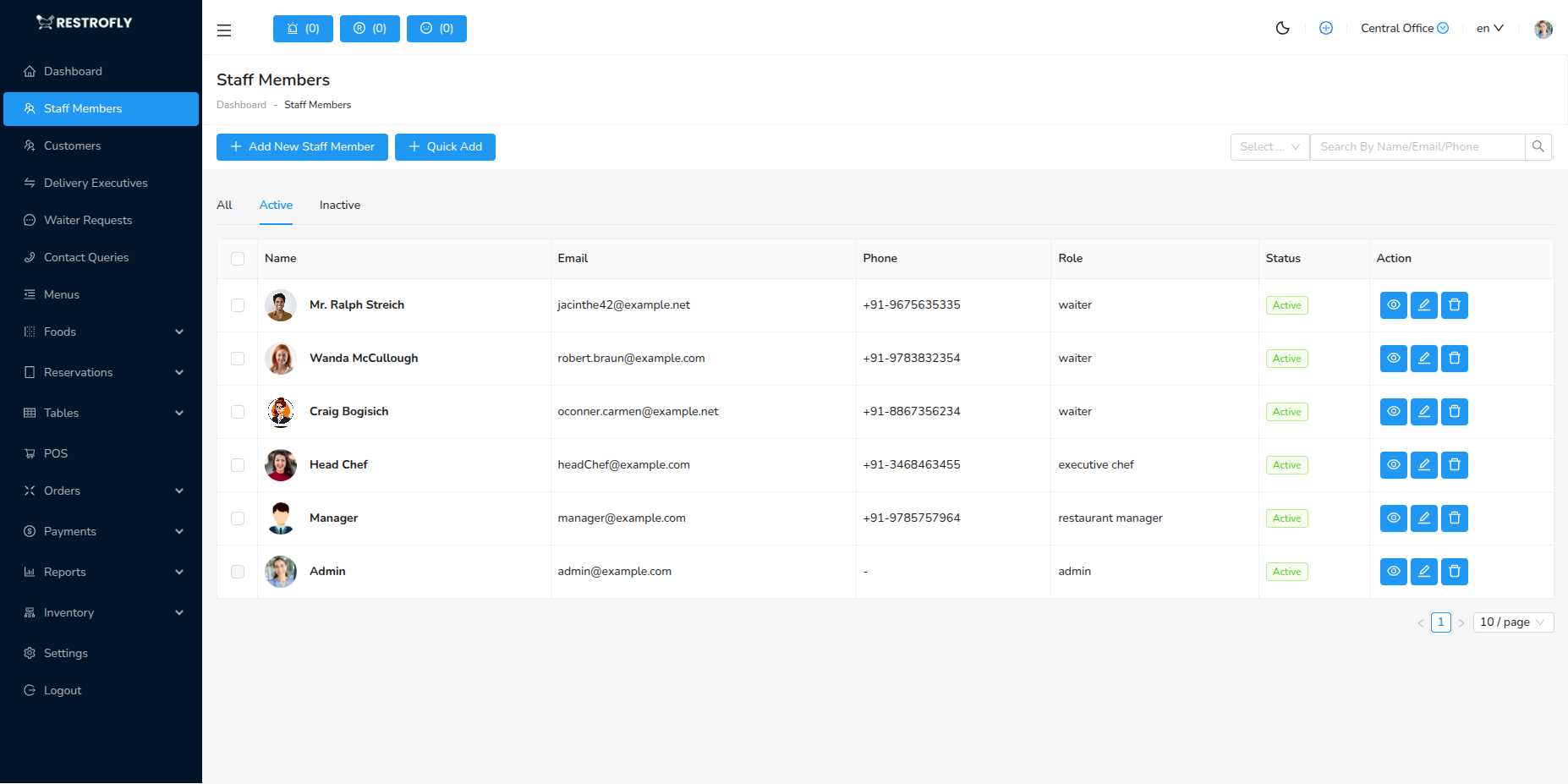
The staff members list displays:
- Profile Photo: Visual identification
- Name: Full name of the employee
- Email: Working email address
- Phone: Contact number
- Status: Active or Inactive badge
- Created At: Date the employee was added to the system
- Actions: View, Edit, Delete buttons
Tabs
- All: Shows all staff members
- Active: Shows only active employees
- Inactive: Shows only inactive/former employees
Search and Filter
- Search by name or email
- Filter by status using tabs
- Quickly find specific employees
Bulk Actions
- Select multiple staff members using checkboxes
- Bulk delete (for cleanup, but use cautiously)
Deleting Staff Members
Deleting a staff member removes all their historical data including assigned orders and reports. Instead, set their status to "Inactive" to preserve historical records while preventing system access.
Managing Existing Staff
Viewing Staff Details
- Click the Eye icon to view complete employee profile
- Shows all information including personal details
- View-only mode, no editing
Editing Staff Information
- Click the Edit icon to modify employee details
- Update any field except system-generated data
- Changes apply immediately after saving
- Role changes affect permissions immediately (employee may need to re-login)
Deactivating Staff
- Edit the staff member
- Change Status to Inactive
- Employee can no longer log in
- Historical data and reports remain intact
- Use this instead of deleting for former employees
Quick Add Feature
Click Quick Add for rapid employee creation:
- Simplified form with only essential fields
- Name, Phone, Email, Role
- Ideal for busy periods when you need to onboard staff quickly
- You can edit and add more details later
Best Practices
Complete Profiles
- Fill all relevant fields for better HR management
- Upload profile photos for easy identification
- Keep contact information up to date
Role Assignment
- Assign appropriate roles based on job function
- Review and update roles as responsibilities change
- Don't assign Admin role unless absolutely necessary
Login Access
- Only enable "Allow Login" for staff who need system access
- Kitchen helpers, cleaners may not need login access
- More login accounts = more security risk
Status Management
- Set to Inactive instead of deleting former employees
- Keeps historical records intact
- Maintains data integrity for reports and audits
Regular Audits
- Review staff list quarterly
- Remove or deactivate duplicate accounts
- Verify contact information is current
- Check that roles still match current responsibilities
Security
- Use strong initial passwords
- Require employees to change password on first login
- Immediately deactivate accounts when employees leave
Waiter Designation
- Enable "Is Waiter" only for actual waiters/servers
- This affects waiter-specific features and reports
- Important for commission calculations if applicable
Performance Tracking
Staff members assigned to orders and tables can be tracked in reports. Use this data to evaluate performance, calculate commissions, and optimize staff scheduling.
Role Permissions
Changing a staff member's role immediately changes their system permissions. They may lose access to certain features or gain access to sensitive data. Always verify role assignments.