
Orders
View and manage all restaurant orders from all channels. Navigate to Orders → Orders for complete order management.
Overview
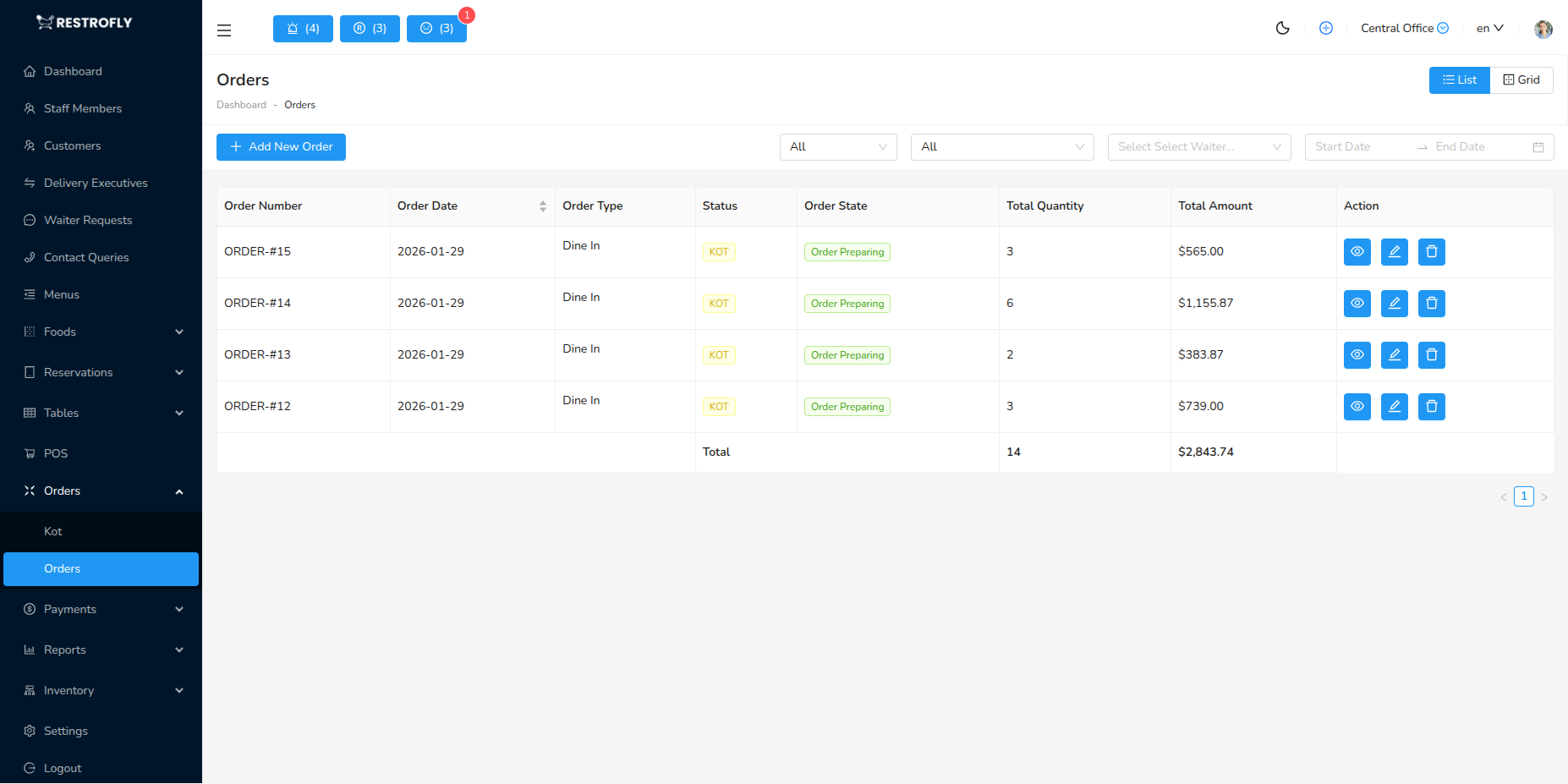
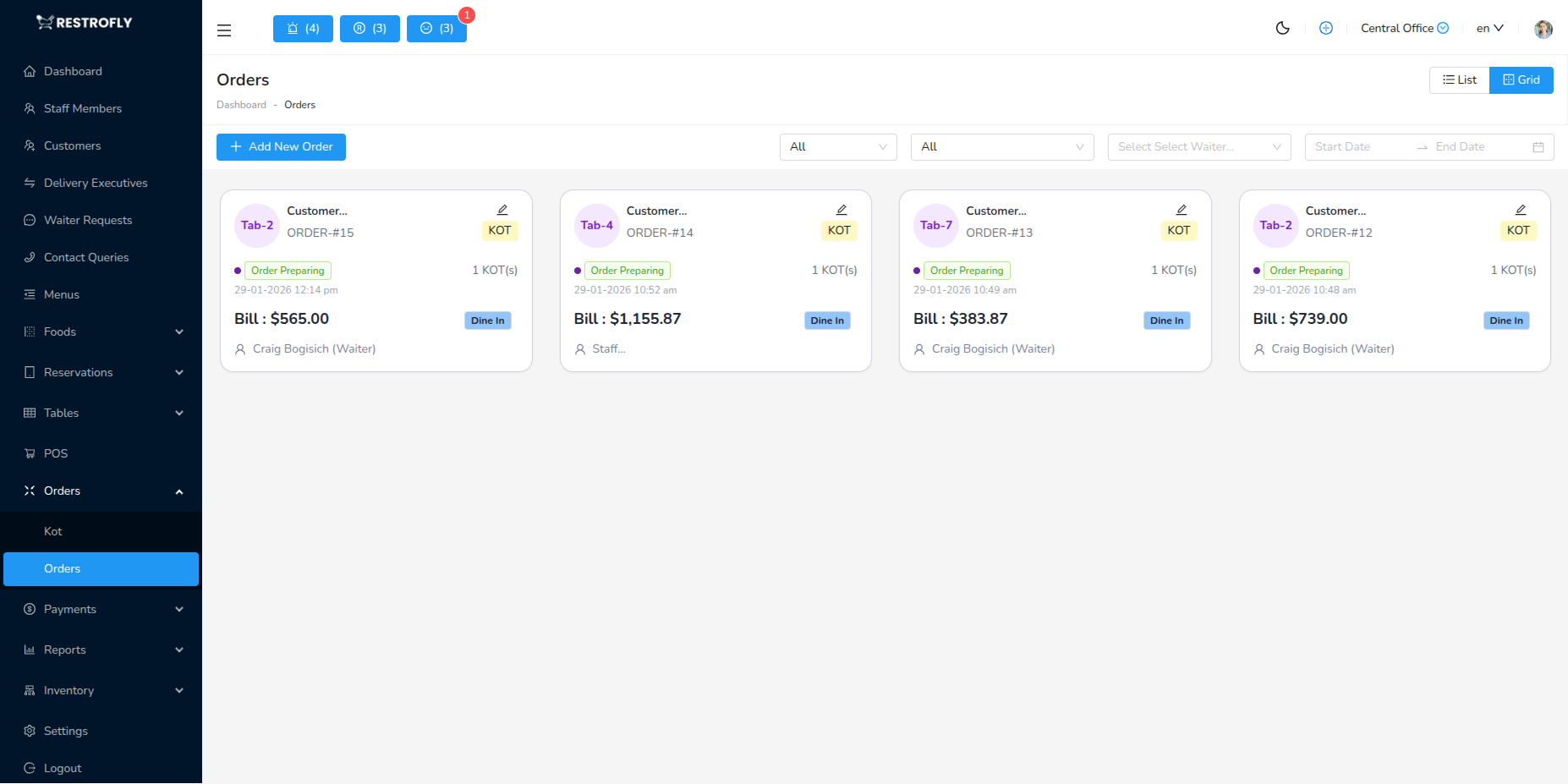
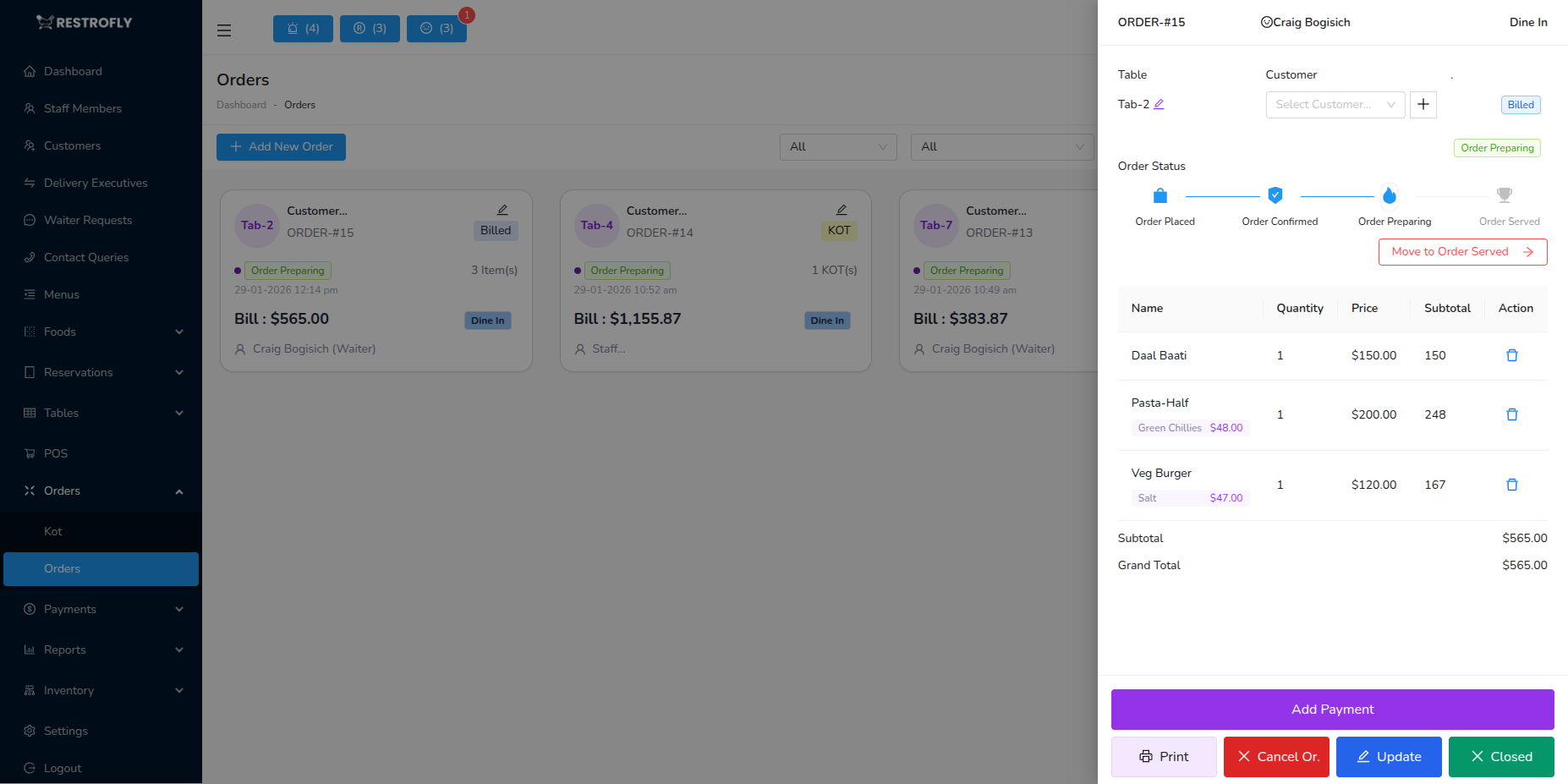
The Orders module displays all orders from POS, website, mobile app, and QR code ordering. This is the complete order history and tracking system.All order are displayed in two formats as Tables format and Grid format, you can switch them clicking on toggle button on top right of the list page.
Order List View
Columns:
- Order Number: Unique order ID
- Customer: Customer name
- Table: Table number (dine-in)
- Order Type: Dine-In, Takeaway, Delivery
- Items: Number of items
- Total Amount: Order value
- Status: Pending, Confirmed, Preparing, Ready, Served, Paid
- Payment Status: Unpaid, Paid, Refunded
- Date & Time: Order timestamp
Order Status Flow:
- Pending: Order placed, awaiting confirmation
- Confirmed: Order confirmed, sent to kitchen
- Preparing: Kitchen working on order
- Ready: Food ready, awaiting delivery/pickup
- Served: Delivered to customer
- Paid: Payment completed
- Completed: Order fully finished
- Cancelled: Order cancelled
Filters:
- Date range
- Order type
- Status
- Payment status
- Customer
- Table
Tabs:
- All Orders: Complete list
- Today: Today's orders
- Pending: Orders awaiting action
- In Progress: Active orders
- Completed: Finished orders
Viewing Order Details
Click View to see complete order information:
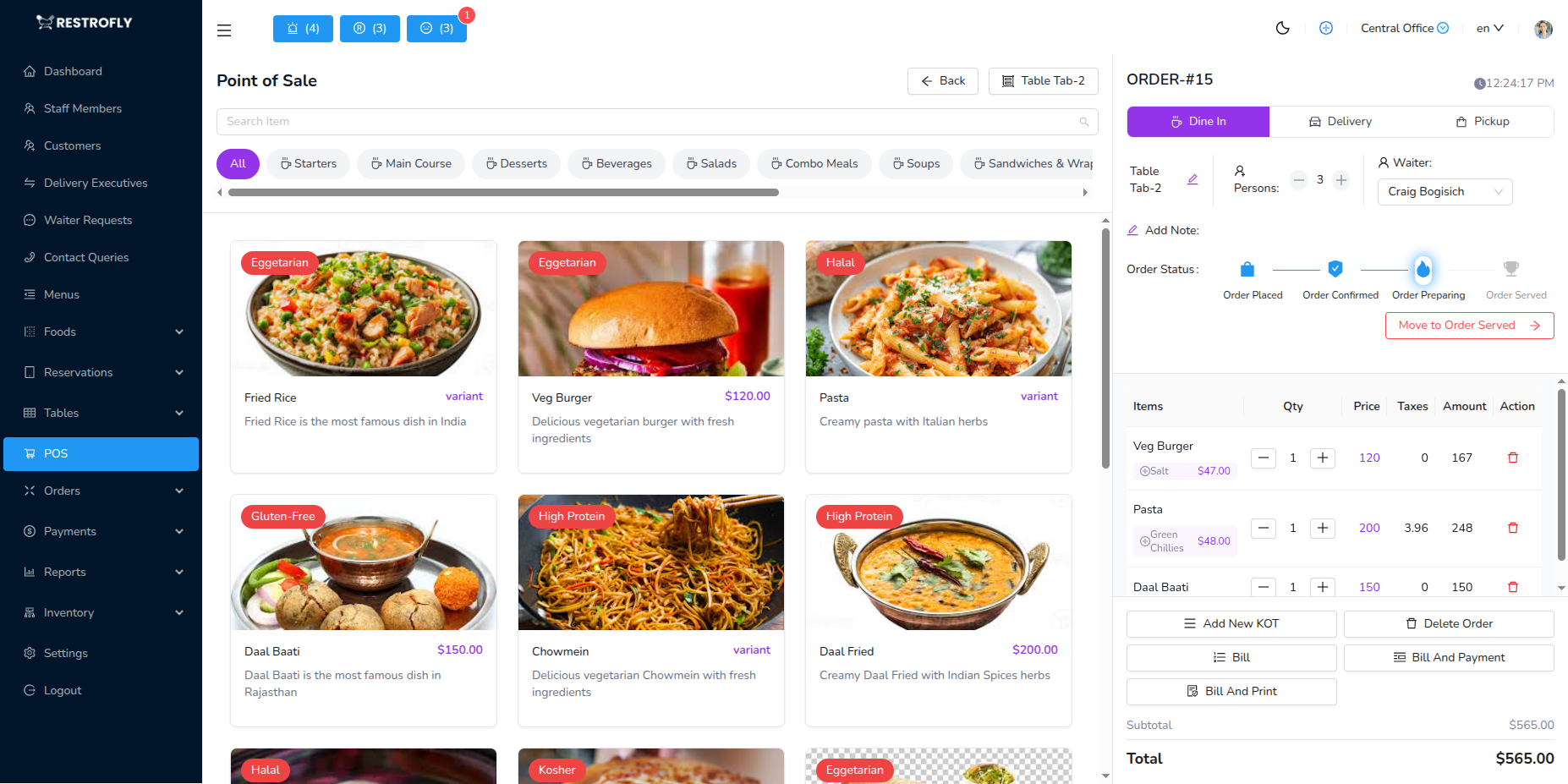
Customer Information: Name, phone, email, address (delivery)
Order Details: Order number, date/time, order type, table number, waiter assigned
Items Ordered: Item name, quantity, price, variants, add-ons, special instructions
Pricing: Subtotal, discount applied, tax, delivery/packaging charges, grand total
Payment: Payment method, payment status, transaction ID, amount paid
Status History: Timestamps of status changes, who updated status, order lifecycle tracking
Managing Orders
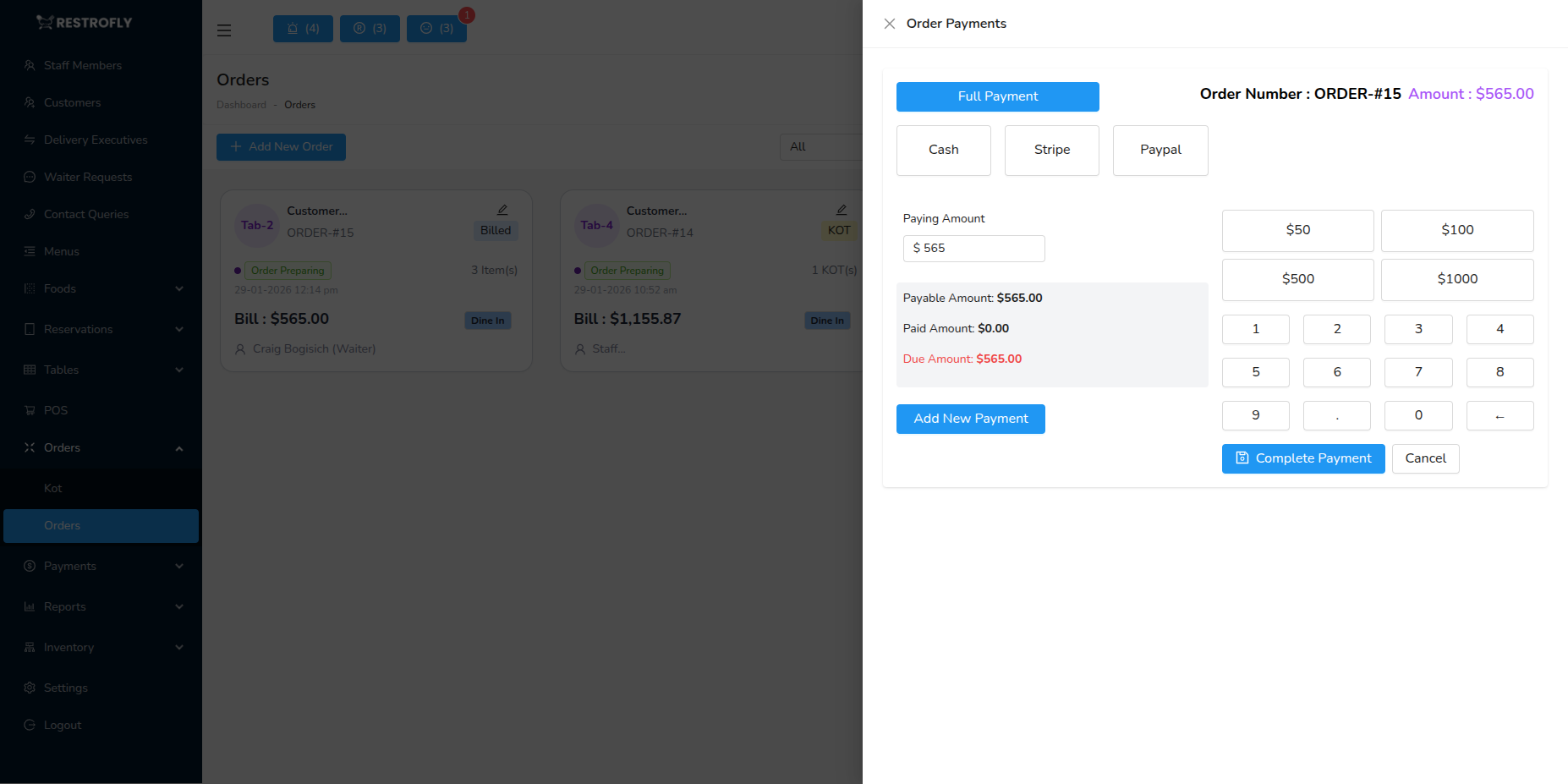
Edit Order: Can edit pending orders only, add/remove items, change quantities, update special instructions
Update Status: Move order through workflow, mark as preparing, ready, served, kitchen and serving staff coordinate
Cancel Order: Cancel with reason, refund if paid, notify customer, kitchen stops preparation
Reprint: Reprint KOT for kitchen, reprint receipt for customer, reprint delivery note
Refund: Process full or partial refunds, select refund reason, specify refund amount, update payment status
Order Types
Dine-In Orders
- Customer eating at restaurant
- Assigned to specific table
- Payment usually after meal
- Can split bills
- Table cleared after payment
Takeaway Orders
- Customer picks up food
- No table assignment
- Payment before or at pickup
- Packaging charges apply
- Estimated ready time provided
Delivery Orders
- Delivered to customer address
- Assign delivery executive
- Track delivery status
- Delivery charges apply
- Customer receives SMS/notification
QR Code Orders
- Customer orders via table QR code
- Appears in POS for confirmation
- Auto-assigned to scanned table
- Payment can be online or at table
Order Analytics
View order insights:
- Total orders by period
- Average order value
- Popular items
- Peak order times
- Order type distribution
- Payment method breakdown
Best Practices
Real-Time Updates: Update order status in real-time, helps coordinate between kitchen and service, customers track online orders
Clear Communication: Note special requests clearly, flag allergies prominently, communicate delays to customers
Accuracy: Verify order details before confirming, double-check customer information, ensure correct table assignment
Timely Completion: Monitor order preparation times, alert kitchen if delays, update customers proactively
Payment Tracking: Verify payment before closing order, reconcile daily, track unpaid orders
Customer Service: Respond to order issues quickly, process refunds fairly, follow up on complaints
Order Notes
Use order notes to record important information: "Customer's birthday - add candle", "Regular customer - extra attention", "Complained about last order - ensure perfect quality"
Cancellations
Only cancel orders when absolutely necessary. Frequent cancellations indicate menu inaccuracies or inventory problems. Track cancellation reasons to identify issues.